Alert history tracking
Route: /history (sidebar: Alerts → History)
Use the History list to search and filter alert change records across your environment, then open a per-alert timeline for a chronological audit of one alert. This page covers the list, search, filters, bulk actions, and timeline views.
See also: Overview · Alerts dashboard · Search (TQL) · TQL search and filters · List tables and bulk actions
| Task | Section |
|---|---|
| Open the History list | Open History |
| Understand table columns | History table columns |
| Search with TQL | Search and TQL |
| Use category and custom filters | Filters sidebar |
| Export or delete records | Bulk actions |
| Open a per-alert timeline | Per-alert timeline |
| Read timeline events | Timeline events |
Open History
- In the sidebar, open Alerts → History (
/history). - The page loads a hits chart and the history table sorted by Update Time (newest first).
- Click Refresh in the top toolbar to reload the list and chart.
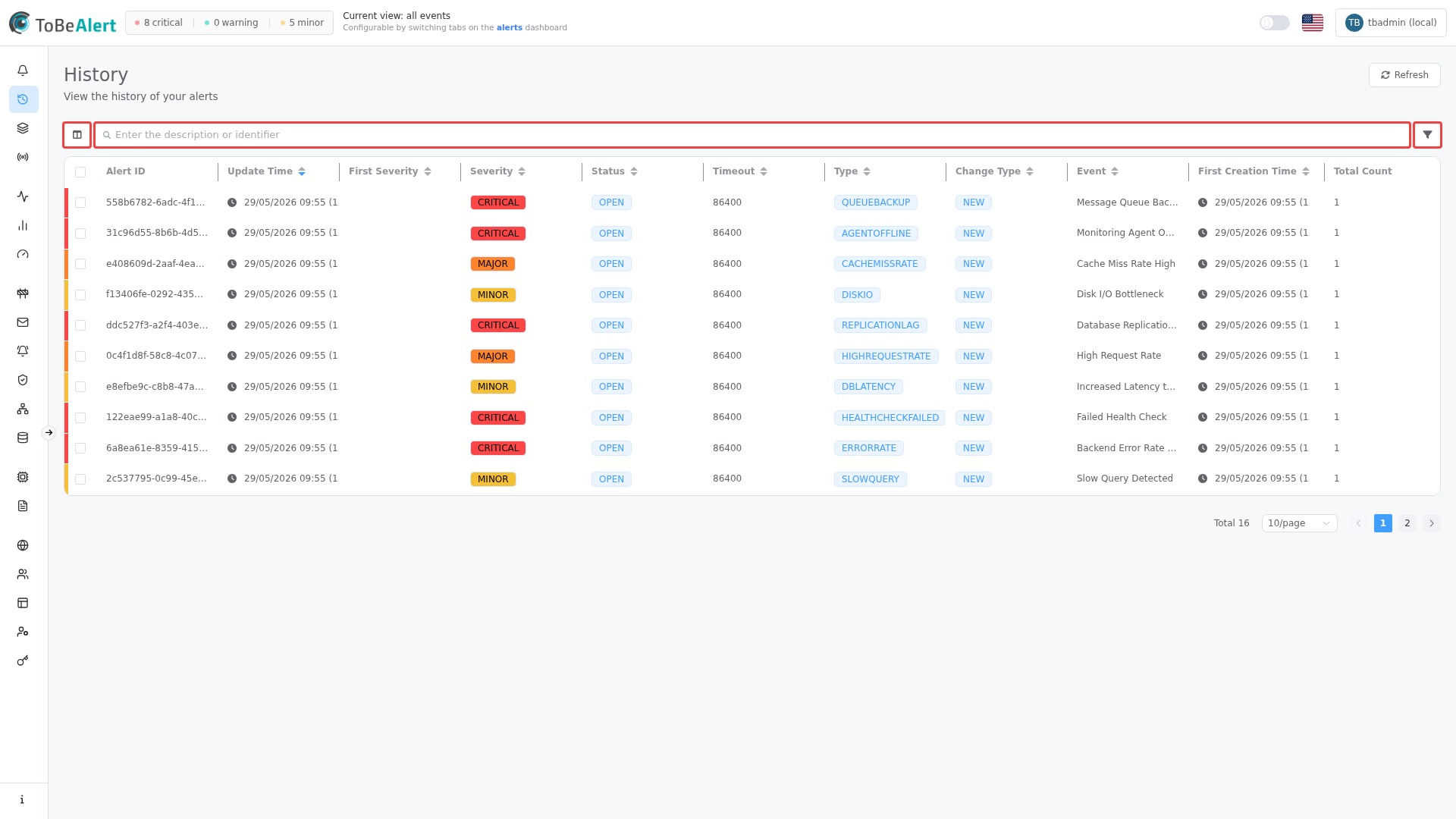
Pagination (page, size) and sort order persist in the URL so you can bookmark a view.
History table columns
Default columns on the main list:
| Column | Description |
|---|---|
| Alert ID | Unique alert identifier — click to open the per-alert timeline |
| Update Time | When this history entry was recorded |
| Severity | Severity at this history point |
| Status | Status at this history point |
| Timeout | Timeout value (seconds) |
| Type / Change Type | Alert type and kind of change |
| Event | Event name |
| First Creation Time | When the alert was originally created |
Use Column manager on the table toolbar to show, hide, or reorder columns — see List tables and bulk actions. Resize columns by dragging headers; unsaved width changes prompt Save changes.
Row background colors follow severity (same palette as the alerts dashboard). Click a row to select it; double-click a row to open that alert's timeline.
Search and TQL
The History list search bar always uses TQL — the same column:operator:value pattern as the alerts dashboard, with no plain-text toggle. See TQL search and filters for syntax and autocomplete; dashboard validation colors are on Search (TQL).
History-specific examples:
changeType:eq:note_addedchangeType:eq:notification
Common alert columns (severity, status, environment, resource) work the same as on the dashboard.
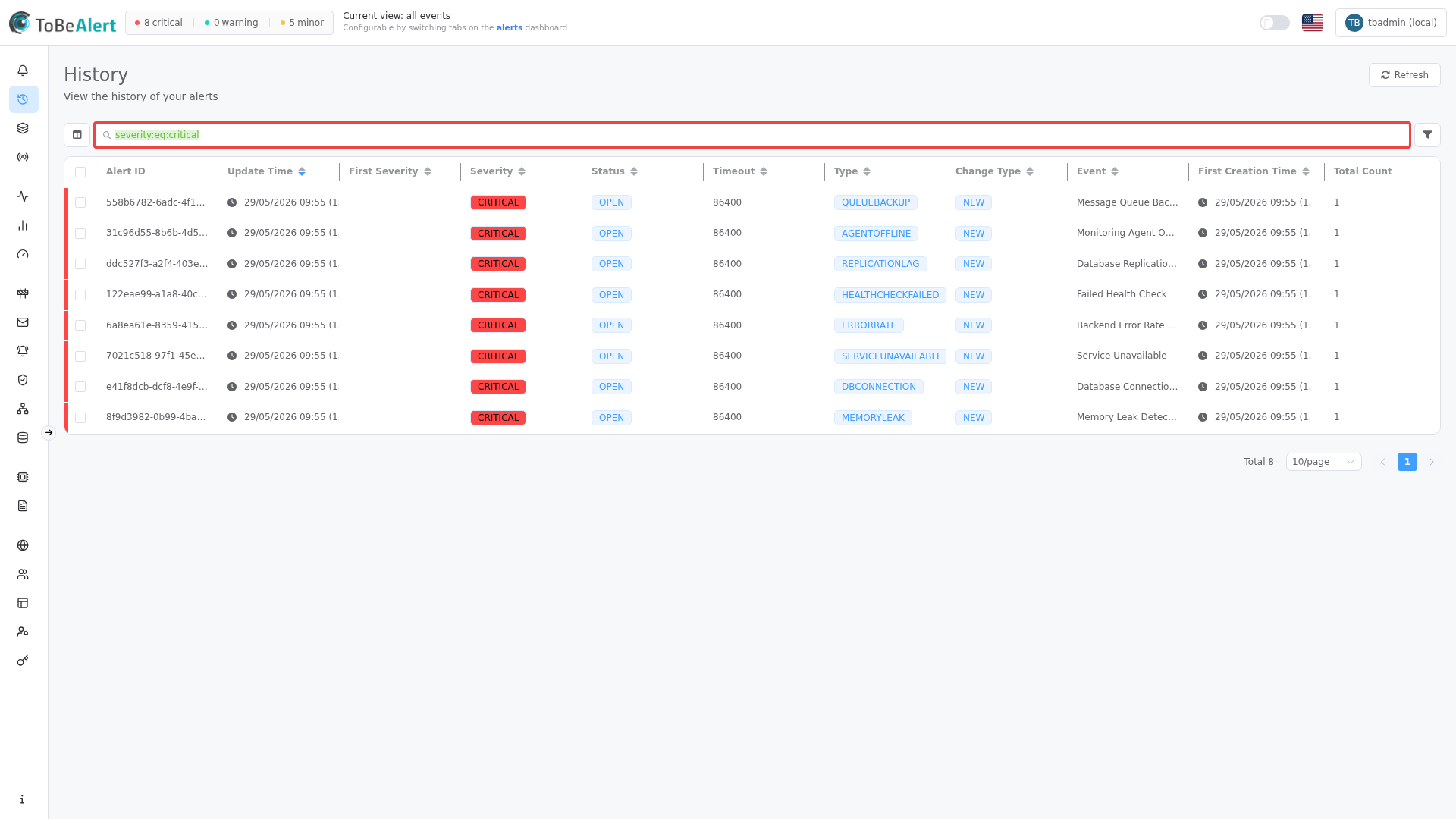
Filters apply as you complete each clause. Active TQL is reflected in the URL (q parameter). Combine TQL with the filters sidebar below.
Filters sidebar
The filter sidebar on the left narrows history records within the active view. Use the panel icon on the table toolbar to show or hide it when collapsed.
Category filters (with counts when data is available):
| Category | Purpose |
|---|---|
| Severity | Include or exclude severity levels |
| Environment | Limit to one or more environments |
| Status | Filter by alert status |
| Trend indication | Filter by trend values present in history |
The top toolbar also provides:
- Time range — quick presets or a custom date range for Last Update (via the time range picker next to the TQL search bar)
- Add filter (plus icon) — build a filter by Field, Operator, and Value using history columns
- Save as default filters (disk icon in the sidebar) — reuse your filter set on future visits
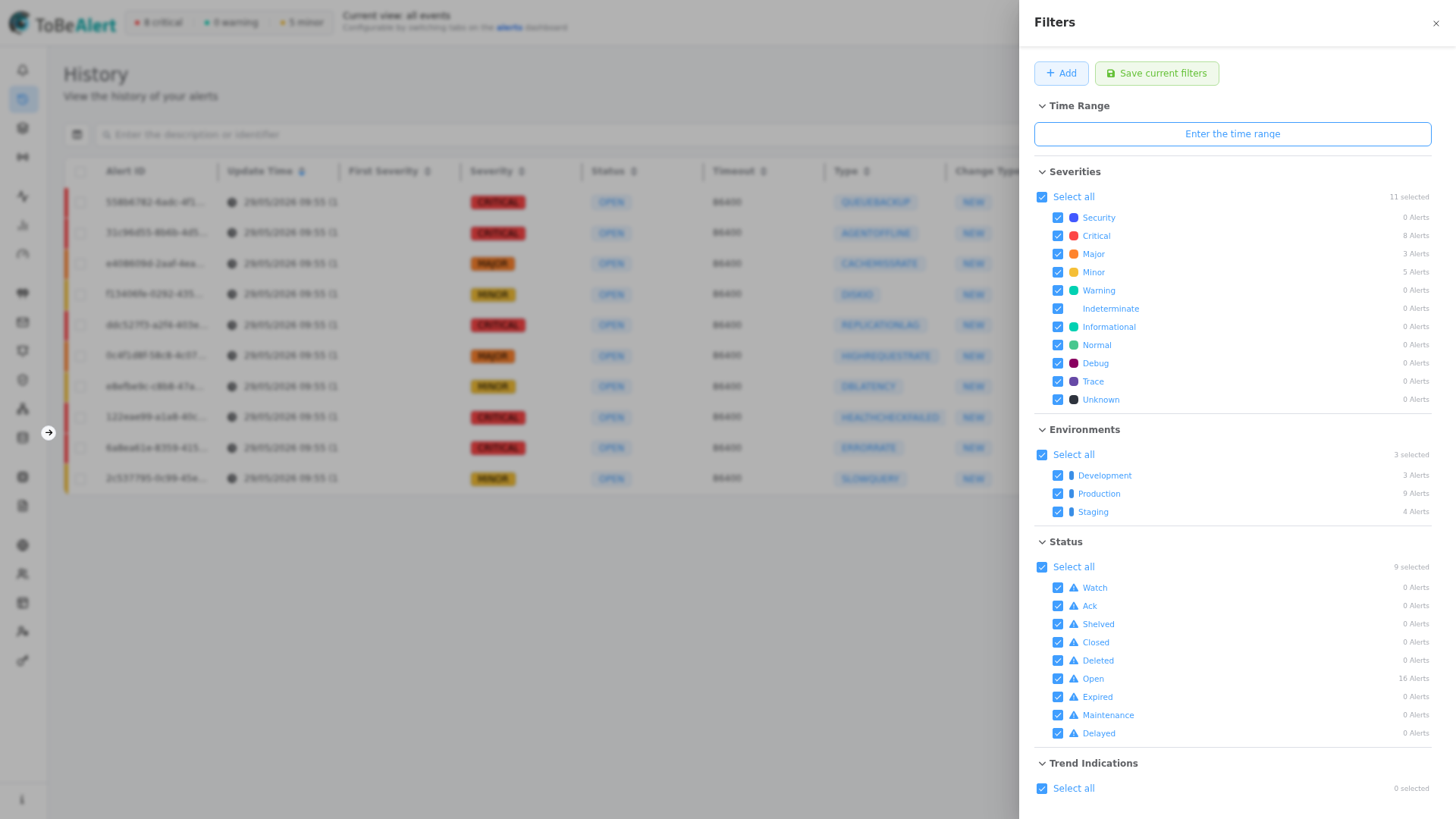
Category filters in the sidebar and TQL tags in the search bar can be combined. Both contribute to the current view.
Bulk actions
Select rows with checkboxes, then open Bulk actions. Shared selection controls (Clear selection, Invert selection, context menu behavior) are described in List tables and bulk actions.
History-specific actions:
| Action | Description |
|---|---|
| Export to Excel | Export selected history records (chip NEW on the action) |
| Delete | Remove selected history records (confirmation required) |
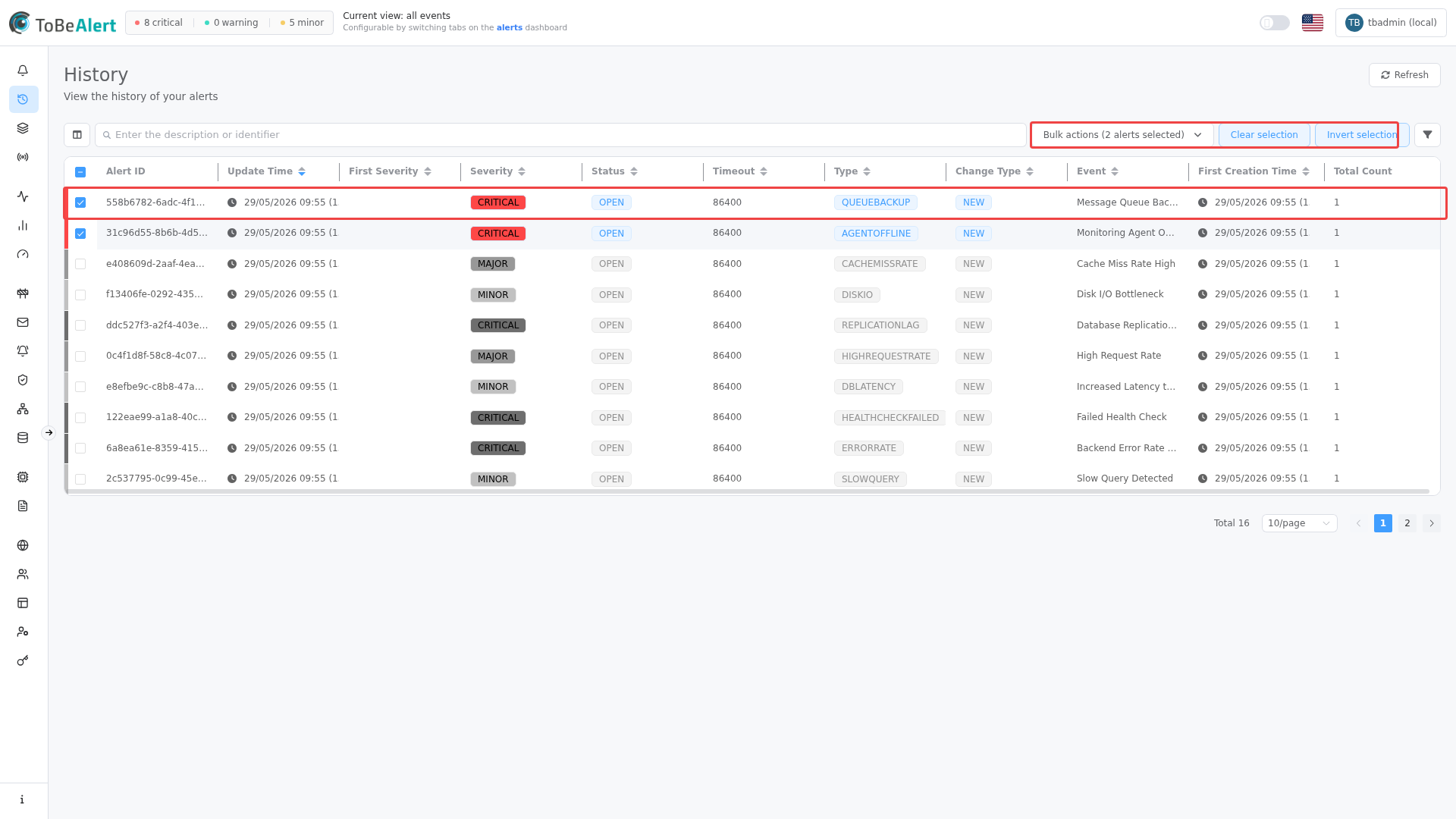
Right-click selected rows (or a single row) for the same actions in the context menu:
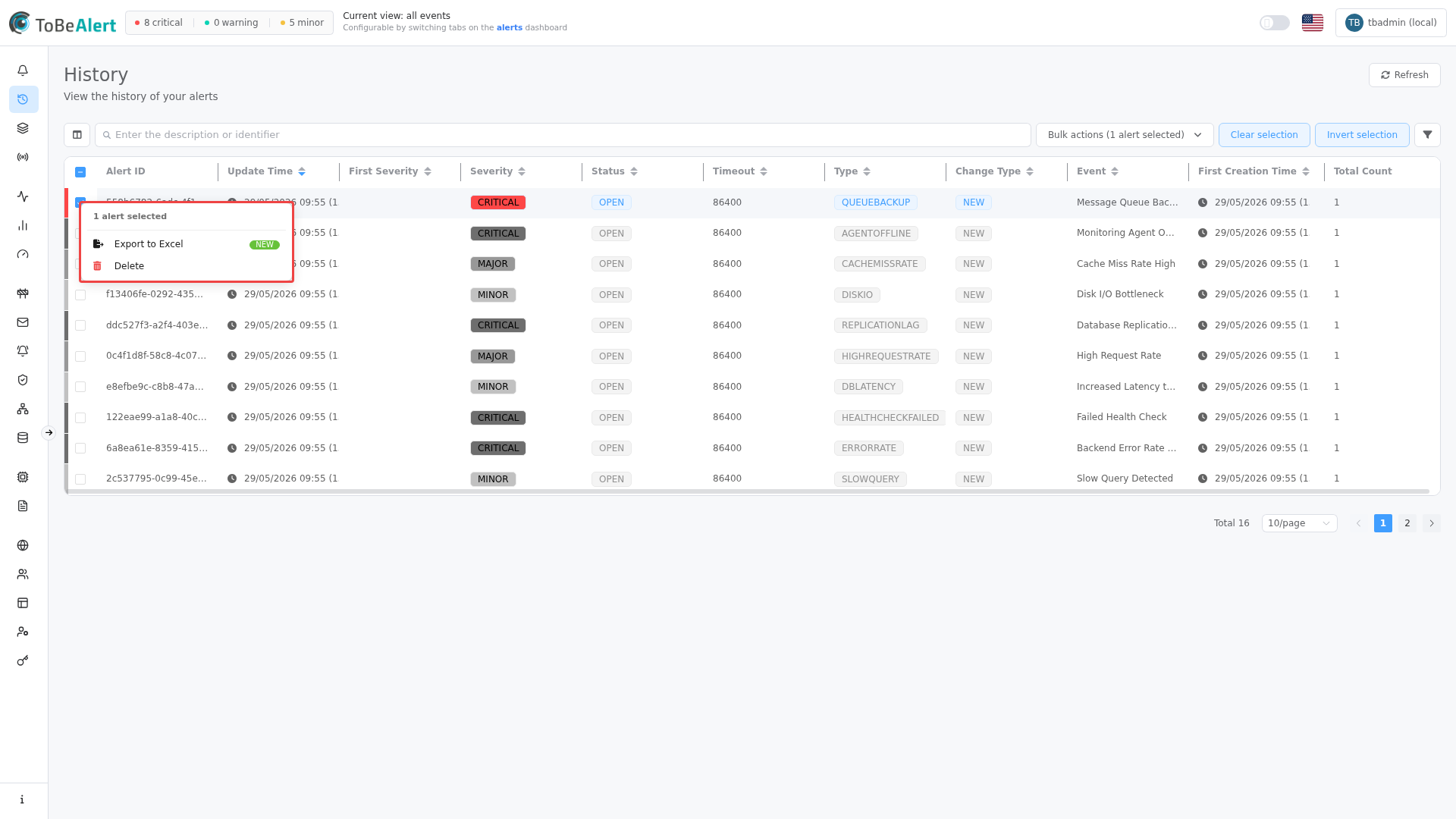
Export applies to the current view — selected rows only, respecting active filters.
Delete requires the appropriate history permission. If Delete is missing from bulk actions or the context menu, contact your administrator.
Per-alert timeline
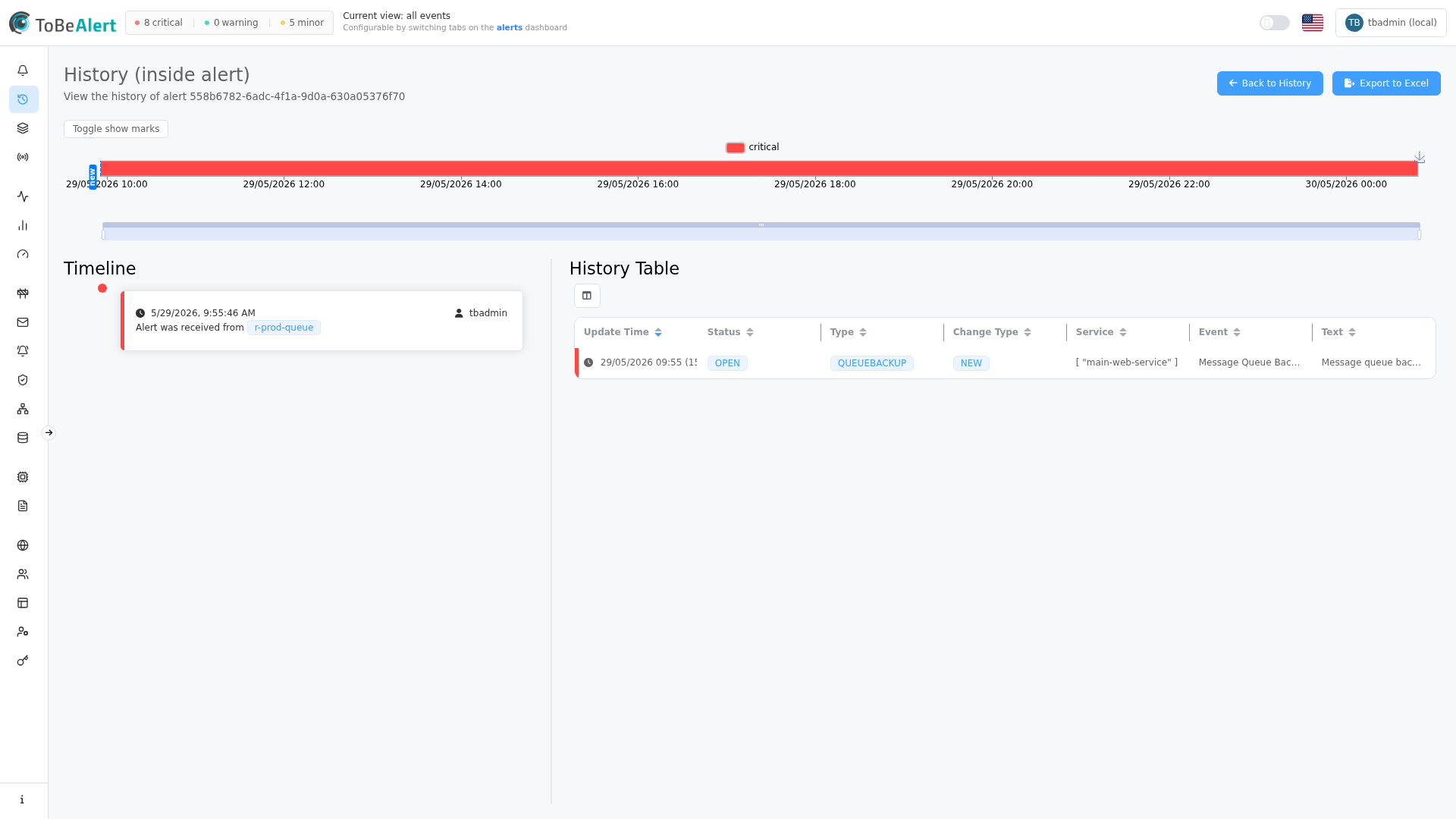
Open a timeline by clicking Alert ID or double-clicking a row. The route becomes /history/{alertId}.
The timeline view shows:
- A severity chart at the top (color-coded segments over time)
- Back to History — return to the main list
- Export to Excel — export this alert's full history
- Timeline panel — chronological event cards
- History Table panel — tabular view of the same records for the alert
Timeline events
Each timeline card shows:
- Timestamp and user who recorded the change
- Severity change — previous and new severity tags
- Status change — previous and new status tags
- Note added / Note deleted — note text preview
- Notification sent — notification body when applicable
- Added properties, Removed properties, Modified properties for
attributes - Side-by-side diffs for text fields such as text and raw_data
Cards are color-coded by severity (left border). Click a card to select that history point — the matching row is highlighted in the History Table, and the alert Details drawer opens when more detail is available.
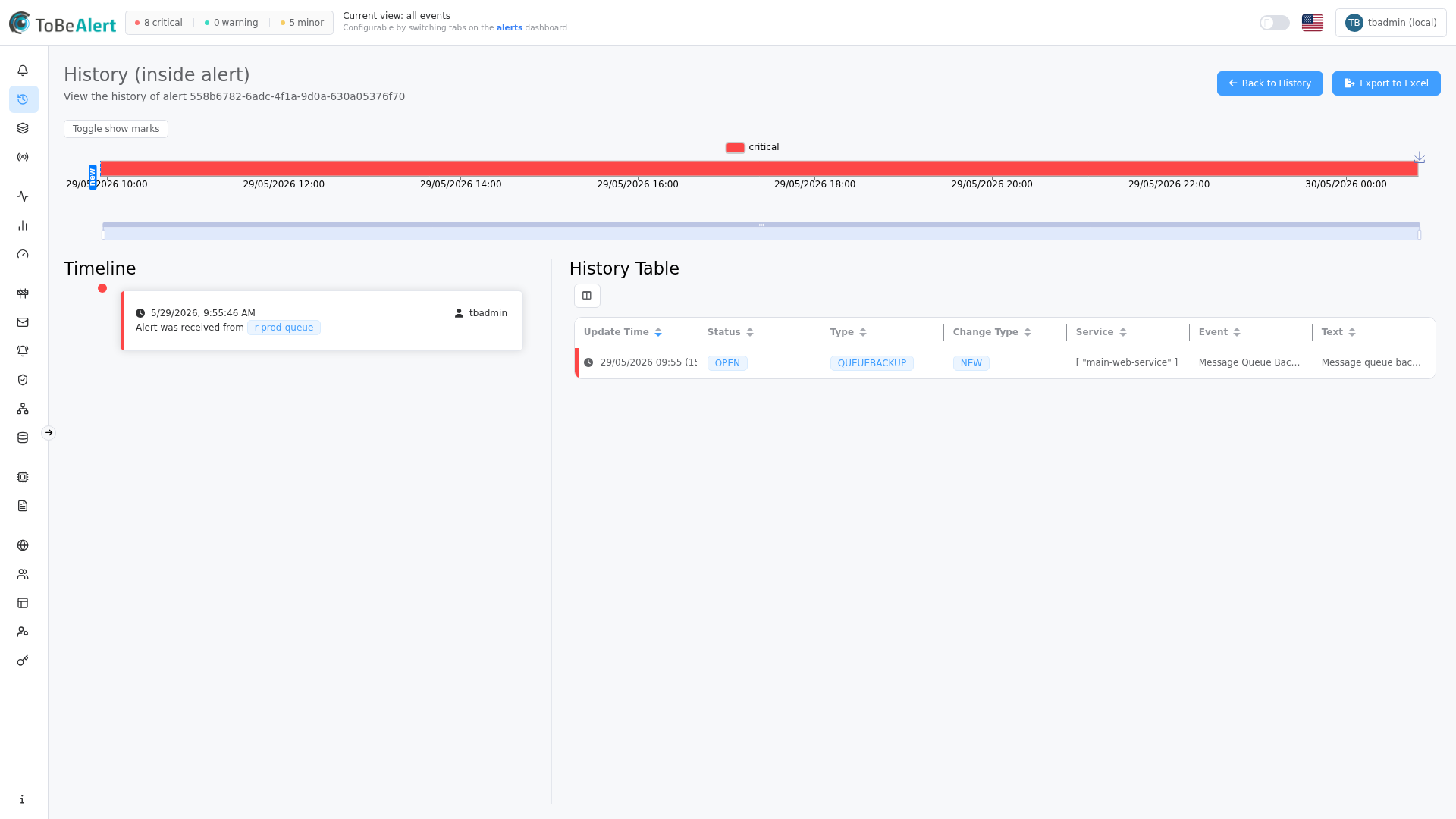
The first card on the timeline marks when the alert was received from its origin.
Integration with other features
| Feature | Link |
|---|---|
| Alerts table · Bulk actions | Context menu and drawer history |
| Users and permissions | History records show which user performed an action |
| Running tools on alerts | Tool runs appear in alert history |
| Notification rules | Notification sent entries in the timeline |
Best practices
- Use TQL and the filters sidebar to narrow investigations by time, severity, environment, or alert ID before opening timelines.
- Open the timeline for post-mortems — severity and status transitions show response timing.
- Export history before bulk Delete if you need an offline audit trail.
- Train operators to add notes on the dashboard — they appear clearly in the timeline.
- Cross-check history with policies when alert fields change unexpectedly.
- Disable users instead of deleting when someone leaves — their name remains on historical entries.