Creating a policy
Route: /policies
See also: Overview · Conditions · Modifiers and tools
Create a policy
- Open Management → Policies.
- Click Create policy.
- Complete the drawer tabs: General, Conditions, Modifiers.
- Click Create.
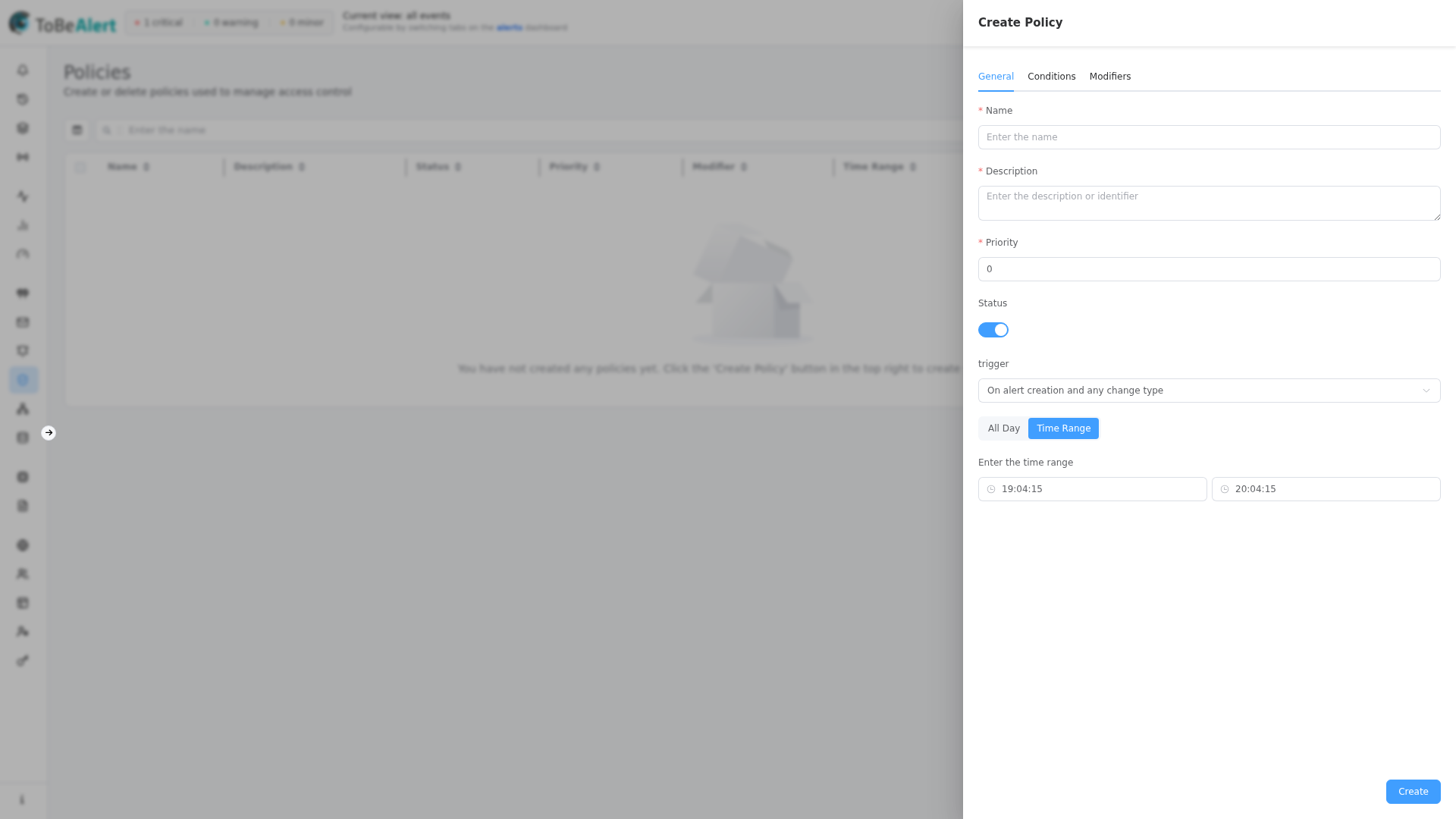
General tab
| Field | Description |
|---|---|
| Name | Policy name (required) |
| Description | Purpose and expected outcome (required) |
| Priority | Evaluation order — lower number = higher priority; starts at 0 (required) |
| Status | active / inactive. Active policies outside their time window show Pending in the table |
| Trigger | When the policy runs — event-based or scheduled (see below) |
| All Day / Time Range | Whether the policy is eligible all day or only between start/end times |
| Enter the time range | Start and end times (disabled when All Day is selected) |
When Status is active but the current time is outside the configured range, the form shows Policy still disabled due to time range.
Trigger
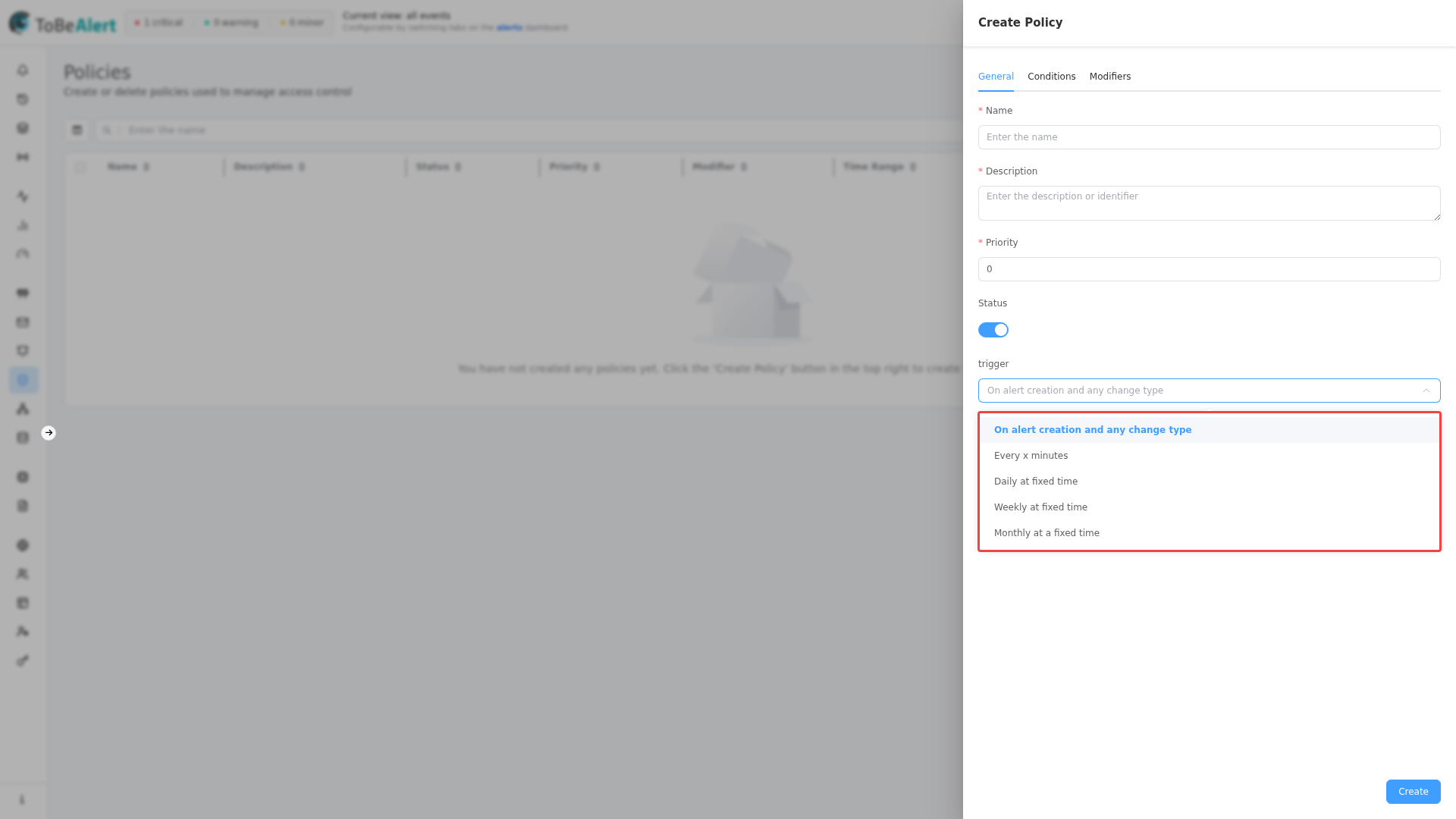
| Trigger | When it runs |
|---|---|
| On alert creation and any change type | Whenever a new alert arrives or an existing alert changes |
| Every x minutes | On a fixed minute interval (Every (minutes) — minimum 1) |
| Daily at fixed time | Once per day at Time (24-hour HH:mm) |
| Weekly at fixed time | On the selected weekday and Time |
| Monthly at a fixed time | On Day of the month (Day 1–31 or Last Day of Month) and Time |
Scheduled triggers still respect the Conditions tab: only alerts matching your filters are modified on each run. With empty conditions, all alerts qualify (subject to the active time window).
Help text shown in the form:
- Daily: "Policy will run daily at this time (24-hour format)"
- Weekly: "Policy will run weekly on this day and time"
- Monthly: reuses the notification monthly hint ("Notification will be sent monthly on this day and time")
Computed status in the table
| UI status | Meaning |
|---|---|
| Active | Policy active and within time window (or All Day) |
| Pending | Active but outside configured Time Range |
| Inactive | Policy disabled |
Table columns
| Column | Description |
|---|---|
| Name | Policy name (click to edit) |
| Description | Description |
| Status | Active / Pending / Inactive |
| Priority | Numeric priority |
| Modifier | Count of modifiers on the policy |
| Time Range | ALL DAY or start–end times |
| Tool | Tools | Assigned custom tool name, or N/A |
| Creation date | When the policy was created |
Double-click a row to open the editor. Use Enter the name to search; switch to Toggle TQL filter mode for advanced queries — see TQL search and filters.
For sorting, Column manager, pagination, and bulk actions, see List tables and bulk actions.
Bulk and row actions
| Action | Scope | Notes |
|---|---|---|
| Run | Exactly 1 selected row | Opens Policy Execution Results |
| Edit | 1 row | Opens drawer |
| Duplicate | ≥ 1 row | Copies with a new name |
| Enable / Disable | ≥ 1 row | Toggle Status |
| Delete | ≥ 1 row | Requires delete permission; confirmation dialog |
Row shortcuts (with permission): green Run, blue Edit, red Delete.
Run policy — execution results
After Run, a dialog shows:
| Section | Content |
|---|---|
| Summary | Policy Name, Alerts Matched, Alerts Modified |
| Affected Alerts (showing first 20) | Table: ID, Resource, Event, Severity, Status |
| Errors | Per-alert error messages, if any |
Use Run to validate conditions and modifiers before relying on a policy in production.
Closing the drawer with unsaved edits prompts: "You have unsaved changes. Do you want to discard them?"
Best practices
- Set Trigger and Time Range on General before fine-tuning Conditions and Modifiers.
- Use On alert creation and any change type for real-time enrichment; use scheduled triggers for batch cleanup.
- Run after every significant change and check Alerts Modified matches expectations.
- Disable policies (Status → inactive) instead of deleting when you need a temporary pause.