Creating a policy
Route: /policies
See also: Overview · Conditions · Modifiers and tools
Above the table, page tabs Policies / All executions. On the Policies tab, segmented All, Basic, Recurring filter the list by trigger type (Recurring shows only scheduled triggers). Tip: right-click a policy to open its context menu and view available actions (same actions as the row buttons and bulk bar).
Create a policy
- Open Management → Policies.
- Click Create policy.
- Complete the drawer tabs: General, Conditions, Modifiers (see Modifiers tab), Extractions.
- Click Create.
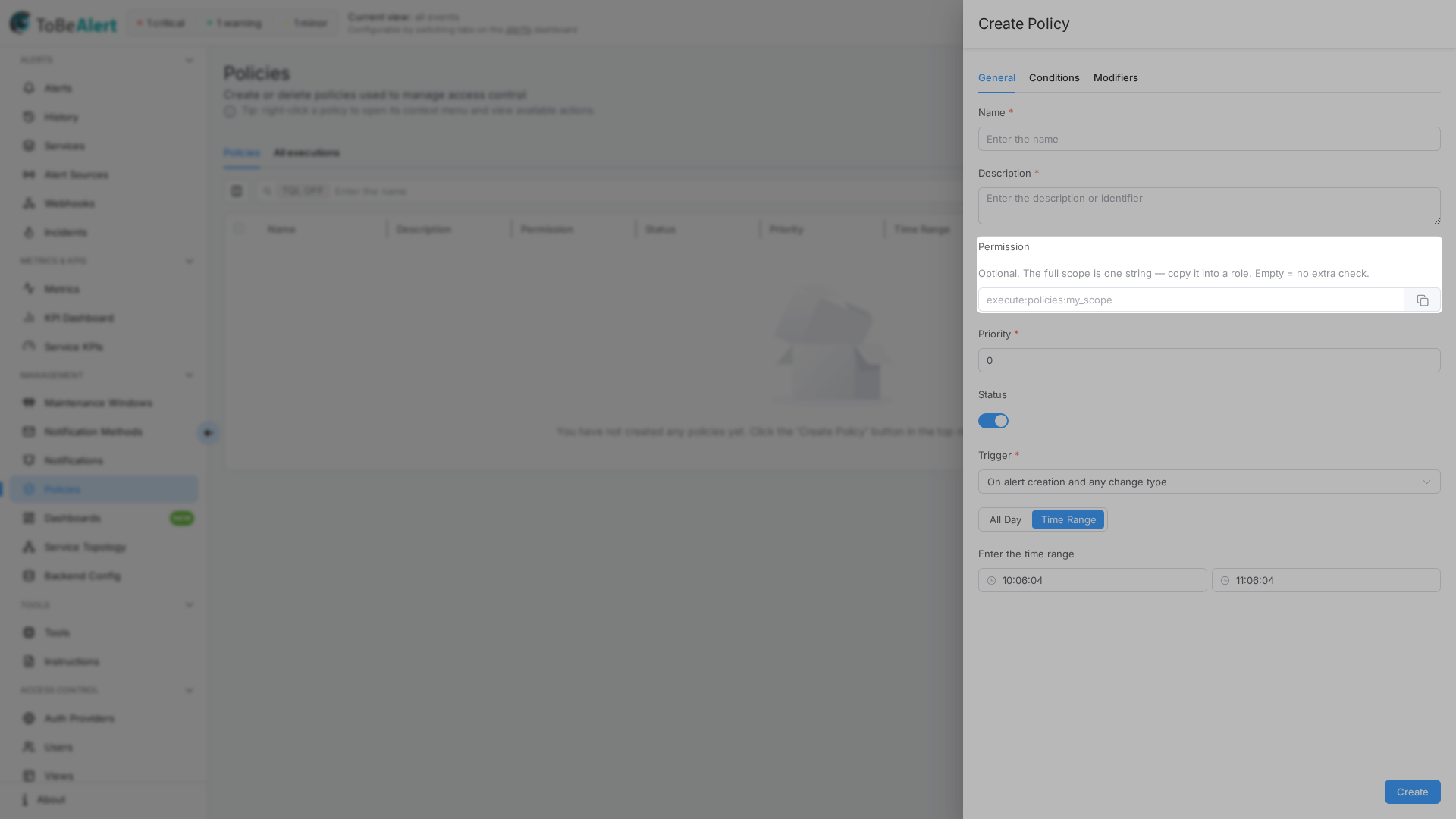
General tab
| Field | Description |
|---|---|
| Name | Policy name (required) |
| Description | Purpose and expected outcome (required) |
| Priority | Evaluation order — lower number = higher priority; starts at 0 (required) |
| Status | active / inactive. Active policies outside their time window show Pending in the table |
| Permission | Optional. The field shows the full scope (execute:policies:<suffix>). Copy it into a role Permissions list. Empty = no extra check beyond normal policy permissions |
| Trigger | When the policy runs — event-based or scheduled (see below) |
| All Day / Time Range | Whether the policy is eligible all day or only between start/end times. A new policy is All Day by default; a time range is optional |
| Enter the time range | Start and end times — only when Time Range is selected (disabled with All Day) |
When Status is active but the current time is outside the configured range, the form shows Policy still disabled due to time range.
Permission (optional scope)
Use Permission when only some operators should see or change a given policy:
| Situation | Effect |
|---|---|
| Permission empty | Normal read:policies / write:policies / run:policies / admin:policies apply. Manual Run still also needs write:alerts (admin:alerts or global admin count) — write:policies does not imply run |
| Permission set | Interactive view, edit, delete, and Run (preview + apply) also require the exact execute:policies:<suffix> on the user’s role (or admin:policies / global admin). Unsuffixed execute:policies, write:policies, run:policies, and being the policy author do not open that policy. Run and the custom execute scopes also need write:alerts |
| Automatic pipeline | Scheduled and on-alert runs still apply the policy; they do not require the user’s custom execute scope |
| Custom tool on Modifiers | Independent — policy Permission is not the same as a tool’s Permission (execute:tool:…) |
Placeholder example in the form: execute:policies:my_scope. The product stores the suffix; the UI always shows the full execute:policies:… string (with a copy control). After you save, the value appears in the roles Permissions dropdown for administrators to grant.
Trigger
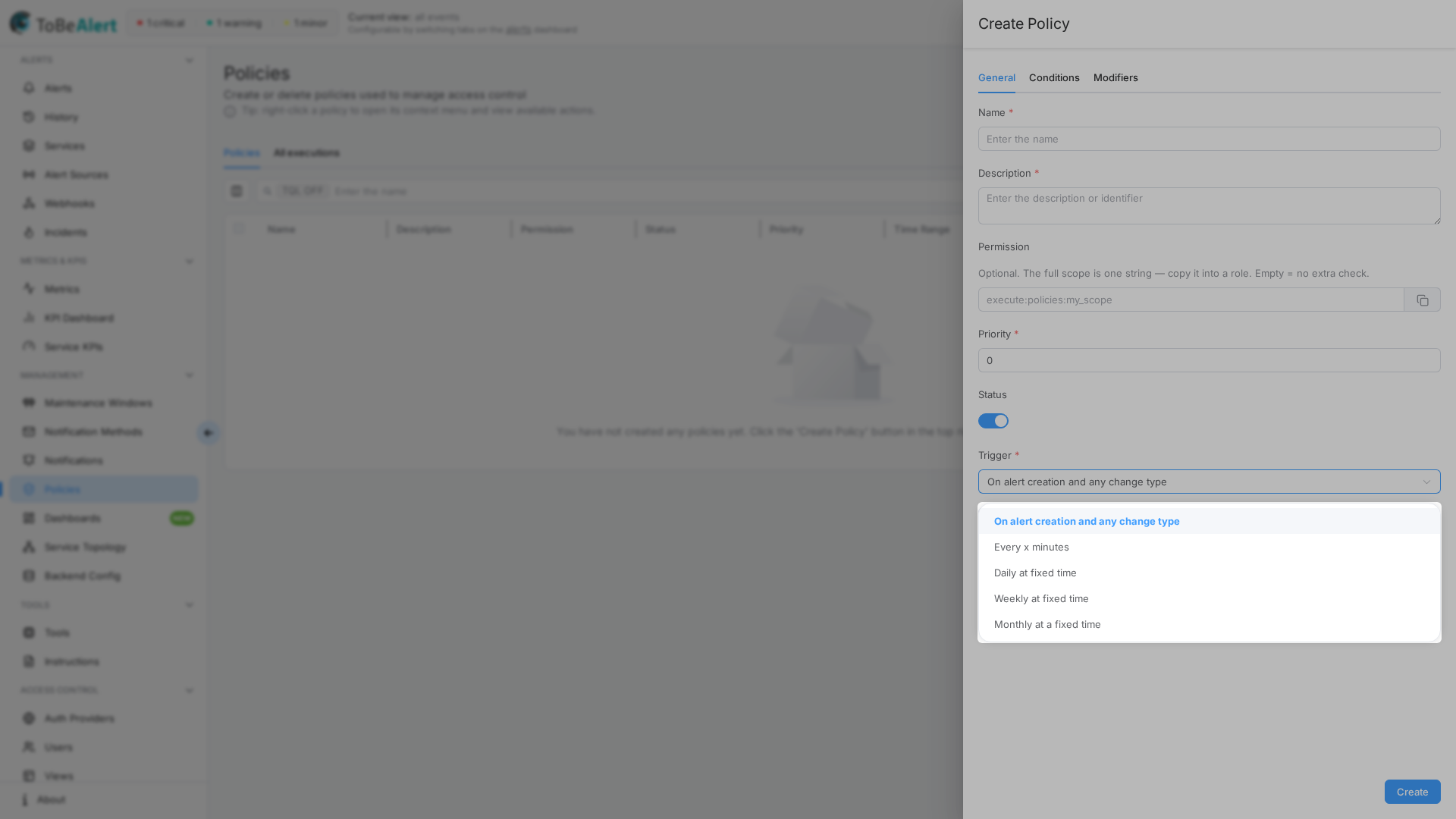
| Trigger | When it runs |
|---|---|
| On alert creation and any change type | Whenever a new alert arrives or an existing alert changes |
| Every x minutes | On a fixed minute interval (Every (minutes) — minimum 1) |
| Daily at fixed time | Once per day at Time (24-hour HH:mm) |
| Weekly at fixed time | On the selected weekday and Time |
| Monthly at a fixed time | On Day of the month (Day 1–31 or Last Day of Month) and Time |
Scheduled triggers still respect the Conditions tab: only alerts matching your filters are modified on each run. With empty conditions, all alerts qualify (subject to the active time window). Conditions on Open for / Silent for or on relative dates (now-1d) are re-evaluated on every run, so alerts qualify as they age — see Conditions — Relative time.
Help text shown in the form:
- Daily: "Policy will run daily at this time (24-hour format)"
- Weekly: "Policy will run weekly on this day and time"
- Monthly: reuses the notification monthly hint ("Notification will be sent monthly on this day and time")
Modifiers tab
Modifiers are the actions applied to every alert that passes Conditions. Click Add modifier and pick a Modifier type on each row; the fields below it change with the type. Rows apply in list order. Full reference: Modifiers and tools.
Modify field
- Select column (alert field), and Enter attribute when the column is
attributes. - Select operation —
set,add,delete,replace, or a text transform (upper,lower,capitalize,trim) — and the value (plus Enter value to replace for replace). delete and the text transforms need no value. See Text transforms.
Severity step
- Set Step — the number of levels to move: positive raises severity, negative lowers it (
-10to10, not0). - Optionally set Never above (cap when raising) and Never below (cap when lowering); No limit leaves that side open.
See Severity step.
Mark as effect
- Choose Cause is: Conditions or Open alert on a parent resource.
- With Conditions, build Cause conditions (at least one clause). With Open alert on a parent resource, set Max depth (
1–10, default5) and, if you want to narrow the cause, Additional cause filters (optional). - Set Window, Unit, and Direction.
See Mark as effect and Cause on a parent resource.
Resource relation
- Choose Source: Value, Topology, or Graph.
- With Value, type the Parent (placeholders such as
%attributes.cluster%are allowed — the field shows a hint) and/or add Children (type a name and press Enter). - With Topology, leave Topology on Auto or pick one topology.
- Leave Overwrite existing parent off to fill only alerts that have no parent; turn it on to replace the parent on every matching alert.
See Resource relation.
At the bottom of the tab, Execute custom tool optionally runs a tool on matching alerts after modifiers and extractions.
Extractions tab
Use Extractions to pull values from an alert field with a regular expression and store them as custom attributes on the alert. A policy can have zero or more extraction rows (leave the list empty if you do not need any).
Extractions are part of the policy — they use the same policy permissions (read:policies / write:policies / …). There is no separate Extractions menu or *:extractions scopes.
Add an extraction
- Open the Extractions tab.
- Add a row (same incremental list pattern as modifiers).
- For each row:
- Attribute — source alert field (selector of available alert fields)
- Regex — pattern applied to that field’s value. If the pattern has capture groups, the first group is stored; otherwise the full match is stored
- Target attribute — key written under the alert’s custom attributes (the attributes bag on the alert)
- Remove a row when you no longer need it.
- Save the policy.
When extractions run
When the policy matches and runs (on-alert trigger, schedule, or manual Run), the engine applies steps in this order:
- Modifiers
- Extractions (this tab)
- Optional custom tool (on the Modifiers tab)
Extractions do not have their own conditions — the policy Conditions tab decides which alerts qualify.
See also: Modifiers and tools · Overview
Computed status in the table
| UI status | Meaning |
|---|---|
| Active | Policy active and within time window (or All Day) |
| Pending | Active but outside configured Time Range |
| Inactive | Policy disabled |
Table columns
| Column | Description |
|---|---|
| Name | Policy name (click to edit) |
| Description | Description |
| Status | Active / Pending / Inactive |
| Priority | Numeric priority |
| Permission | Full execute:policies:… scope when set, or - when unset |
| Modifier | Count of modifiers on the policy |
| Time Range | ALL DAY or start–end times |
| Tool | Tools | Assigned custom tool name, or N/A |
| Creation date | When the policy was created |
Double-click a row to open the editor. Use the search box and the TQL ON / TQL OFF tag for advanced queries — see TQL search and filters.
For sorting, Column manager, pagination, and bulk actions, see List tables and bulk actions.
Bulk and row actions
| Action | Scope | Notes |
|---|---|---|
| Run | Exactly 1 selected row | Opens Review matched alerts, then Confirm and apply |
| Edit | 1 row | Opens drawer |
| Duplicate | ≥ 1 row | Copies with a new name |
| Enable / Disable | ≥ 1 row | Toggle Status |
| Delete | ≥ 1 row | Requires delete permission; confirmation dialog |
Row shortcuts (with permission): green Run, blue Edit, red Delete.
Run policy — review then results
After Run, a drawer titled Review matched alerts lists alerts that match but have not been changed yet. Toggle Show only alerts that will be modified. Click Confirm and apply to execute; then Policy execution results shows:
| Section | Content |
|---|---|
| Summary | Policy Name, Alerts Matched, Alerts Modified |
| Affected Alerts (showing first 20) | Table: ID, Resource, Event, Severity, Status |
| Errors | Per-alert error messages, if any |
Row action View execution history opens the per-policy history drawer (not the All executions tab). The drawer follows read:policies; the global tab needs read:policies_history or read:policies_all_history.
Use Run to validate conditions, modifiers, and extractions before relying on a policy in production. Manual Run needs run:policies and also write:alerts (admin:alerts or global admin count); write:policies alone is not enough.
Closing the drawer with unsaved edits prompts: "You have unsaved changes. Do you want to discard them?"
Best practices
- Set Trigger on General before fine-tuning Conditions, Modifiers, and Extractions; leave All Day unless the policy must only act during part of the day.
- Use On alert creation and any change type for real-time enrichment; use scheduled triggers for batch cleanup.
- Run after every significant change and check Alerts Modified matches expectations (modifiers and extractions both count as changes).
- Disable policies (Status → inactive) instead of deleting when you need a temporary pause.
- Set Permission only for sensitive policies, then grant the matching
execute:policies:<suffix>on the roles that should manage or Run them — see Permissions reference — Policies.