Overview
Service Topology lets you define one topology per service, draw its environment and resource hierarchy on an interactive graph, overlay active alerts, and optionally link a Service KPI. Weight Policies assign numeric weights to matching alerts for downstream KPI and SLA calculations.
| Step | What you configure | Menu / route | Documentation |
|---|---|---|---|
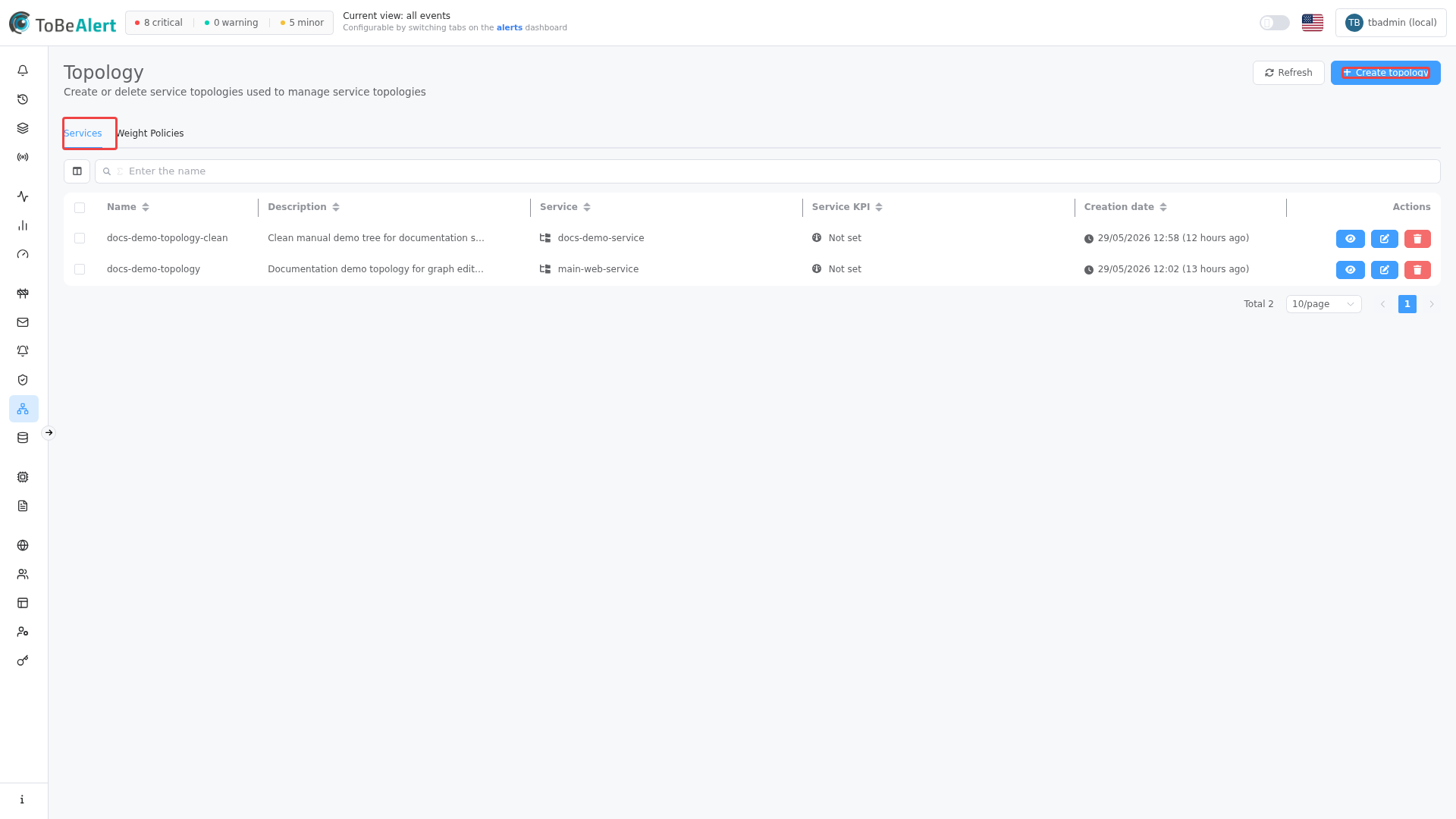
| 1 | Topologies — name, service, description, KPI | Management → Service Topology → Services tab → /service-topology | Topologies |
| 2 | Graph — nodes, edges, alert overlay, save map | Open a topology (View / eye icon or Service link) → /service-topology/<id> | Graph editor |
| 3 | Weight policies — filters and weight | Service Topology → Weight Policies tab | Weight policies |
Where to find it in the UI
In the sidebar under Management:
- Service Topology →
/service-topology
The page has two tabs:
| Tab | Purpose |
|---|---|
| Services | List, create, edit, and delete topology records |
| Weight Policies | Policies that set an alert weight when filters match |
Header actions depend on the active tab: Refresh and Create topology (Services) or Create service topology policy (Weight Policies).
Managing topologies and weight policies requires the appropriate permissions in your organization. If menus, Create buttons, or row actions are missing, contact your administrator.
How the parts fit together
Typical workflow:
- Ensure the service exists in the Services catalog (
/services) or appears from alert data. - Create topology, pick the Service to fetch, optional Service KPI, and save.
- Open the graph (View or click the Service column), enable Edit mode, build environment and resource nodes manually or with Alert-driven service topology, then Save changes.
- Create Weight Policies with alert Filters and a Weight to set so matching alerts carry a
weightattribute used in KPI logic.
You can also open a topology from the Services view (View Topology), the alerts dashboard context menu, or a Service topology widget on a service dashboard.
License limits
| Condition | Effect |
|---|---|
| Feature not enabled | Service Topology may show Premium feature / Limited feature |
| Trial license | Create topology is disabled on the Services tab |
| Topology count limit reached | Create topology disabled; tooltip You have reached your service topology limit…; key icon shows count/max |
The usage counter on the Services tab compares created topologies to your licensed maximum.
Related modules
| Module | Relationship |
|---|---|
Services (/services) | Service catalog used when creating topologies |
| Service KPIs (overview, KPI Dashboard) | Optional KPI linked per topology; KPI dashboard and alerts |
| Maintenance windows | Overlapping scope — maintenance moves alerts to Maintenance while topology shows live severity |
| Alerts dashboard | View Topology shortcut; alert table under the graph |
| Service dashboards | Service topology panel widget with mini preview |
Best practices
- One topology per service — duplicate services are rejected at create time.
- Start from the service catalog so Service to fetch lists the right IDs.
- Save the map after editing — unsaved graph changes are lost on navigation unless you use Save changes.
- Use Weight Policies for consistent alert weighting instead of manual attribute edits.
- Reload alert count after large alert bursts so node colors stay accurate.
- Link a Service KPI when you need uptime/SLA views aligned with the same service filters.