Managing incidents
Route: /incidents
Create, edit, delete, and change status from the Incidents list. Opening a row goes to the incident editor.
See also: Overview · Incident editor · List tables and bulk actions
URL query parameters: page, size, and status (active, shelved, resolved). All omits status. Default status view is Active.
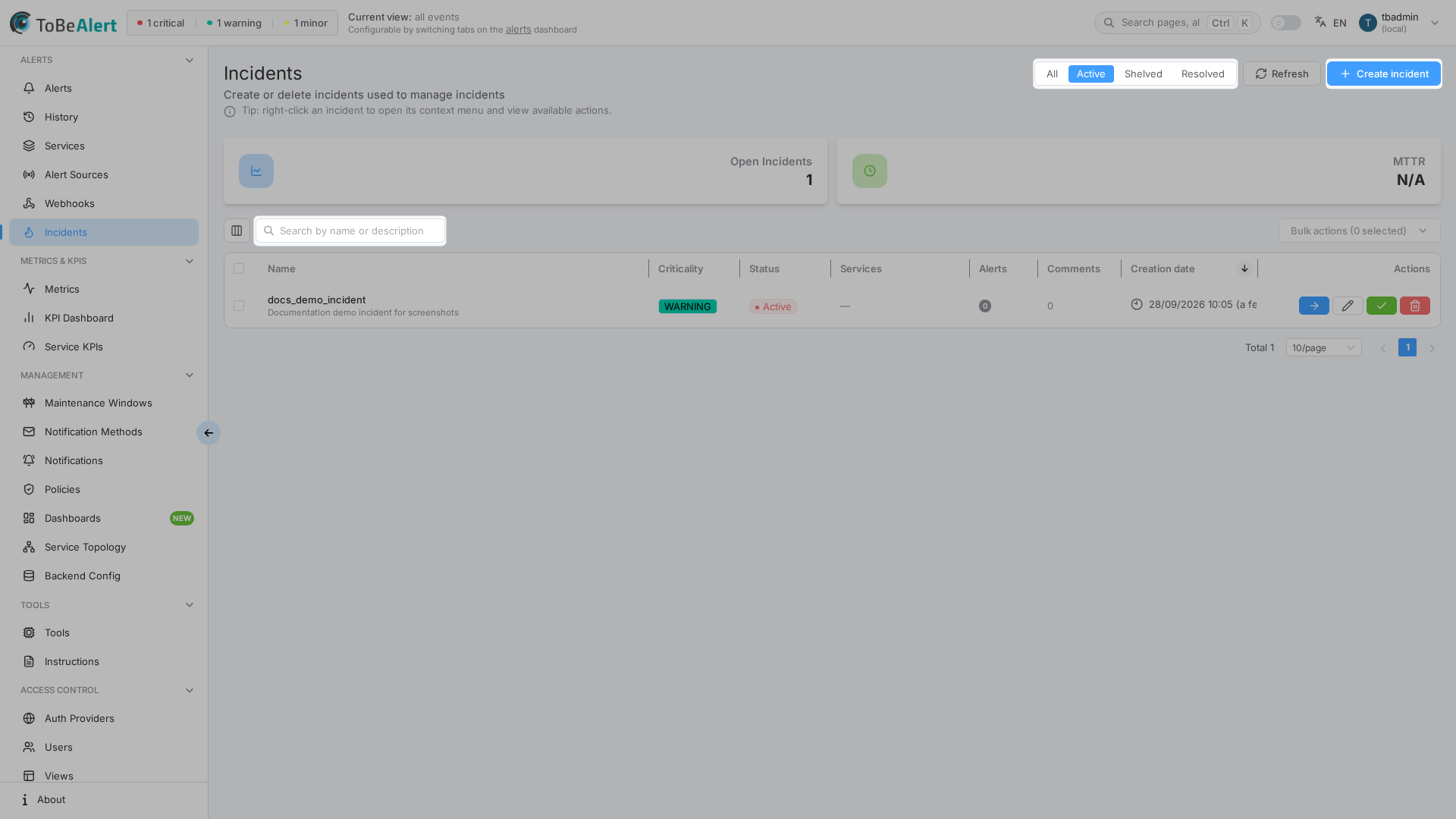
Table columns
| Column | Description |
|---|---|
| Name | Incident name; description preview underneath when present |
| Level | Critical, Major, or Minor |
| Status | Active, Shelved, or Resolved |
| Services | Affected services (first two tags, then a +N overflow) |
| Alerts | Count of linked alerts |
| Comments | Count of incident notes |
| Create Time | When the incident was created (default sort: newest first) |
| Actions | Open for every reader; Edit, status, and Delete when you can write incidents |
Row checkboxes appear only with write:incidents (or admin:incidents). Open is always available (toolbar icon, double-click, or — with a single selected row — bulk / context Open incident).
Search placeholder: Search by name or description. There is no TQL toggle. Filtering is client-side on the current page (name, description, services). Pagination still loads each page from the server for the selected status view.
Create an incident
- Open Alerts → Incidents (
/incidents). - Click Create incident.
- In the drawer:
- Incident name — display name.
- Description — click the field or expand control to open the Markdown editor (Write / Preview).
- Services — optional multi-select. Hint: Only alerts belonging to these services can be added. Leave empty to allow any service.
- Level — required: Critical, Major, or Minor.
- Click Create. Cancel closes the drawer.
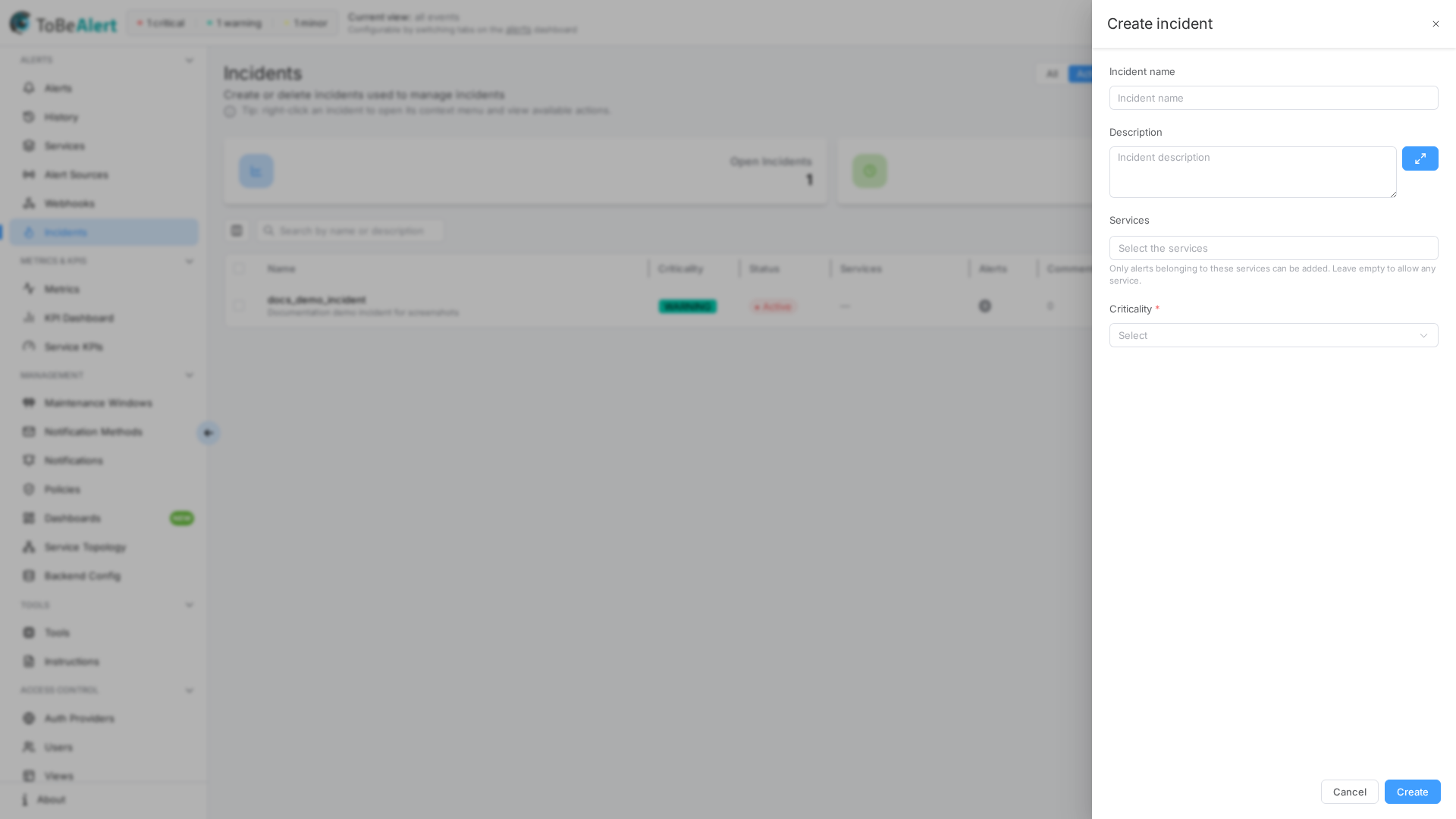
The drawer is 480px wide. Footer actions are Cancel and Create.
Edit an incident
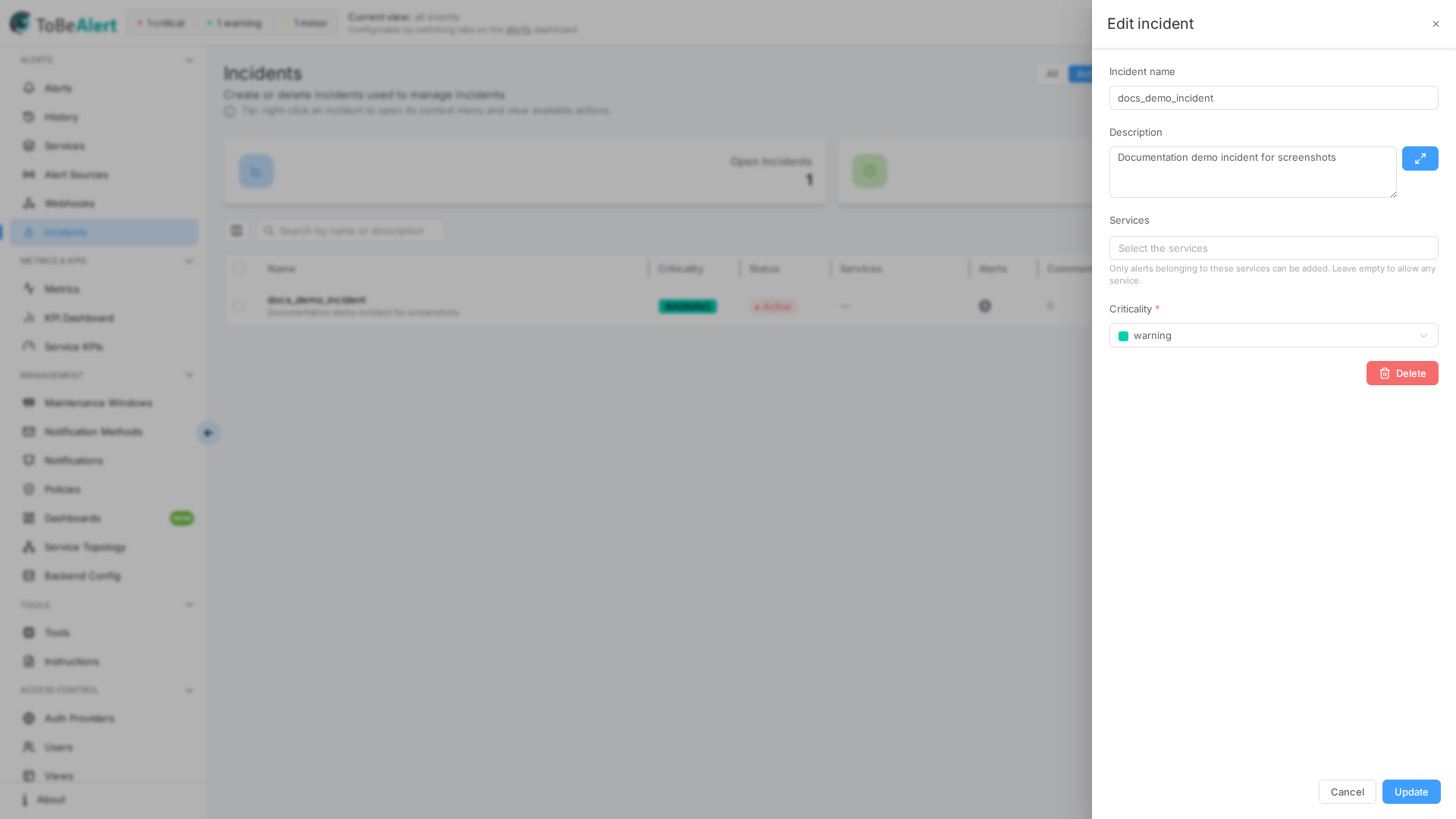
- Click the row Edit icon, or choose Edit incident from the context menu (exactly one row).
- Update Incident name, Description, Services, or Level.
- Click Update.
The editor reuses the same drawer without a delete control. From the list, the edit drawer can show a danger Delete button (same permission as deleting from the table).
Delete an incident
Deleting an incident requires write:incidents (or admin:incidents). There is no delete:incidents permission.
- Click the row Delete control, choose Delete incident from the context menu, or use Delete in the list edit drawer.
- Confirm Delete incident.
Bulk and context delete stay disabled unless exactly one row is selected.
Change incident status
Allowed transitions:
| Current status | Actions |
|---|---|
| Active | Resolve only (not Shelve) |
| Resolved | Shelve or Reopen |
| Shelved | Reopen only |
Resolve opens Resolve incident. Confirm with Resolve incident or Cancel. Check Close linked alerts to close alerts attached to the incident. The list dialog is a compact confirm plus that checkbox; the editor dialog also shows Action impact and an open-alert count.
Shelve asks Shelve this incident? It will move to the shelved view. (Shelve incident).
Bulk and context status actions use the same labels (Resolve incident, Shelve incident, Reopen incident) and stay disabled unless exactly one row is selected.
Table and context actions
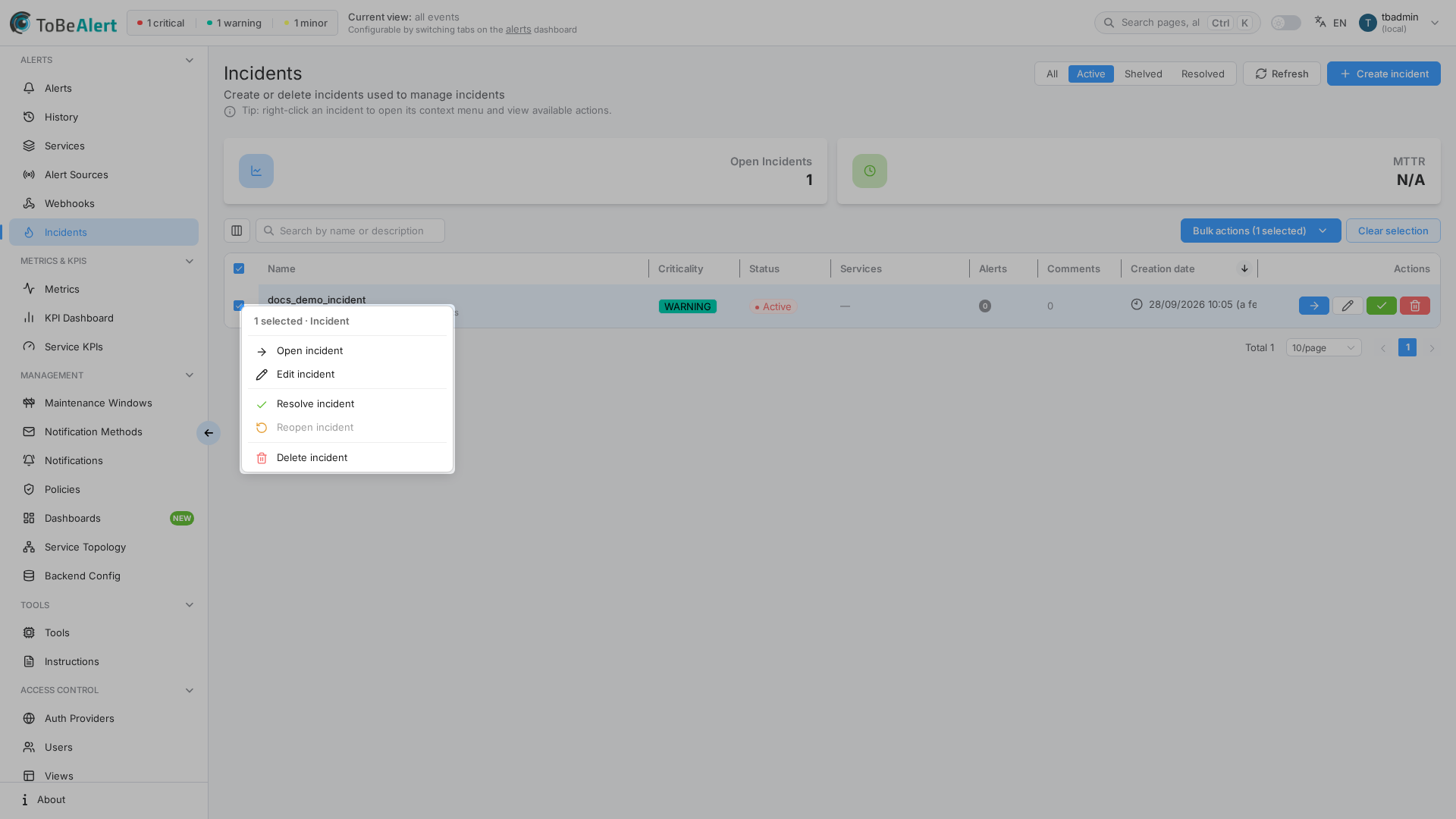
| Action | Who sees it | Notes |
|---|---|---|
| Open incident | Anyone who can open the page | Also double-click the row |
| Edit incident | write:incidents | Single row |
| Resolve / Shelve / Reopen | write:incidents | Follow the status table above |
| Delete incident | write:incidents | Single row; no delete:incidents |
Best practices
- Select one row before using bulk or context actions — multi-select is shown but the actions stay disabled.
- Do not expect TQL on this list; change page or status if search misses a row.
- Confirm Resolve carefully when Close linked alerts is checked — that closes the attached alerts.
- Edit from the list when you only need name, description, services, or level; use the editor for notes and linked alerts.