Overview
Incidents group related alerts and services into a single work item with a level, a status (Active, Shelved, or Resolved), MTTR figures, and a Markdown notes thread. Use the list to create, open, update status, or delete incidents; use the editor for linked alerts, the description, notes, and an optional routing policy.
| Step | What you do | Menu / route | Documentation |
|---|---|---|---|
| 1 | Browse incidents, status views, and MTTR cards | Alerts → Incidents → /incidents | Managing incidents |
| 2 | Create or edit name, description, services, and level | Create incident or row Edit | Managing incidents — Create |
| 3 | Resolve, shelve, or reopen | Row, context menu, or editor | Managing incidents — Status |
| 4 | Review linked alerts, details, and notes | Open → /incidents/<id> | Incident editor |
| 5 | Attach alerts from the dashboard | Alert context menu Add to incident | Bulk actions and context menu |
Where to find it in the UI
In the sidebar under Alerts:
- Incidents →
/incidents
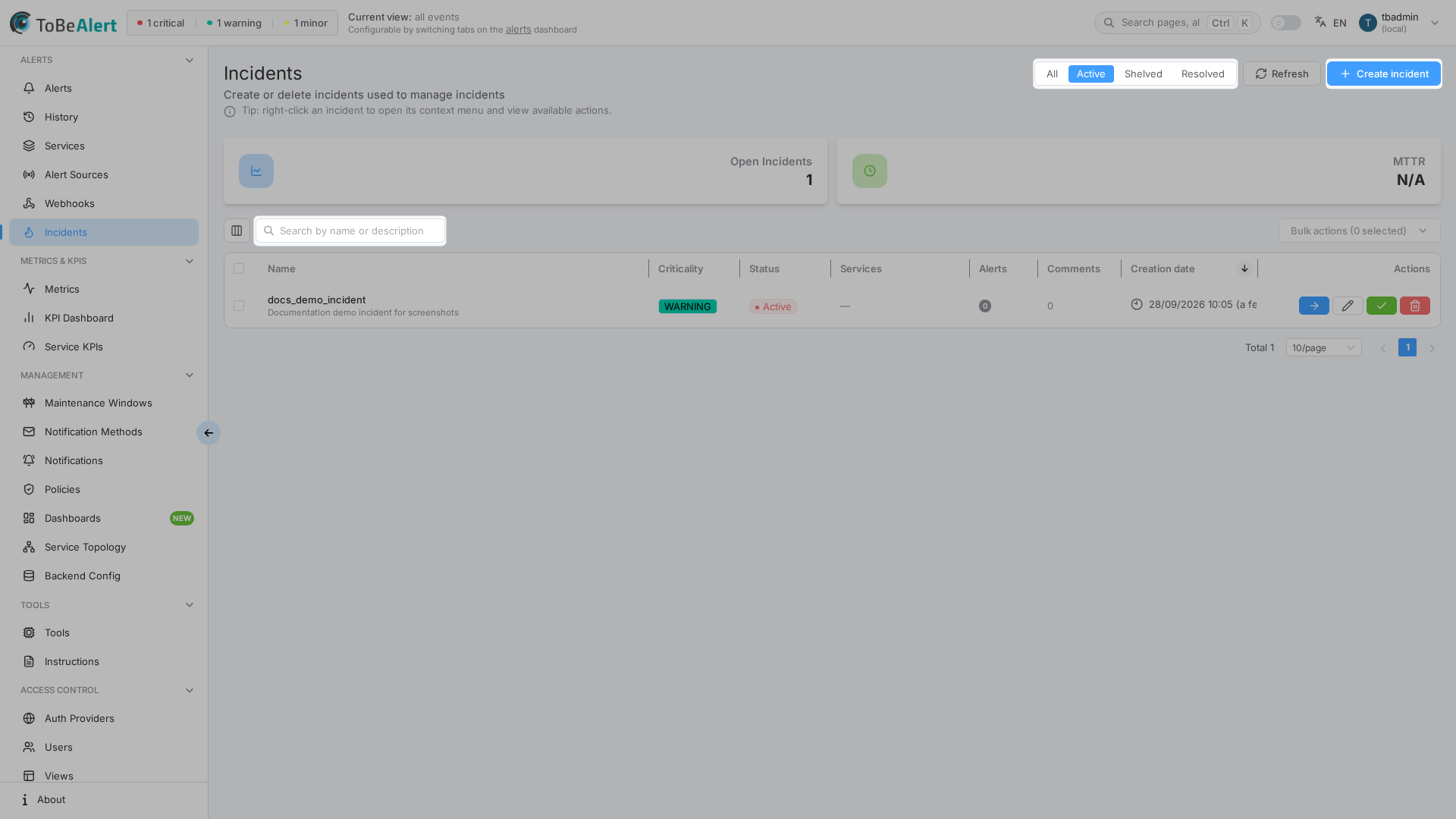
The page title is Incidents. The subtitle is Create or delete incidents used to manage incidents.
A tip under the header reminds you that right-click an incident opens its context menu.
Header actions:
| Control | Purpose |
|---|---|
| All / Active / Shelved / Resolved | Filter the list. Default is Active. All is not stored in the URL |
| Refresh | Reload the table and MTTR cards |
| Create incident | Open the create drawer (requires write:incidents or admin:incidents) |
KPI cards above the table:
| Card | Purpose |
|---|---|
| Open Incidents | Count of incidents in the current status view |
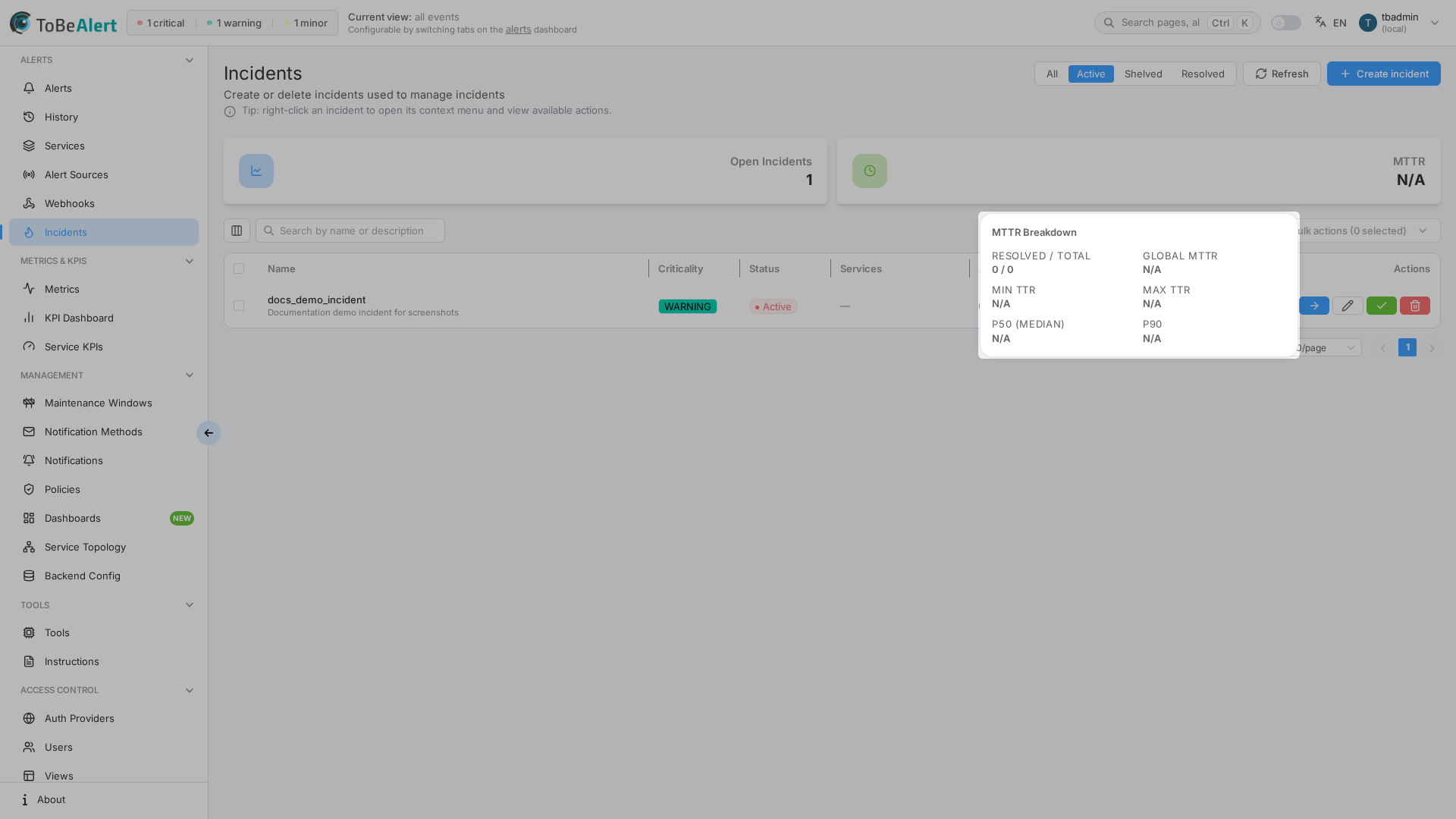
| MTTR | Mean time to resolve. Click the card for MTTR Breakdown (resolved/total, global MTTR, min/max TTR, P50, P90) |
The Incidents menu and routes require read:incidents, write:incidents, or admin:incidents (or global admin). write:incident_notes and admin:incident_notes alone do not show the menu or open /incidents.
read:incidents shows the list, KPI cards, search, and Open. It does not show Create incident, row checkboxes, edit, delete, or status actions. Notes on the editor are visible; the composer is hidden.
write:incidents creates, edits, and deletes incidents and can Resolve, Shelve, Reopen, open Create routing policy, and edit any note. It does not add notes. There is no delete:incidents.
write:incident_notes (or admin:incident_notes) adds notes and edits or deletes your own notes. write:incidents can edit or delete any note but still cannot add one. admin:incidents includes incident write and notes.
How the parts fit together
Typical workflow:
- Open Alerts → Incidents and keep the default Active view (or switch to All, Shelved, or Resolved).
- Click Create incident, set Incident name, Markdown Description, Services, and required Level, then Create.
- From the Alerts dashboard, use Add to incident or Create new incident to attach alerts (requires write:incidents).
- Click Open (or double-click the row) to review linked alerts, the Markdown details, and Notes & Comments.
- When work is done, Resolve the incident. Optionally check Close linked alerts. From Resolved you can Shelve or Reopen; from Shelved you can only Reopen. Shelve is never offered together with Resolve.
Incident notes are not the same as alert notes in the dashboard drawer. They live only on the incident editor.
Search and table chrome
The list uses a configurable table (columns, pagination, context menu) — see List tables and bulk actions.
This screen does not use TQL. The placeholder is Search by name or description. Search filters the current page only (name, description, and services). Do not treat it as a server-wide query.
Related modules
| Module | Relationship |
|---|---|
| Alerts dashboard | Add to incident / Create new incident; Open incident on a linked alert |
| Services | Catalog services restrict which alerts you can attach |
| Policies | Create routing policy pre-fills a rule that assigns matching alerts to this incident |
| Permissions reference | read:incidents, write:incidents, write:incident_notes, admin:incidents |
Best practices
- Keep the default Active view for day-to-day work; use Shelved and Resolved for follow-up, not as the home screen.
- Set Services when the incident should stay scoped — only alerts for those services can be added; leave empty to allow any service.
- Use incident notes for the shared thread — they are separate from per-alert notes.
- Resolve from Active when the event is over; Shelve only after Resolved if you need to park it off the active list.
- Click the MTTR card when you need the breakdown, not only the headline number.