Sending your first event
Now that ToBeAlert is installed, you can start sending alerts. For detailed information about the Alert API, including all available fields, attribute types, and advanced features like links and tagged values, see the API Documentation.
There are two ways to start sending events to ToBeAlert: using an API key or the built-in alert simulation feature.
Sending alerts with an API key
Getting the API key
After logging in with the credentials from the docker-compose.yaml, open Access Control → API Keys in the sidebar and copy an existing key:
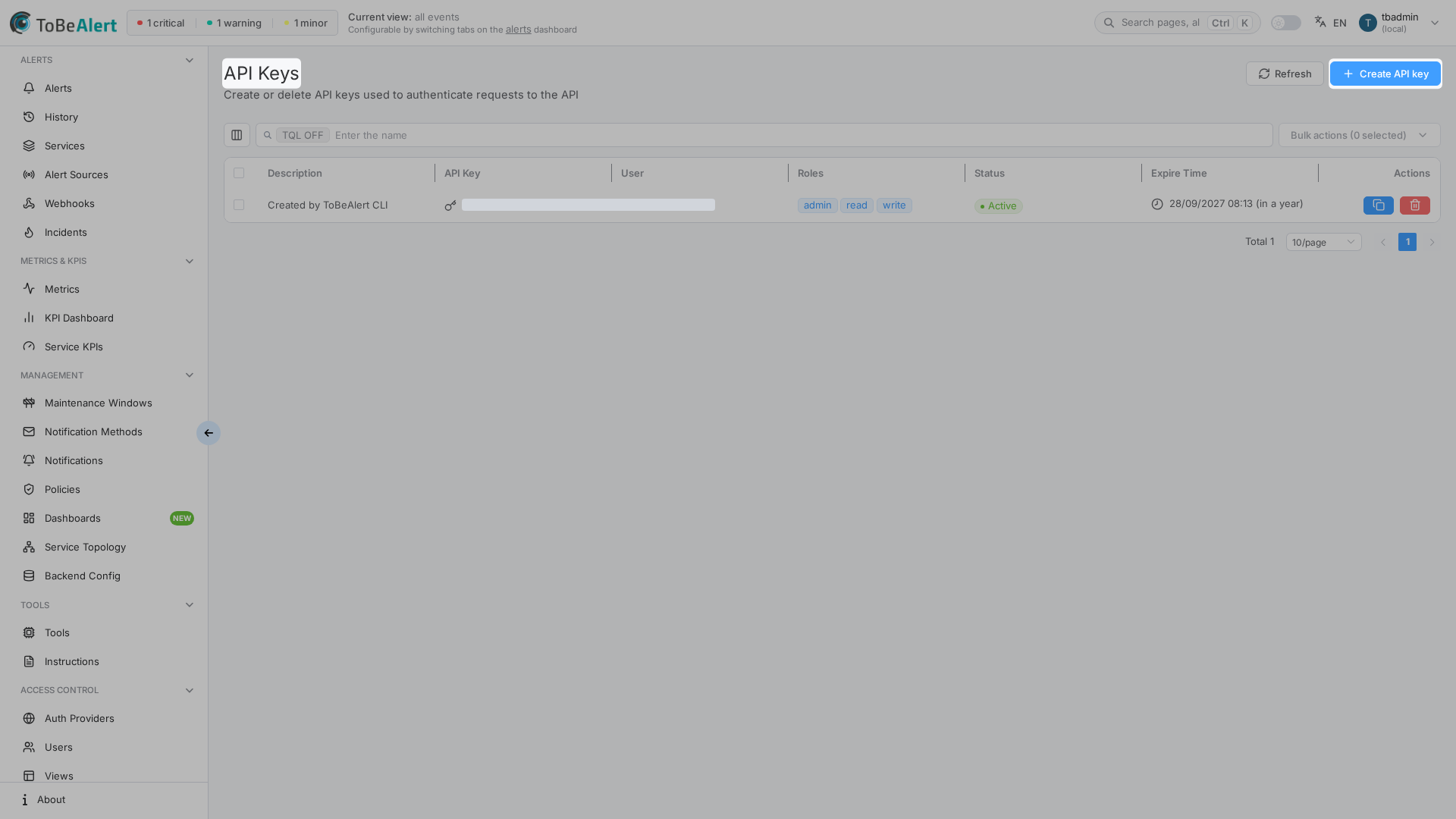
For Linux systems, copy this command and edit the API key at line 3 and the rest of the highlighted lines to your liking.
docker exec tobealert-backend curl --location 'http://localhost:9000/api/alert' \
--header 'Content-Type: application/json' \
--header 'Authorization: Key $API_KEY' \
 --data '{
    "resource": "azure-ws-1",
      "attributes": {
      },
      "environment": "Production",
      "event": "test",
      "group": "Web",
      "origin": "curl",
      "service": [
        "yourapp.com"
      ],
      "severity": "minor",
      "tags": [
        "cloud"
      ],
      "text": "Something went wrong",
      "type": "exceptionAlert",
      "value": "Bad Gateway 501"
    }'
For Windows systems, run the same command but on a single line.
docker exec tobealert-backend curl --location "http://localhost:9000/api/alert" --header "Content-Type: application/json" --header "Authorization: Key $API_KEY" --data "{\"resource\": \"azure-ws-1\", \"attributes\": {}, \"environment\": \"Production\", \"event\": \"test\", \"group\": \"Web\", \"origin\": \"curl\", \"service\": [\"yourapp.com\"], \"severity\": \"minor\", \"tags\": [\"cloud\"], \"text\": \"Something went wrong\", \"type\": \"exceptionAlert\", \"value\": \"Bad Gateway 501\"}"
And you are all set up.
Sending alerts with the alert simulation feature
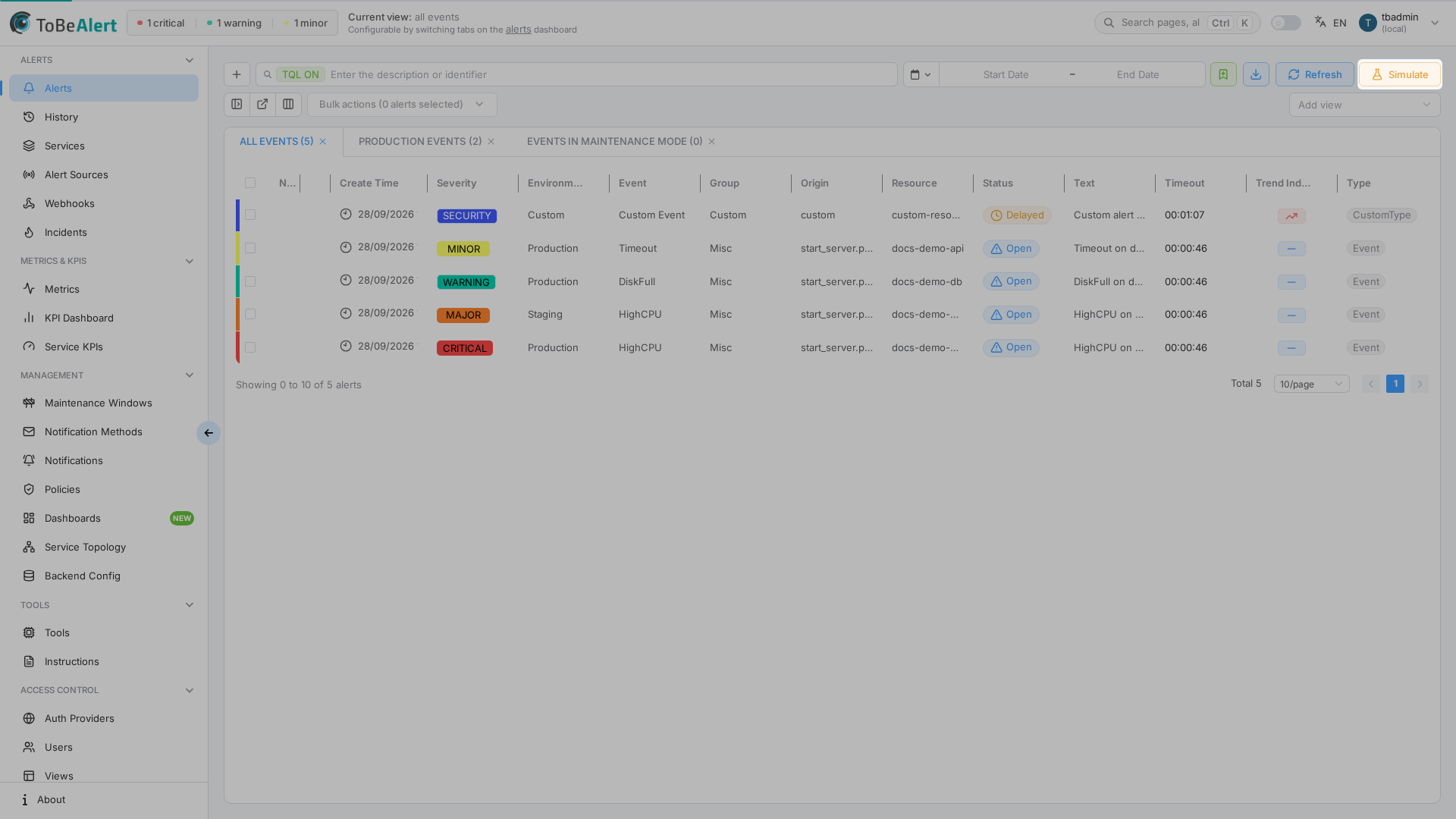
To send an alert from the Alerts view (/dash):
- Open Alerts
- Click Simulate next to Refresh (admin only)
- Choose a template or Custom JSON
- Click Send Alert
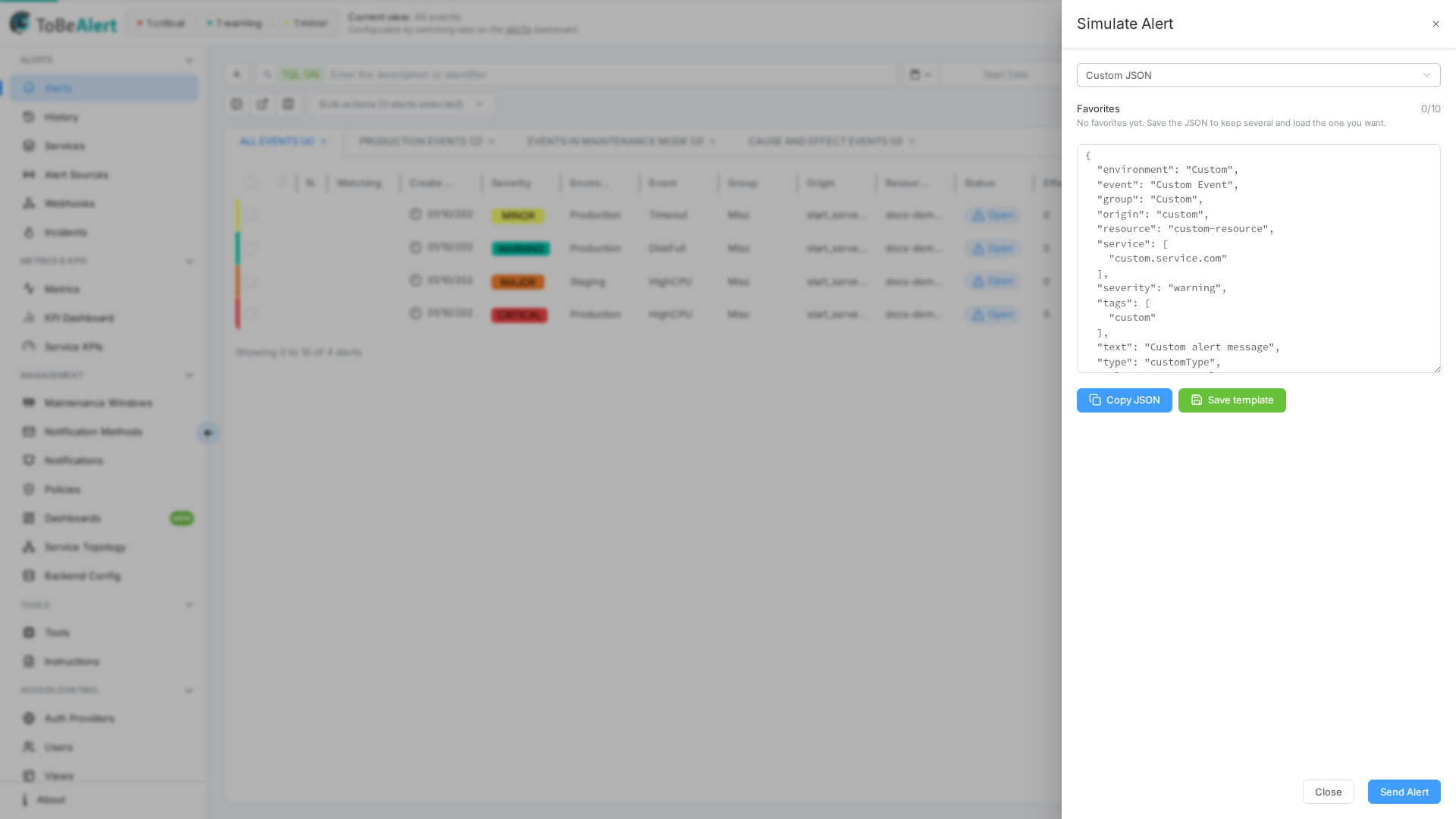
For templates, minutesDelayed, and more detail, see Simulate alerts.