Alert details drawer
Route: /dash (drawer overlays the dashboard)
Double-click an alert row, click a Resource (or other) cell link, or choose Details from the row context menu to open the details drawer. Review fields, add notes, run actions, and turn field values into dashboard filters.
See also: Overview · Bulk actions and context menu · History · Incidents
| Task | Section |
|---|---|
| Open and close | Open the drawer |
| Run actions | Action buttons |
| Run a tool | Tool picker |
| Search within the alert | Search in the drawer |
| Manage notes | Notes |
| Inspect fields | Information sections |
| See parent and child resources | Resource relations |
| Add filters from values | Click-to-filter |
Open the drawer
- Double-click a row, or right-click a row and choose Details.
- The drawer opens from the right with a colored stripe matching alert severity.
- Click outside the drawer or use the close control to dismiss it.
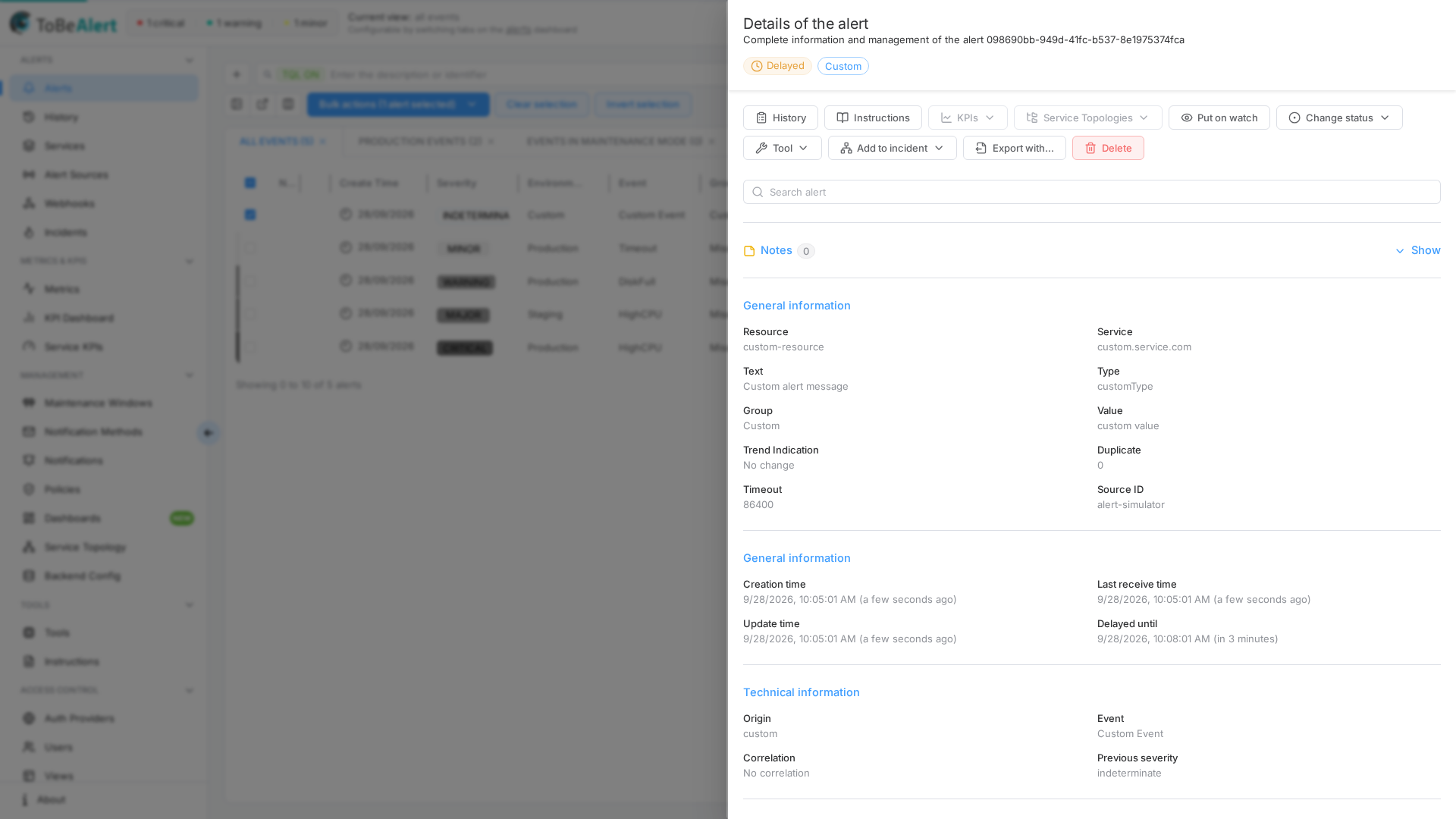
The header shows Details of the alert, the alert ID, and tags for Status and Environment. When the alert is on watch, a Watching · tag with that person's login appears next to those tags — the same shared watch as the eye beside notes in the alerts table (one login at a time). If nobody is watching, that tag is not shown.
Action buttons
Below the header, the drawer shows most of the same per-alert actions as the context menu (except Details, since you are already viewing details). Examples:
- History, Instructions, Put on watch / Remove from watch — stores your login on the alert, or clears it. Remove from watch opens the same confirmation as the context menu and Bulk actions. The watch is shared with everyone who can see the alert (the eye beside notes), not a private list in your browser. The change is listed in alert history. See Bulk actions and context menu.
- Acknowledge, Open, Shelve, Close
- Tool — opens a searchable picker (see Tool picker)
- Export with... — export this single alert
- Delete (with confirmation)
KPIs, Service topology, and Add to incident appear in the context menu when the alert has related KPIs, topologies, or linked incidents. If the alert is already linked to an incident, an info banner in the drawer can Open incident (requires read:incidents). See Incident editor.
Buttons disable when the action does not apply to the current alert state or your permissions.
Tool picker
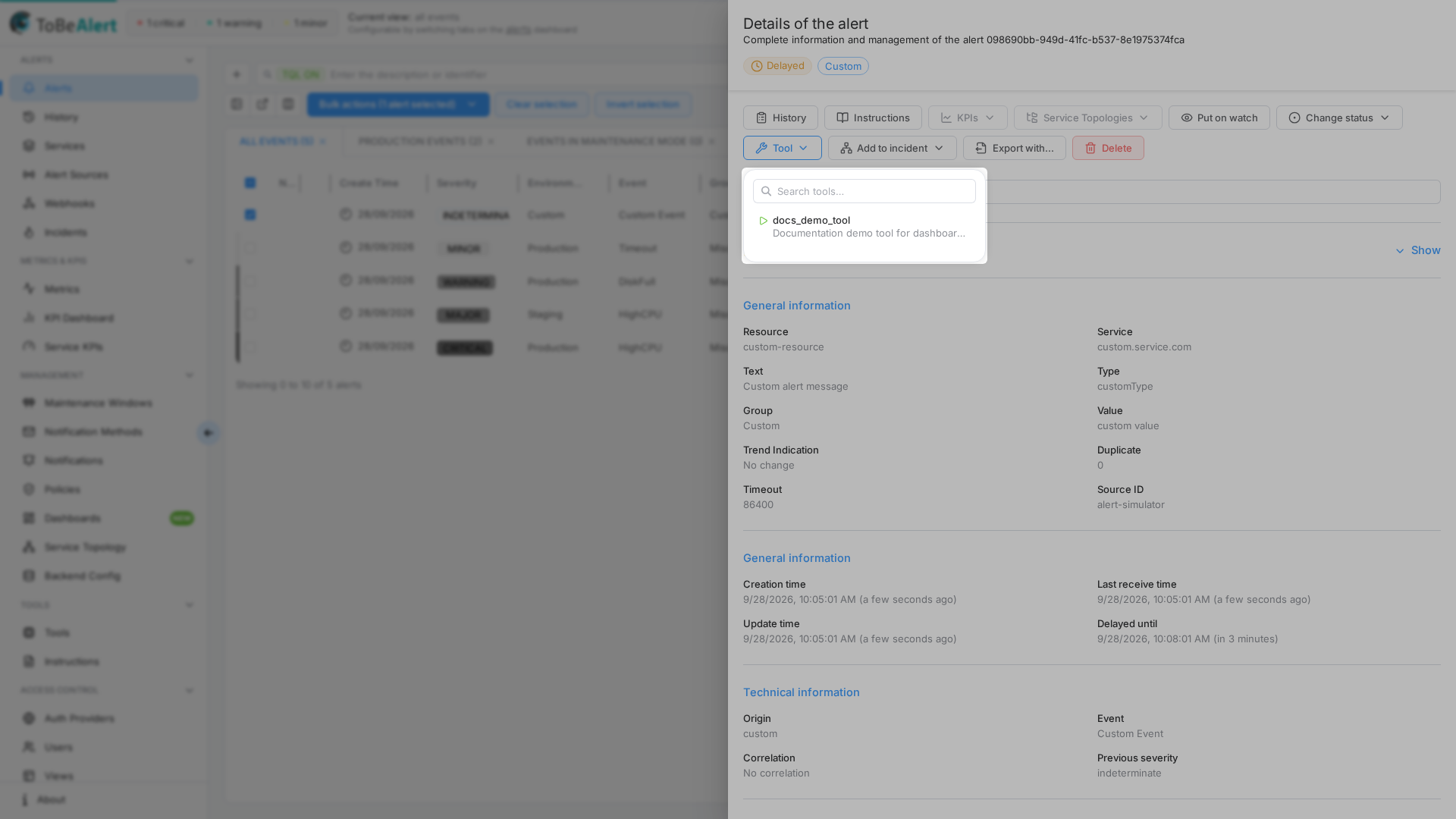
There is no nested tools drawer inside the details drawer. Click Tool to open a popover with:
- A Search tools… field to filter available tools.
- A scrollable list of tools (name + description). Click a row to run that tool on this alert.
- If none match, an empty state with a link to open the Tools page and create one.
Search in the drawer
Use Search alert to filter and highlight content inside the drawer:
- Section titles
- Field labels and values
- Custom attribute names and values
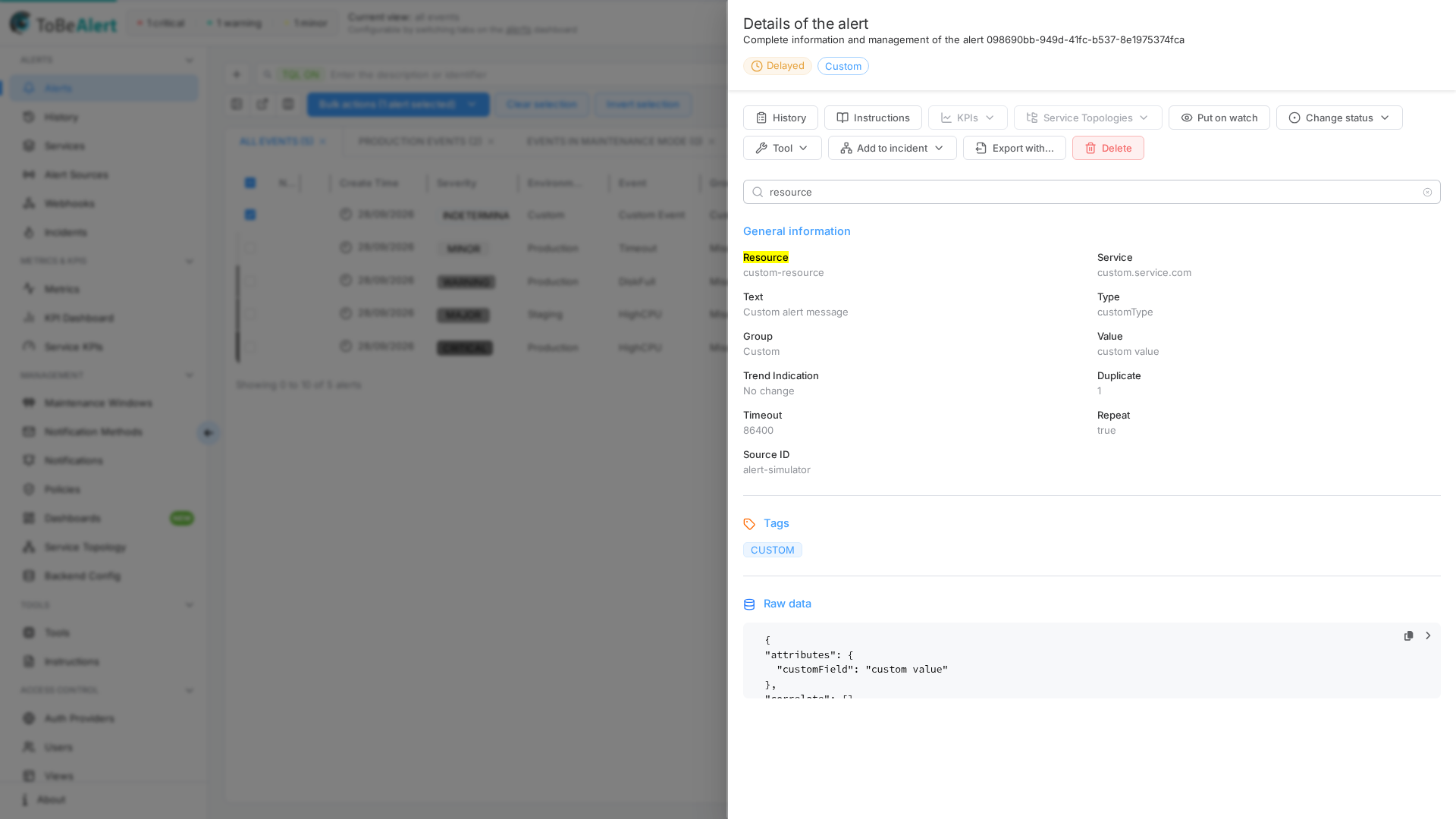
When search text is active, the Notes section (and execution history) is hidden so results focus on field data.
Notes
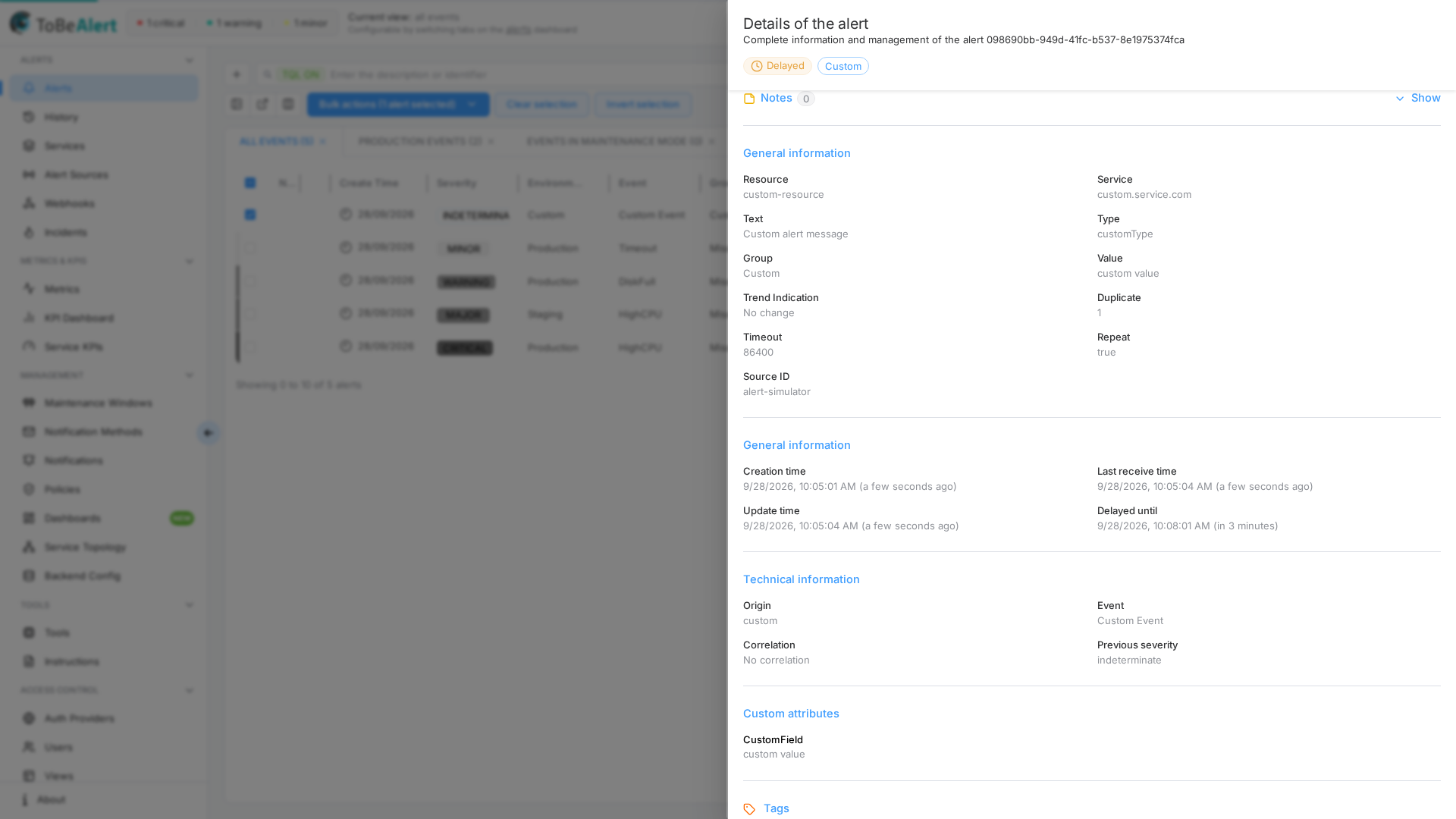
When not searching, the Notes section starts collapsed. Use Show / Hide to expand or collapse it. That open/closed preference is remembered in your browser (local storage), separately from other expandable sections in this drawer. Opening another alert keeps Notes as you left it — it does not reset per alert.
When expanded, the section allows:
- Type text in the note field and click Add Note.
- View existing notes with author, timestamp, and severity/status at time of note.
- Edit a note only when you have write:alerts and the note author is your login. An administrator cannot edit someone else's note. Save sends the new text. If the text is unchanged, alert history does not gain a row. If it changes, history records Note edited with that new text.
- Delete a note if you are the author or an admin.
A note shows (edited) when its update time is more than one second after its create time. The same mark appears on note excerpts in the alerts table popover.
Notes appear in alert history as note_added, note_edited, and note_deleted events. Note edited (note_edited) is written only when the saved text differs from the previous text, and the entry shows the new text the same way Note added shows the note.
Information sections
Fields are grouped for scanning:
| Section | Contents (examples) |
|---|---|
| General information | Resource, service, text, type, group, value, trend indication, duplicate, timeout, source ID |
| General information (second block, same heading) | Creation time, last receive time, update time, delayed until |
| Technical information | Origin, event, correlation, previous severity |
| Custom attributes | Key-value pairs from the alert payload. When the alert is on watch, watching can appear here with the watcher's login (same value as the Watching · header tag). |
| Tags | Clickable tag chips |
| Raw data | Collapsible JSON of the alert (excluding internal source metadata). Expand/collapse is remembered in your browser (local storage), separately from Notes and Policy / tool executions. Until you change it, the compact (collapsed) height is the default. |
The date-related fields (creation, last receive, update, delayed until) are grouped under a second section also titled "General information" in the current UI — there is no separate "Dates" heading.
Date values use your configured format and optional relative time.
Resource relations
When the alert's resource is part of the resource graph, the drawer shows a Resource relations block with Parent (the parent resource, or several when the graph knows more than one), Children (resources that hang from this one), and Ancestors (parent, grandparent, and so on). The relations come from the alert payload (resourceParent / resourceChildren), from the resource graph API, from policies (the Resource relation modifier), and later from topologies and CMDB imports — always within the alert's environment. If the resource has no relations, the block is empty. See Sending alerts — Resource relations.
Policy / tool executions
When policies, tools, or notifications have run against the alert, a Policy / tool executions section lists those runs. It starts collapsed — use Show / Hide. Open or closed is remembered in your browser (local storage), separately from Notes and Raw data. Opening another alert keeps this section as you left it. Entries can link to the related tool, policy, or notification when you have access. View more opens the full history for this alert.
Click-to-filter
Many field values, attributes, and tags are clickable:
- Click a value — a TQL filter is added (for example
resource:eq:web-01ortags:eq:cpu). - The drawer closes and the dashboard applies the filter.
- If you were on another route, you are returned to
/dashwith the newqparameter.
If a value is a URL, the drawer opens the link instead of adding a filter.
Best practices
- Add notes in the drawer during investigation — they are visible to the team in history.
- Use search on large attribute sets instead of scrolling.
- Click-to-filter from the drawer when pivoting from one resource to all related alerts.
- Run tools from the Tool picker — search by name, then click the tool to execute it on this alert.
- Check raw data only when normalized fields are insufficient — avoid sharing screenshots with sensitive payload content.