Hits chart and breakdowns
Route: /history (upper panel above the history table)
The hits chart shows how many history records fall into each time bucket for the current filters, view, and time range. Use interval and Break down by to explore volume and distribution without leaving the list.
See also: Overview · Alert history tracking · Per-alert timeline
| Task | Section |
|---|---|
| Read the chart and range summary | Hits overview |
| Change bucket size | Interval |
| Stack series by a field | Break down by |
| Toggle series in the legend | Legend |
| Resize or collapse the chart | Layout |
Hits overview
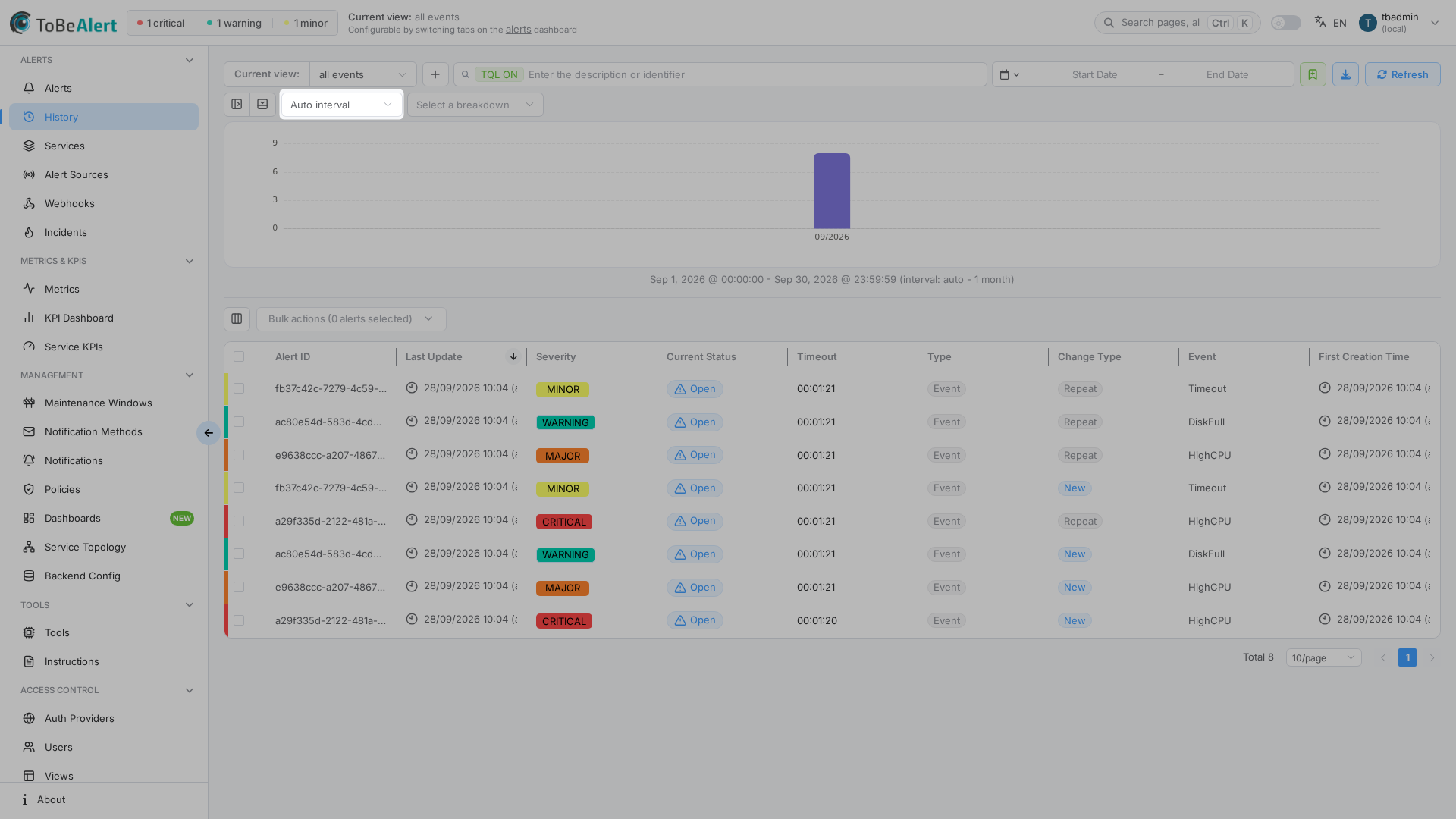
Above the table, History shows:
- A toolbar with collapse controls, interval select, and Break down by select
- An ECharts bar/area chart of count of records over time
- A textual range summary under the chart (for example
Aug 1, 2025 @ 00:00:00 - Aug 31, 2026 @ 23:59:59 (interval: auto - 1 month))
Empty state: No hits in the selected range.
The chart respects:
- Current view
- TQL and sidebar category filters
- The time range picker next to the search bar
Changing any of those reloads both the chart and the table.
Interval
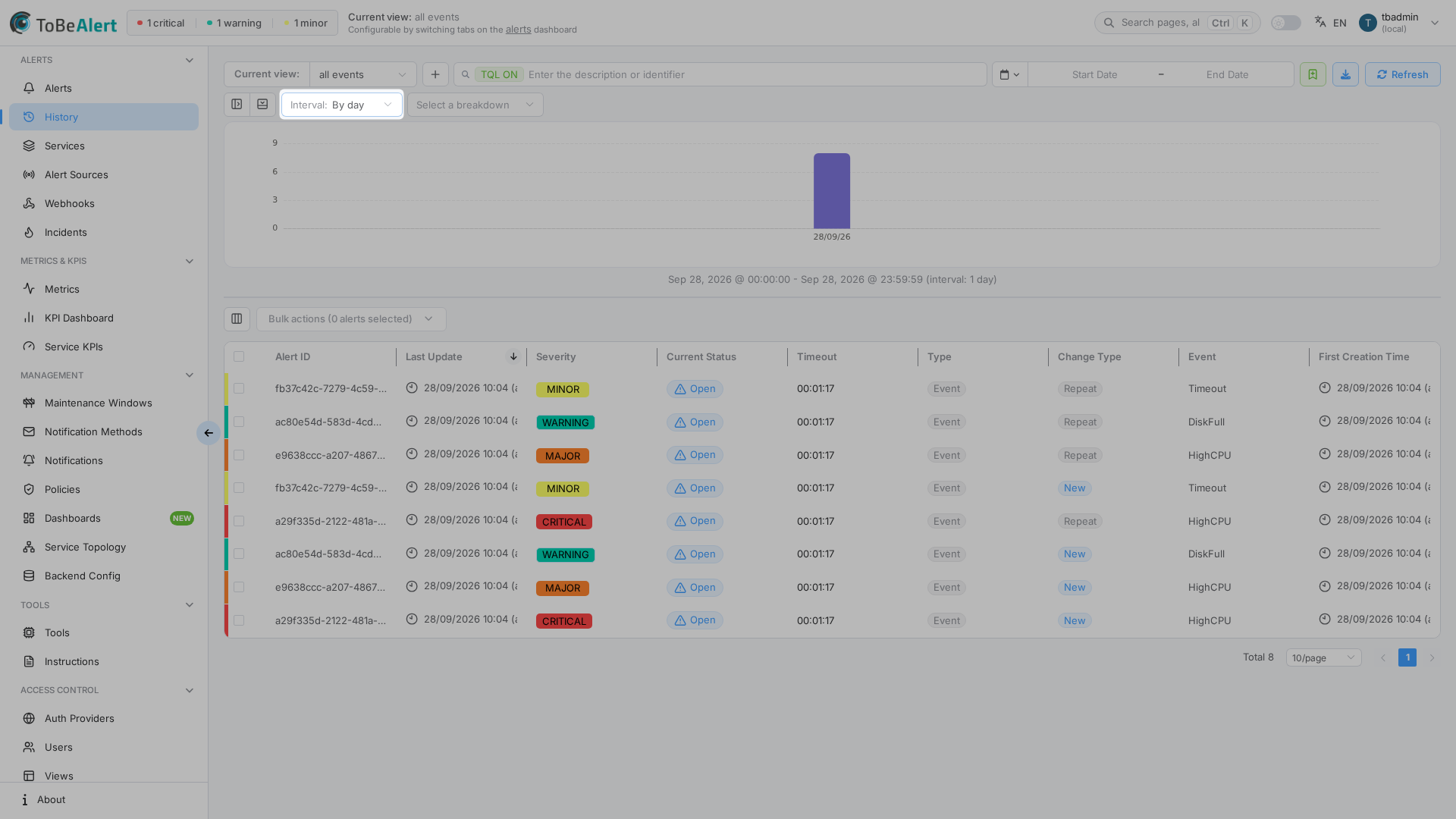
The first hits select controls bucket size:
| Option | When to use |
|---|---|
| Auto interval | Default — the UI picks a sensible bucket (second through month) from the selected range |
| By second | Very short windows (only available when the time range is ≤ 30 days) |
| By minute | Short windows (only available when the time range is ≤ 30 days) |
| By hour | Day-scale investigations |
| By day | Week/month reviews |
| By week | Longer trends |
| By month | Multi-month / yearly views |
When a fixed interval is active, the select prefix shows Interval:. Unavailable options stay disabled for the current range.
Break down by
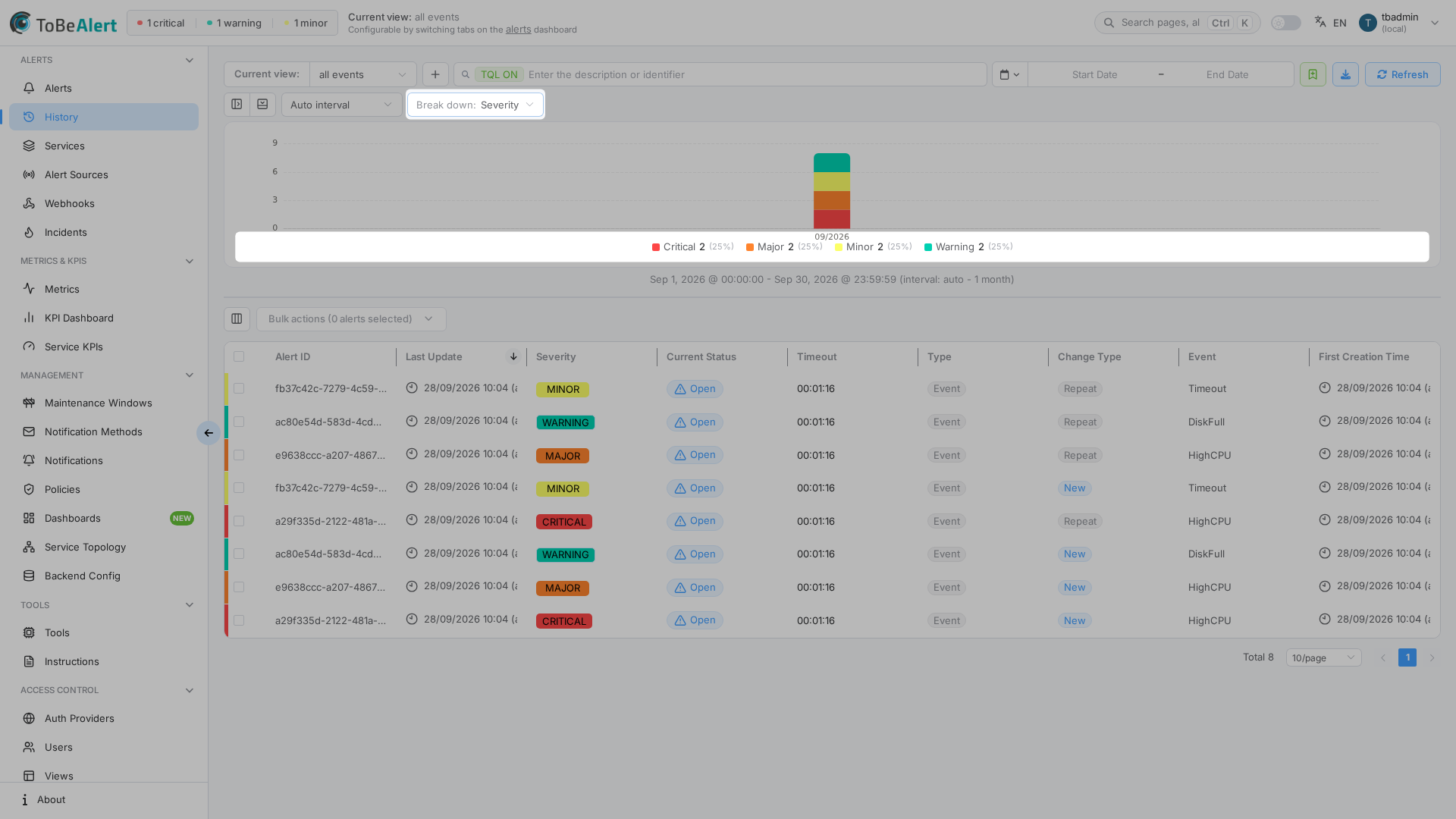
The second select stacks each time bucket by a dimension. Placeholder: Select a breakdown. When active, the prefix shows Break down: <field>.
| Option | Meaning |
|---|---|
| No breakdown | Single series — total hits per bucket |
| Resource | Stack by alert resource |
| Event | Stack by event name |
| Environment | Stack by environment |
| Severity | Stack by severity (uses severity colors when available) |
| Status | Stack by current status |
| Group | Stack by group |
| Value | Stack by value |
| Origin | Stack by origin |
| Type | Stack by alert type |
| Change Type | Stack by change type (New, Severity, Status, …) |
| Timeout | Stack by timeout |
| Trend Indication | Stack by trend indication |
| Source ID | Stack by source ID |
| User | Stack by acting user |
Clear the select (or choose No breakdown) to return to a single series.
- Set a focused time range (for example Last 7 days).
- Break down by → Severity or Change Type.
- Click a legend item to hide noisy series.
- Add TQL (for example
severity:eq:critical) to zoom the table to matching rows.
Legend
With a breakdown active, a legend lists each series with count and percentage (for example Critical 3795 (29%)).
- Click a legend item to hide or show that series on the chart (toggle).
- Percentages are relative to the visible filtered hits for the selected range.
Layout
- Drag the splitter between the chart and the table to give more space to either panel.
- Use the toolbar icons to collapse the filters sidebar or collapse the chart when you need a full-height table.
Best practices
- Start with Auto interval; switch to By hour or By day only when you need aligned buckets for a report.
- Prefer Severity, Status, or Change Type breakdowns for ops reviews; use Resource / Event when chasing a noisy source.
- Remember the chart is driven by the same filters as the table — a quiet chart with a busy table usually means mismatched expectations about what “hits” means (history records, not live alerts).
- Export the filtered table after you settle on a breakdown narrative — the chart itself is visual; the rows are the audit trail.