Per-alert timeline
Route: /history/<alertId> (optional ?tab=summary)
Open a single alert’s change history for post-mortems, audits, and handovers. The page is titled History (inside alert) with description View the history of alert <id>.
See also: Overview · Alert history tracking · Hits chart and breakdowns
| Task | Section |
|---|---|
| Open from the History list | Open the page |
| Read the severity chart | Severity chart |
| Walk individual changes | Changes tab |
| See cards and donuts | Summary tab |
| Export one alert | Export |
Open the page
From Alerts → History:
- Select one row (or right-click it).
- Choose Timeline from Bulk actions or the context menu.
- Or navigate directly to
/history/<alertId>.
Header actions:
- Back to History — return to
/history - Export with... — export this alert’s history (Export alert history)
Details on the list opens a point-in-time drawer. Timeline opens this full page with every change for that alert ID.
Severity chart
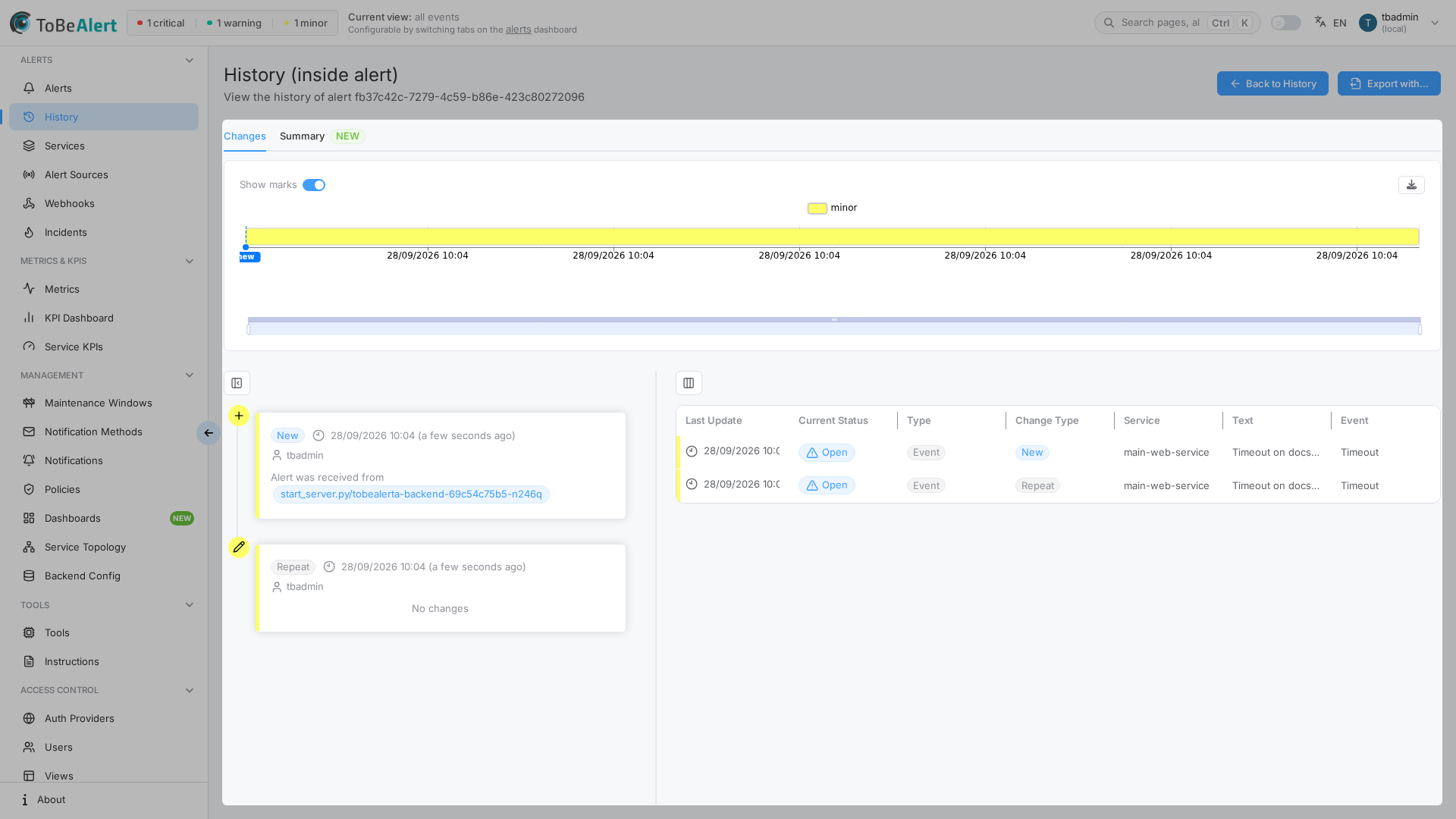
Above the tabs, a horizontal chart plots severity / status segments over the alert’s lifetime.
- Enable Show marks to display markers on the chart for change points.
- Use the chart together with the Changes timeline to correlate spikes with status or severity transitions.
Changes tab
Default tab (Changes). A horizontal splitter separates:
Left — timeline
A vertical .el-timeline of change entries. Typical labels:
| Tag / label | Meaning |
|---|---|
| New | Alert first received (Alert was received from + origin) |
| Severity | Severity change from → to |
| Status | Status change |
| Put on watch | The alert was put on watch (one login stored on the alert) |
| Remove from watch | Watch was cleared |
| Repeat | Duplicate / repeat receive |
| Plugin execution | Tool / plugin run affecting the alert |
| Policy execution | A policy changed the alert. For Mark as effect the reason reads Policy "X" marked this alert as an effect (suppressed): alert <id> (…) matched the cause conditions. (or … is an open alert on a parent resource "…". / … arrived on a parent resource "…".) and the diff shows suppressed and causeId. For Resource relation it reads Policy "X" set resource parent "…" (from value) and added N child relation(s). The release entry (Cause alert <id> (…) is no longer an alert …: this alert is no longer suppressed.) is by system — see Cause and effect alerts |
| Notification sent | Notification delivery |
| No changes | Entry without a field delta |
Put on watch and Remove from watch are their own history entries, with the user and time like other changes. The diff can show the custom attribute watching added or removed.
Each entry can show:
- Timestamp
- Actor: user name, System (plugin), or Scheduled Task (actors may link to the related tool, policy, or notification when you have access)
- Rich diffs (severity/status tags, tags added/removed, text diffs for long fields)
Use Hide timeline / Show timeline to collapse the left pane when you need a wider table.
Right — history table
Columns typically include Last Update, Current Status, Type, Change Type, Service, Text, and Event. Use Reset / Save on the table toolbar for column preferences.
Summary tab
Open Summary (badge NEW). The URL adds ?tab=summary.
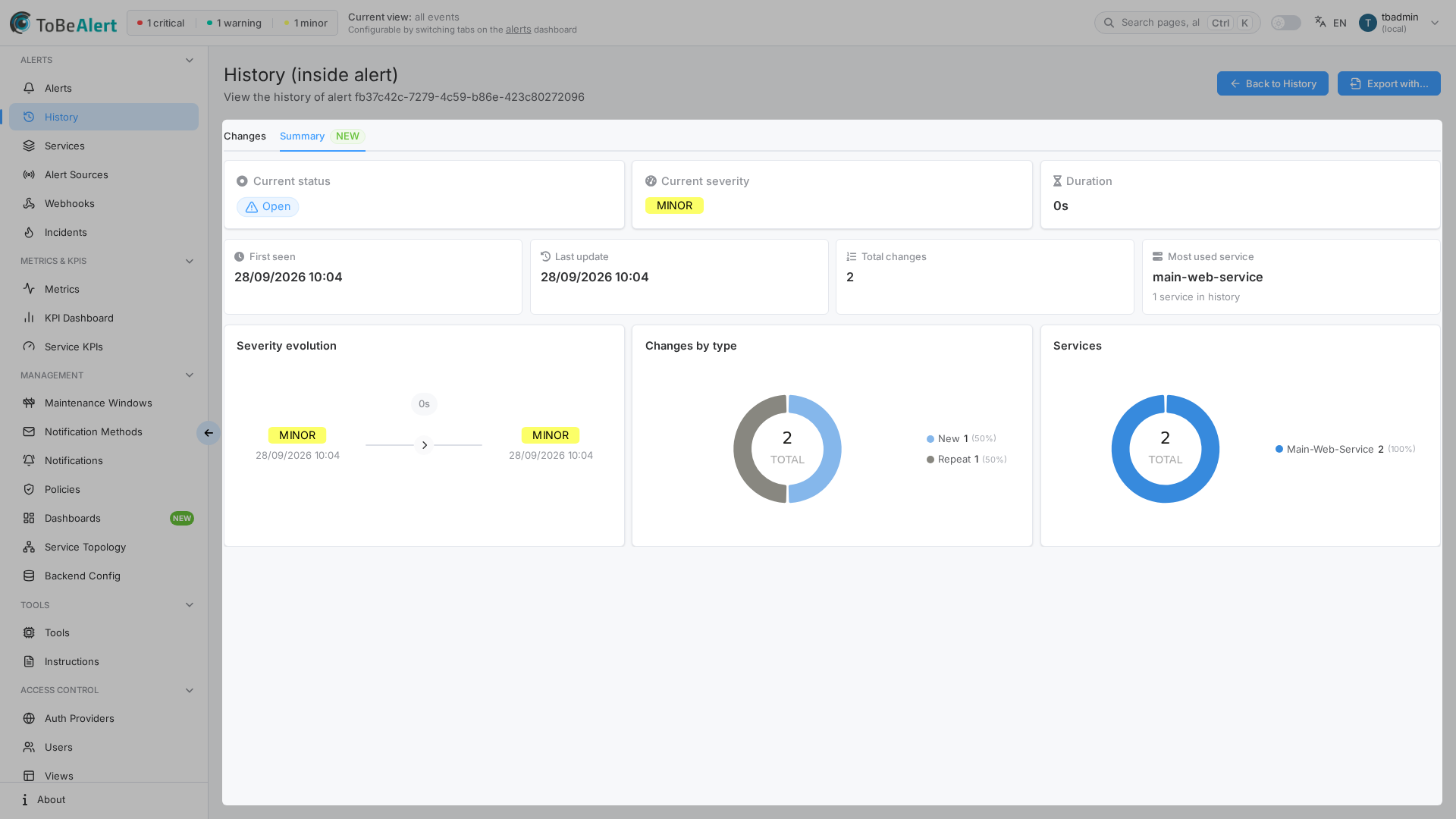
Cards
| Card | Content |
|---|---|
| Current status | Latest status |
| Current severity | Latest severity (may show from <severity>) |
| Duration | Lifetime span |
| First seen | First history timestamp |
| Last update | Most recent change |
| Total changes | Count of history entries |
| Most used service | Top service plus N service(s) in history |
Charts
| Chart | Content |
|---|---|
| Severity evolution | How severity moved over time |
| Changes by type | Donut of change types + TOTAL |
| Services | Donut of services (empty: No services in this history) |
Use Summary for executive overviews; switch back to Changes when you need the exact transition that caused an escalation.
Export
Click Export with... in the page header to open Export alert history for this alert only (Excel / CSV and advanced column options, same family of dialog as the list export).
Best practices
- Open Summary first for a long-lived alert, then drill into Changes around the escalation window.
- Turn on Show marks when correlating the severity chart with timeline entries.
- Follow linked plugin / policy / notification actors from timeline rows when investigating automation.
- Export the per-alert history before closing an incident ticket.