Managing services
Route: /services
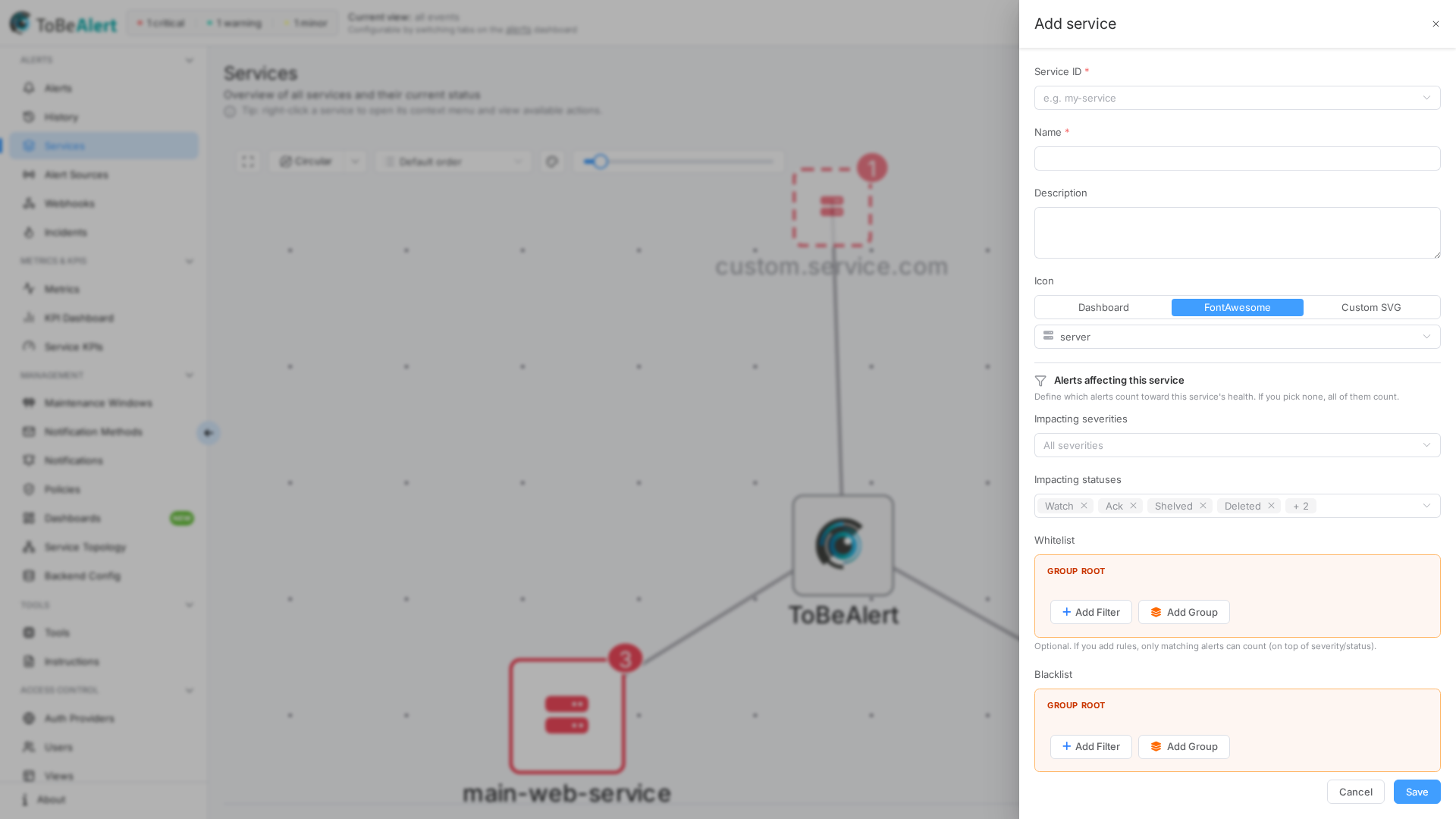
Create, edit, and delete entries in the service catalog. Each entry defines how a service appears on the service map and which Service ID links alerts, KPIs, and topologies to that service.
See also: Overview · Service map · Alert-based suggestions
Catalog fields
| Field | Create | Edit | Description |
|---|---|---|---|
| Service ID | Required | Read-only | Unique identifier; must match the service value on alerts. Pick from alert-derived suggestions or type a new ID. |
| Name | Required | Editable | Display name on the map node and in lists |
| Description | Optional | Editable | Internal notes (not shown on the map node label) |
| Icon | Optional | Editable | Icon on the map node; default is a server icon |
The Service ID cannot be changed after creation. Plan IDs to match your alert sources (for example payments-api, core-db). On create, the Service ID dropdown lists service names seen in alerts that are not yet in the catalog; you can also type a new value.
Create a service
- Open Alerts → Services (
/services). - Click Add service.
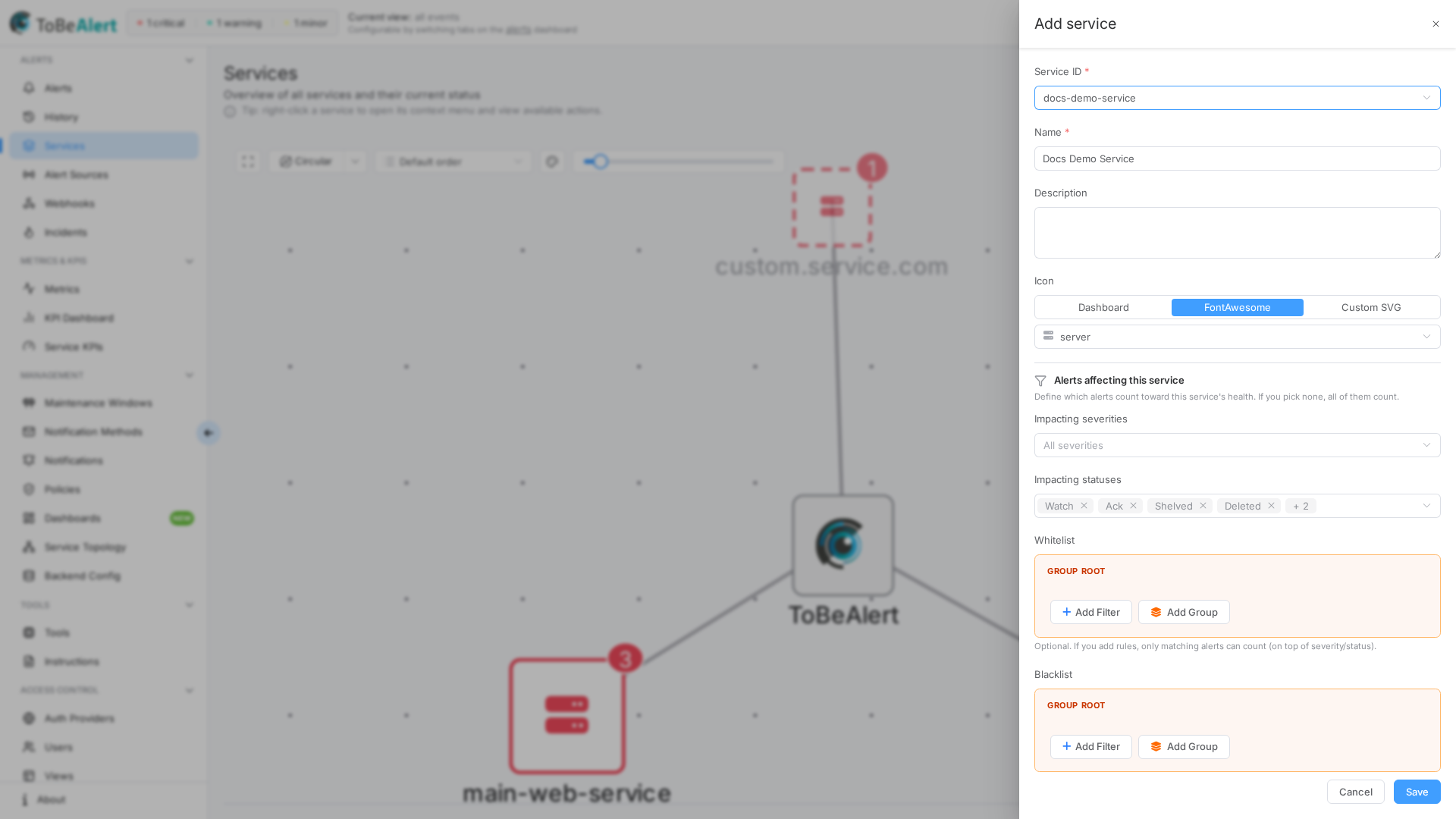
- Set Service ID — select an existing alert service name or enter a new ID (for example
docs-demo-service). - Set Name (for example
Docs Demo Service). - Optionally add Description.
- Choose an Icon (see Icon picker below).
- Click Save.
The new node appears on the service map connected to the Enterprise hub.
Edit a service
- Right-click the service node and choose Edit service, or select the node and click Edit service in the alerts panel header.
- Update Name, Description, or Icon. Service ID is disabled.
- Click Save.
The map node label and icon update immediately.
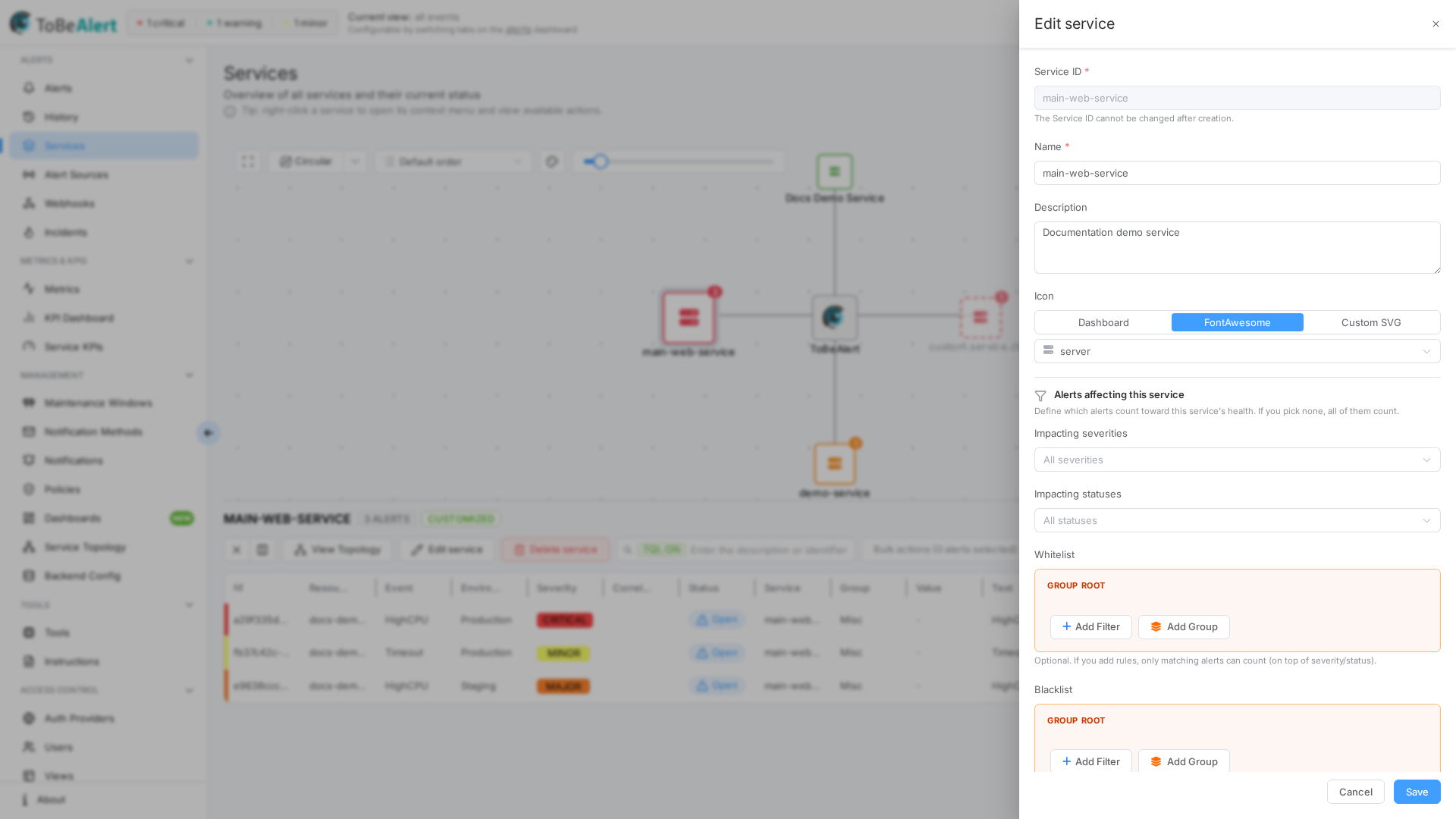
You can also deep-link to edit mode with ?service=<service-id>&edit=1 on /services.
Delete a service
Single delete
- Right-click the node → Delete service, or select the node and click Delete service in the alerts panel.
- Confirm in the dialog.
The node and catalog entry are removed. This does not delete historical alerts — only the catalog record.
Bulk delete
- Select multiple service nodes on the map (click with modifier keys or drag a selection box).
- Right-click the selection.
- Choose Delete N services from the context menu.
- Confirm.
The Enterprise hub node and suggested (dashed) nodes cannot be deleted.
Icon picker
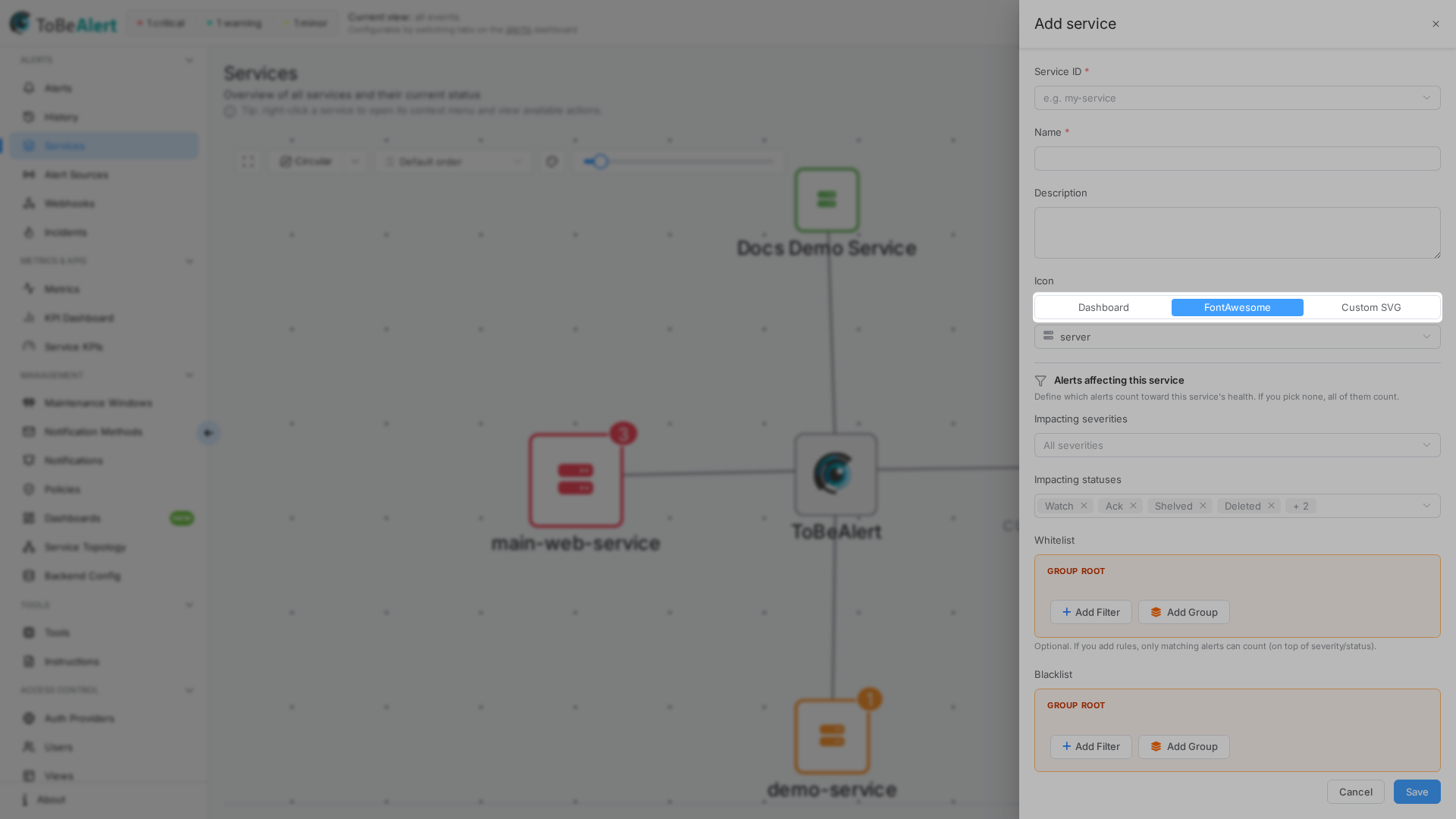
The Icon field uses a searchable icon picker with three types:
| Type | Description |
|---|---|
| Dashboard | Built-in product icons (SVG assets) |
| FontAwesome | Solid Font Awesome icons — search by name |
| Custom SVG | Paste raw SVG markup; preview shown below the textarea |
- In the create or edit drawer, find Icon.
- Use the segmented control to switch Dashboard, FontAwesome, or Custom SVG.
- For Dashboard or FontAwesome, open the dropdown, type in Search icon…, and pick an icon.
- For Custom SVG, paste markup and verify the Preview.
- Save the service — the map node uses the new icon (size scales with alert count).
Service ID from alerts
When creating a service, the Service ID dropdown is populated from unique service values on active alerts that are not already in the catalog. If every alert service is already cataloged, the dropdown shows You have already added all services — enter a new ID manually instead.
This is the current way to spot missing services from alert traffic — see Alert-based suggestions for details (note: the old map-wide ghost-node preview described there has been removed; only this dropdown remains).
Best practices
- Align Service ID with alert payloads — mismatched IDs mean alerts won't attach to the node.
- Use descriptive Names even when the ID is technical (
prod-k8s-ingress→Production Ingress). - Standardize icons by layer (database, queue, API) using FontAwesome or Dashboard sets.
- Avoid duplicate catalog entries — check the Service ID dropdown before manually typing IDs.
- Review before bulk delete — topologies and KPIs may reference catalog services.