Overview
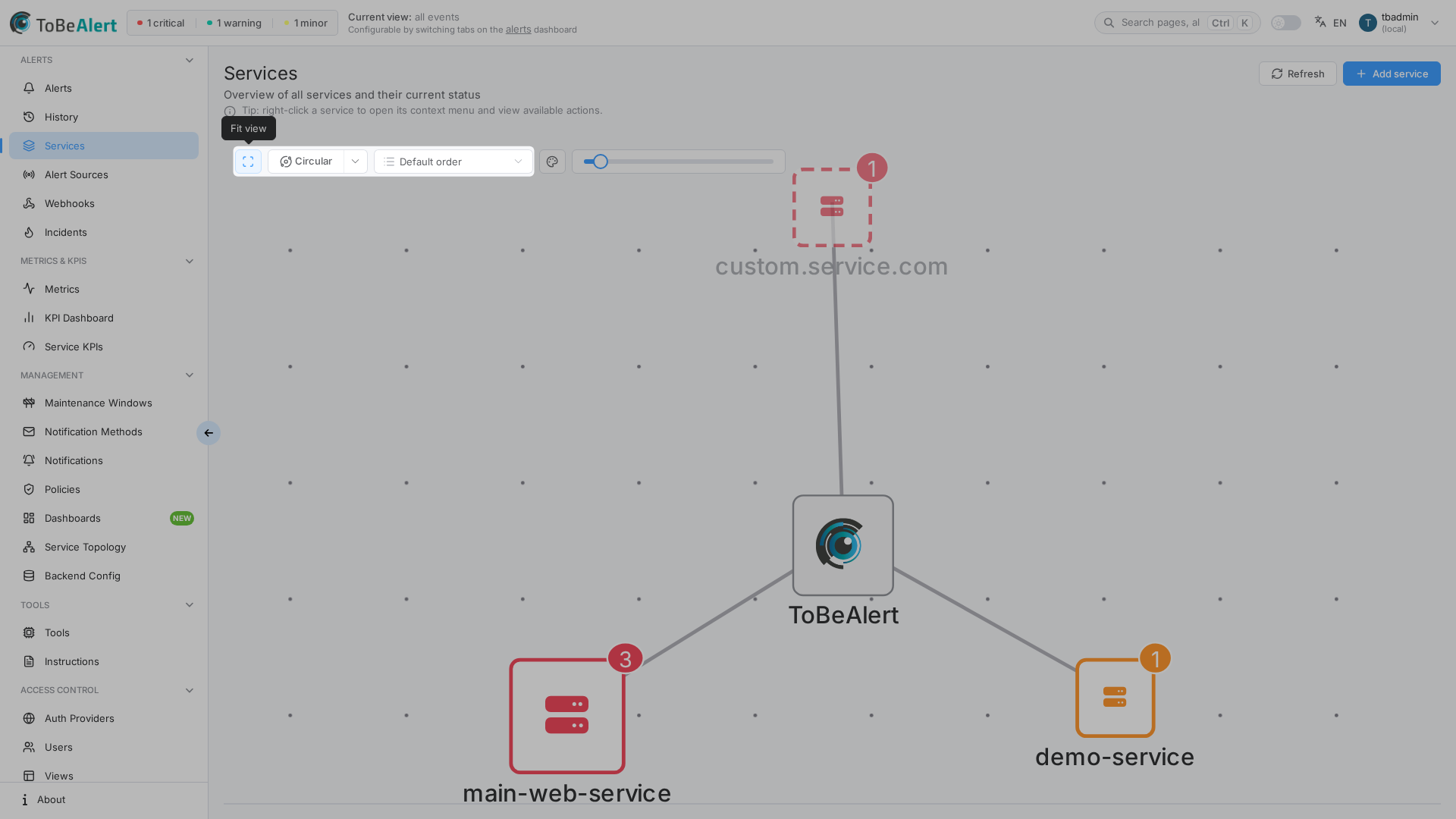
The Services view is your service catalog: a curated list of services that ToBeAlert knows about, shown as an interactive service map. Each catalog entry can carry a custom icon, link to active alerts, and connect to Service Topology when a topology exists for that service.
Build the catalog manually with Add service, or pick a name already seen on alerts from the Service ID dropdown when creating a service (see Alert-based suggestions for details).
| Step | What you configure | Menu / route | Documentation |
|---|---|---|---|
| 1 | Catalog — name, Service ID, icon, description | Alerts → Services → /services | Managing services |
| 2 | Service map — layout, node order, fit view, context actions | Same page — graph area | Service map |
| 3 | Service ID suggestions — alert-derived names not yet in the catalog | Service ID dropdown in the Add service drawer | Alert-based suggestions |
| 4 | Per-service alerts — table, TQL search, bulk Details | Click a service node on the map | Service map — Alerts panel |
Where to find it in the UI
In the sidebar under Alerts:
- Services →
/services
The page header shows Services with the subtitle Overview of all services and their current status.
Header actions:
| Button | Purpose |
|---|---|
| Add service | Open the create drawer (its Service ID dropdown suggests names from active alerts) |
| Refresh | Reload catalog entries and alert metrics; node color and size update |
A tip under the header reminds you that right-click a service node opens its context menu.
Viewing and managing the service catalog requires the appropriate Services permission in your organization. If the Services menu or Add service is missing, contact your administrator.
How the parts fit together
Typical workflow:
- Open Alerts → Services and review the Enterprise hub with service nodes around it.
- Click Add service and open the Service ID dropdown to see names already seen on active alerts but not yet cataloged; pick one or type a new ID.
- Set Name, Description, and Icon, or later click Edit service from a node's context menu to change them.
- Click a service node to open the alerts panel below the map; use TQL search to narrow the list.
- When a topology exists, use View Topology from the context menu or alerts panel to open Management → Service Topology for that service.
The catalog is shared across the product: Service Topology topologies, Service KPIs, status pages, and dashboard widgets all reference services you define here.
Node appearance on the map
| Visual cue | Meaning |
|---|---|
| Border and icon color | Worst active alert severity for that service (healthy = green, critical = red, etc.) |
| Badge (top-right) | Count of active alerts; hidden when zero |
| Node size | Relative alert volume compared to other services on the map |
Nodes are arranged automatically — you choose layout and sort order, not manual drag positions.
Related modules
| Module | Relationship |
|---|---|
| Service Topology | Per-service environment/resource graph; View Topology from a catalog service |
| Alerts dashboard | Alerts carry a service attribute used for grouping and suggestions |
| Service KPIs | KPI definitions reference catalog services |
| Alert sources | Inbound alert sources populate the service field on received alerts |
Best practices
- Check the Service ID dropdown when migrating from an existing alerting stack — it surfaces real service names from production alerts.
- Keep Service ID stable — it cannot be changed after creation and must match the
servicevalue on incoming alerts. - Pick distinct icons per team or tier so the map stays readable at a glance.
- Refresh after major incidents so node colors and badge counts reflect current severity.
- Create the catalog before Service Topology so Service to fetch lists the right IDs when you create a topology.
- Use the alerts panel TQL search instead of leaving the page when triaging a noisy service.