About
Route: /about
The About page shows application version information and, for privileged users, license and environment metrics. Open it from the sidebar footer (About) or by navigating to /about. Every signed-in user can open this page and see Software versions — not an empty table.
Sections by role
| Section | Who sees it | Content |
|---|---|---|
| License Information | Superadmin only | License Details, validity chart, Licensed Features, and license maintenance actions |
| Application details and metrics | All users | Hint Software versions of this ToBeAlert instance. and the Software versions table (Frontend always; Backend when the instance reports it) |
| Alert Metrics | Admin users | Table of metric name, description, group, type, and value |
License Information requires a superadmin account. Alert Metrics requires admin. Standard users still see Application details and metrics with Software versions — the table is never empty for them. If you need license or metric data, contact your administrator.
Admin is not the same as superadmin. Superadmins use License Information on this page. Admins (including those who are not superadmin) can reactivate an expired or inactive license from the in-app overlay described below — not from About.
Software versions
Under Application details and metrics, the hint reads Software versions of this ToBeAlert instance. Every signed-in user sees this card. You do not need admin or superadmin to read versions.
The table lists:
| Column | Description |
|---|---|
| Component | Frontend (always). Backend when this instance reports a backend version |
| Version | Running version tag |
Frontend is always present, so the table is never blank (No Data). When a hotfix bundle is active, Backend shows its id after the version, for example 1.4.0 (1.4.0-hf1); Frontend does the same when the bundle includes Web UI fixes. If Backend is missing, you still see the Frontend row. Use this after deployments or when opening support tickets.
License Information (superadmin)
When visible, the page includes:
| Area | Description |
|---|---|
| License Details | Status tag (ACTIVE / INACTIVE), tier, dates, and identifiers |
| License Validity | Donut chart and Days Remaining |
| Licensed Features | Feature cards with enablement and limits |
| Actions | Refresh license from cloud, Delete License, Change License |
Refresh license from cloud asks the licensing server for an updated license. If that server says the license is expired or not found, the in-session license is invalidated and the same License expired / License not active overlay described below appears — an admin reactivates there (Online or Offline). This is not first-run License setup. If the refresh fails because the host cannot reach the licensing server (timeout or transport error), the license is not invalidated and the page shows an error toast.
Published documentation screenshots redact only the License Key, Client ID, and License ID values so sensitive identifiers never appear in images. Labels, status, tier, dates, and the rest of the section stay visible. Your live UI shows full detail when you are signed in as superadmin.
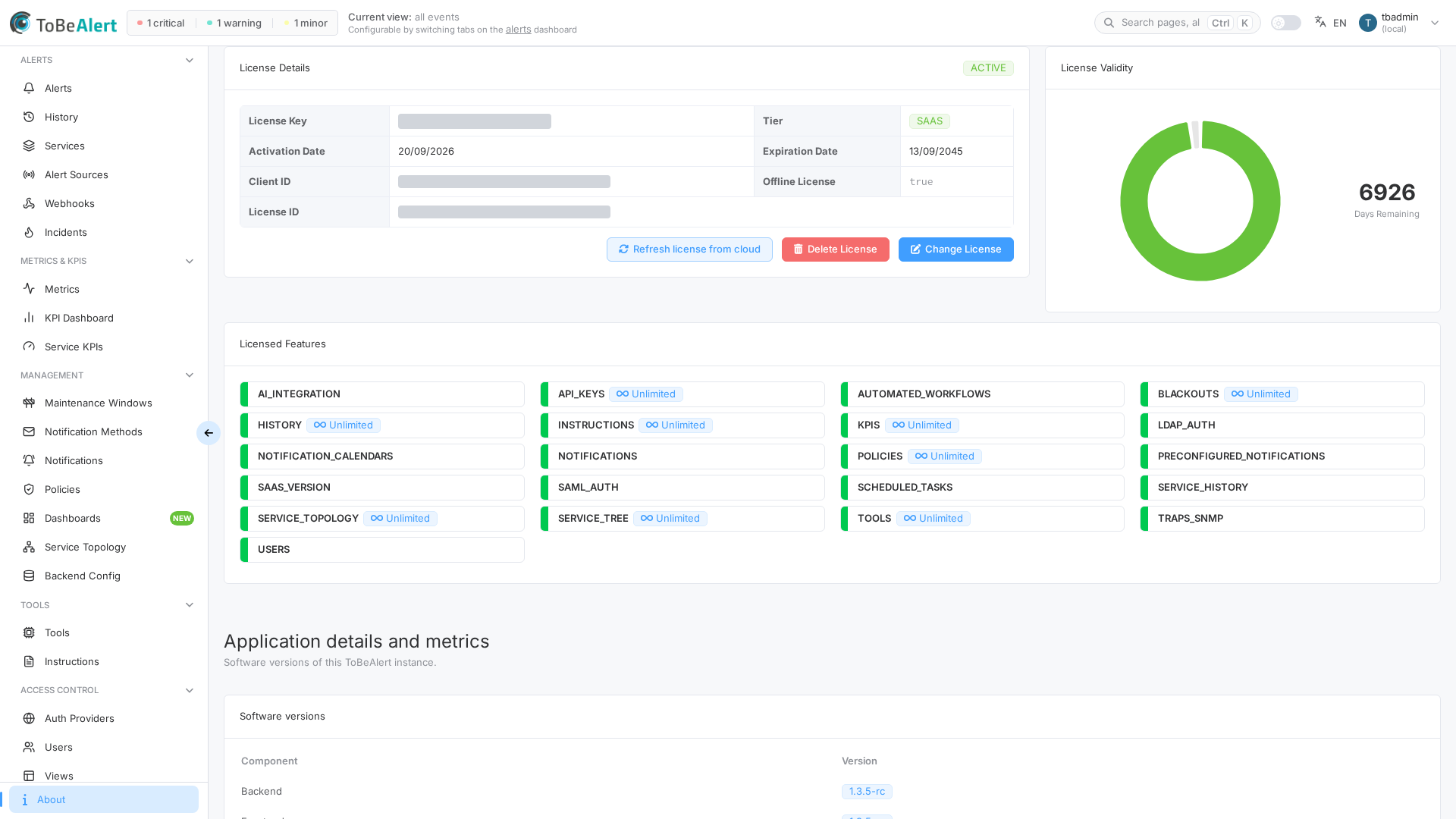
License Key, Client ID, and License ID values are grayed out in the screenshot above. Do not share production screenshots that include those values or other client identifiers.
License expired or not active (after login)
This overlay is not first-run License setup. License setup appears before login only when the instance has no usable license yet (file absent or not for this machine). After you sign in, if the license expires or is not active — including after a superadmin Refresh license from cloud on an instance that already had a license — the Web UI blocks the app with this overlay. The server requires admin for activate and install in this state as well — hiding the form in the UI is not the only control.
| Who | What they see |
|---|---|
| Admin | Title License expired or License not active, plus Online / Offline (same modes as License setup). Online: enter a License Key and click Activate License. Offline: the hint explains that this host will not contact the licensing server; choose Choose the offline key file (file from the ERP portal) and click Install offline license. |
| Other signed-in users | The same title and a message to contact their administrator. No key field and no file upload. |
Superadmins still review status and maintenance on License Information (this page) when the license is valid. When the overlay is up, reactivation is the admin form on the overlay — not License setup.
Alert Metrics (admin)
Administrators see an Alert Metrics table with operational counters and flags (ON / OFF where applicable). Use it for a quick health snapshot — not as a substitute for external monitoring.
Open About
- Scroll to the bottom of the sidebar.
- Click About.
- Review Application details and metrics and Software versions (Frontend is always listed). Superadmins scroll to License Information; admins also review Alert Metrics.
Best practices
- Confirm Frontend (and Backend, when listed) versions match your change record after upgrades.
- Superadmins should use Refresh license from cloud after renewal before escalating support issues. If the licensing server reports the license as expired or not found, the in-session license is invalidated and the License expired / License not active overlay appears — an admin reactivates there (Online or Offline). A timeout or transport error does not invalidate the license. First-run License setup is only for an instance with no usable license yet; refreshing a license that was already on this host is not that path.
- Avoid exporting or posting screenshots that include license identifiers — follow the redaction practice used in product docs.
- Direct operators without admin rights to Settings and dashboards — not license controls on About.