Overview
The ToBeAlert Web Interface wraps every feature in a shared application shell: a collapsible sidebar for navigation, a top bar with alert summaries, global search, and account controls, and dedicated pages for Settings and About.
| Step | What you use | Where | Documentation |
|---|---|---|---|
| 1 | Sidebar — categories, routes, collapse | Left panel on every main view | Sidebar and navigation |
| 2 | Top bar — severity counts, current view, global search, theme, language, profile | Top of the window | Top bar and search |
| 3 | Table search and TQL — plain text and structured filters on list pages | Toolbar on Management, Access Control, Tools, Metrics | TQL search and filters |
| 4 | List tables and bulk actions — columns, pagination, selection, bulk bar | Configurable tables across modules | List tables and bulk actions |
| 5 | Settings — alerts display, colors, navbar indicators, general preferences | User menu → Settings or /settings | Settings |
| 6 | About — versions, metrics, license (superadmin) | Sidebar footer → About or /about | About |
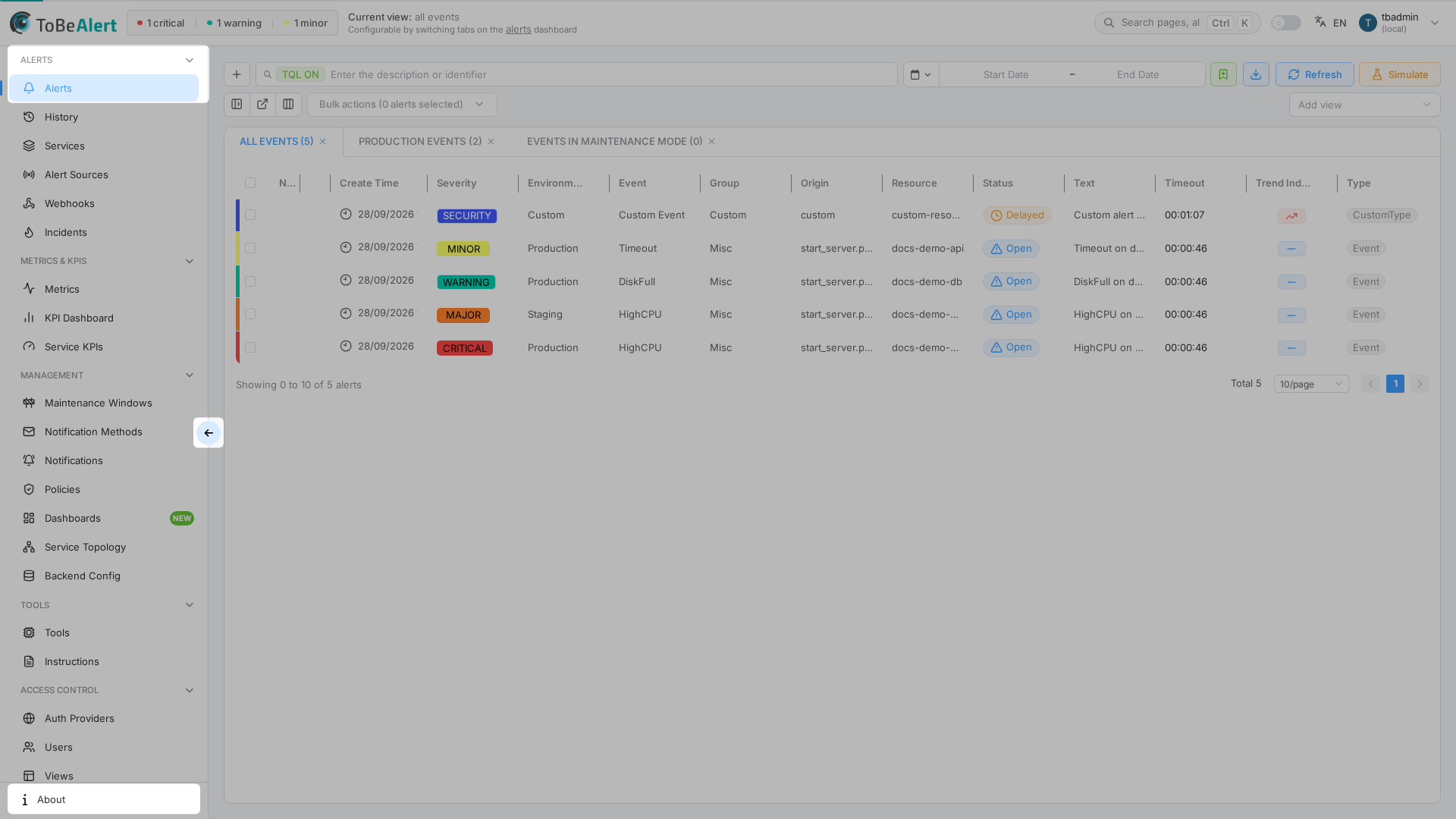
Where to find it in the UI
- Sidebar: always on the left for logged-in users (icon-only when collapsed).
- Top bar: logo (toggles sidebar width), alert indicator chips, Current view label, global search (Search pages, alerts... / Ctrl+K), theme switch, language flag, and user avatar menu.
- Settings: user menu → Settings (not listed in the main sidebar menu groups).
- About: fixed item at the bottom of the sidebar → About.
Settings and About are available to all signed-in users. License Information on About is shown only to superadmin accounts. Alert Metrics on About requires an admin user. If the license expires or is not active after login, an overlay appears: admin users can reactivate there (Online / Offline); other users must contact an administrator. If sections are missing, contact your administrator.
How the shell fits together
Typical flow:
- Use the sidebar to open Alerts → Dashboard (
/dash). - Read severity counts in the top bar while you work the alert table.
- Open Settings to tune refresh interval, colors, and which severities appear in the navbar.
- Open About to confirm Frontend/Backend versions or review environment metrics (admin).
Shared list patterns
Most modules reuse the same table toolbar: search (plain or TQL), Column manager, row selection, and Bulk actions. Read the General references before diving into feature-specific columns:
- TQL search and filters — plain vs TQL, TQL ON / TQL OFF tag, syntax, autocomplete
- List tables and bulk actions — pagination, selection, bulk bar, context menu
Alert-specific bulk actions remain on Bulk actions and context menu.
Related modules
| Module | Relationship |
|---|---|
| TQL search and filters | Plain vs TQL toolbar search on list pages |
| List tables and bulk actions | Column manager, pagination, bulk bar, context menu |
| Alerts dashboard | Main workspace after login; uses shell + configurable Current view |
| Users, roles and permissions | Controls which sidebar entries and actions you see |
Best practices
- Collapse the sidebar on smaller screens to gain table space; expand it when you need category labels.
- Align navbar indicators in Settings with the severities you monitor most often.
- Use global search (Ctrl+K in the top bar) for quick jumps to pages/routes — it does not search alert content.
- Check About after upgrades to verify Software versions before reporting issues.
- Do not share screenshots that include license keys, client IDs, or license IDs — published docs redact those values on About.