Sidebar and navigation
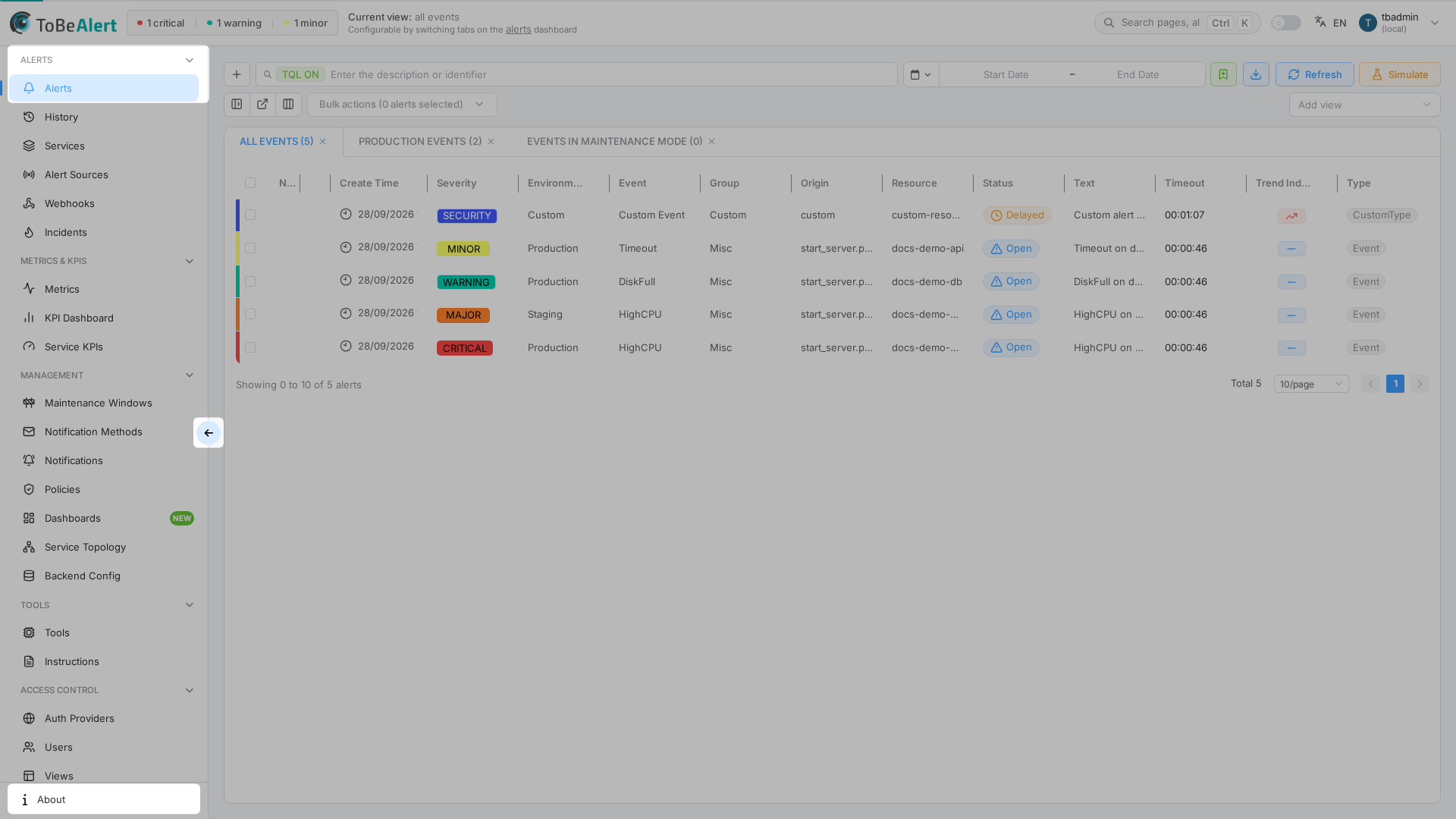
The sidebar is the primary way to move between Web Interface areas. It groups routes under category headings and highlights the active page. Global Search now lives in the top bar — see Top bar and search.
See also: Overview · Top bar and search · List tables and bulk actions · TQL search and filters · List tables and bulk actions
Sidebar structure
| Area | Description |
|---|---|
| Category groups | Uppercase headings (for example Alerts, Management, Access Control, Metrics & KPIs) — only visible when the sidebar is expanded; click a heading to collapse or expand its items |
| Menu items | Icon + label per route; some parents expand to show child routes |
| About | Footer link — always available at the bottom |
Global page/alert Search is not in the sidebar anymore — use the Search pages, alerts... button (or Ctrl+K) in the top bar. See Top bar and search.
Routes you are allowed to use come from your role; items you cannot access do not appear.
Collapse and expand
| Control | Action |
|---|---|
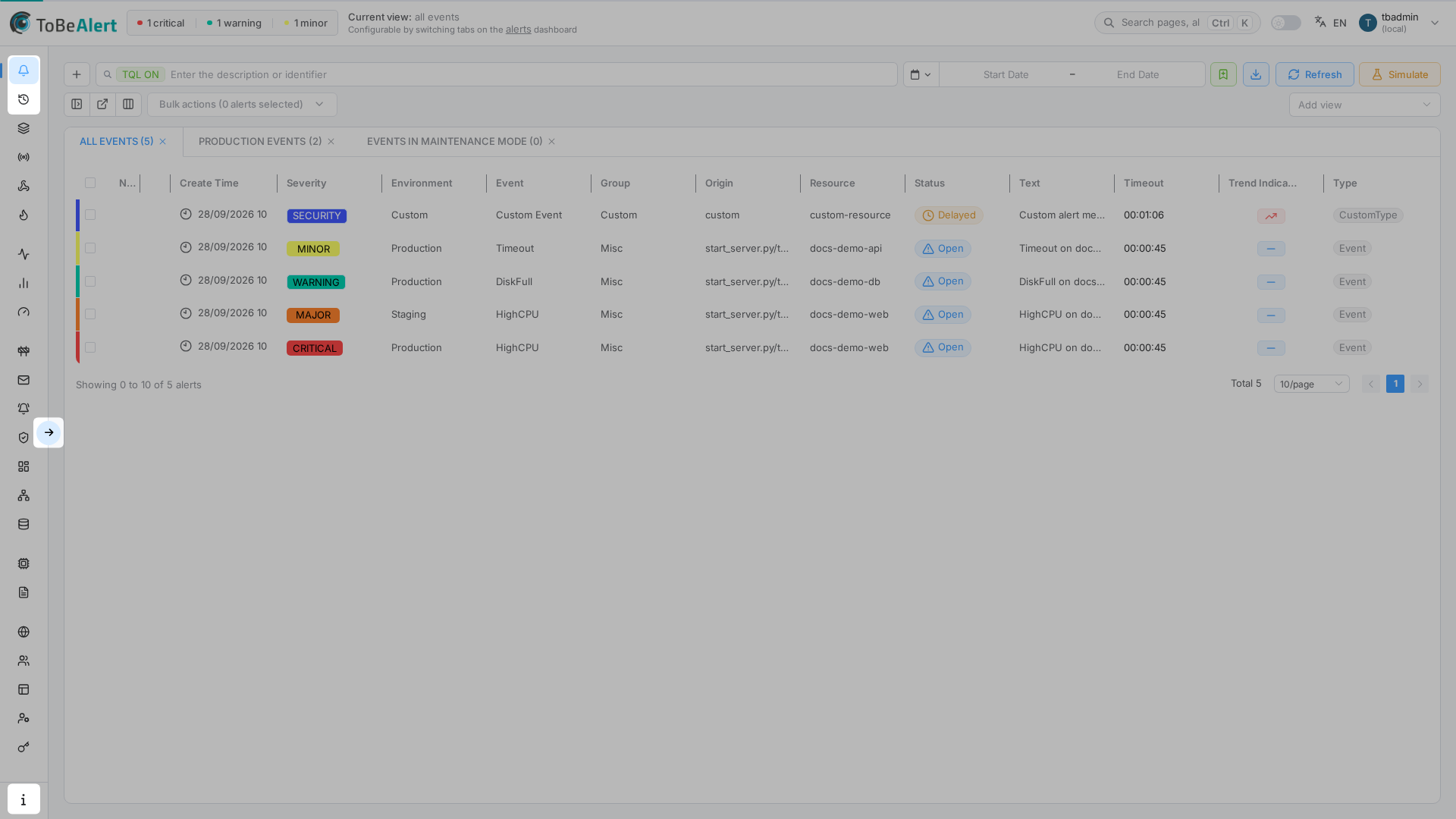
| Arrow button (mid-right edge of sidebar) | Toggle between full width (~255px) and icon-only mode |
| Logo (top bar) | Same toggle — updates collapse state for the next visit |
On narrow viewports the sidebar may collapse automatically to preserve space.
Active state and nested routes
- The current route is highlighted in the menu.
- Parent items with children (for example Notifications) stay highlighted when you are on a child path.
- Child entries appear when the parent row is expanded (chevron up / down).
Badges and license hints
Some entries show small badges:
| Badge | Meaning |
|---|---|
| NEW | Recently added capability |
| WIP | Work in progress (may appear only in QA environments) |
| DEV | Development-only entry |
| UPD | Recently updated |
A crown icon means the feature is not enabled on your license plan. A gauge icon means the feature is enabled but has numeric limits.
Open a view from the sidebar
- Ensure the sidebar is expanded if you need labels.
- Click a category heading if its items are hidden.
- Click the target item (for example Dashboards or Policies under Management).
- The main content area loads the route; the item stays active.
Best practices
- Collapse categories you rarely use to shorten the menu.
- After license changes, refresh the app if expected items are still missing.
- Use About from the footer for version checks — not the sidebar groups.
- Prefer the top bar global search (see Top bar and search) over scrolling long Management lists.
- After you open a list page, use table toolbar search (plain or TQL) to filter rows. See TQL search and filters.