Notification rules
Route: /notifications/rules (default tab when opening Management → Notifications)
A rule defines when a notification is sent, under which conditions, with which method, and to whom. Rules are the last piece in the chain described in the overview: after methods, groups, and templates exist, rules tie them together and connect alerts to outbound notifications.
See also: Overview · Groups · Templates
Create a rule
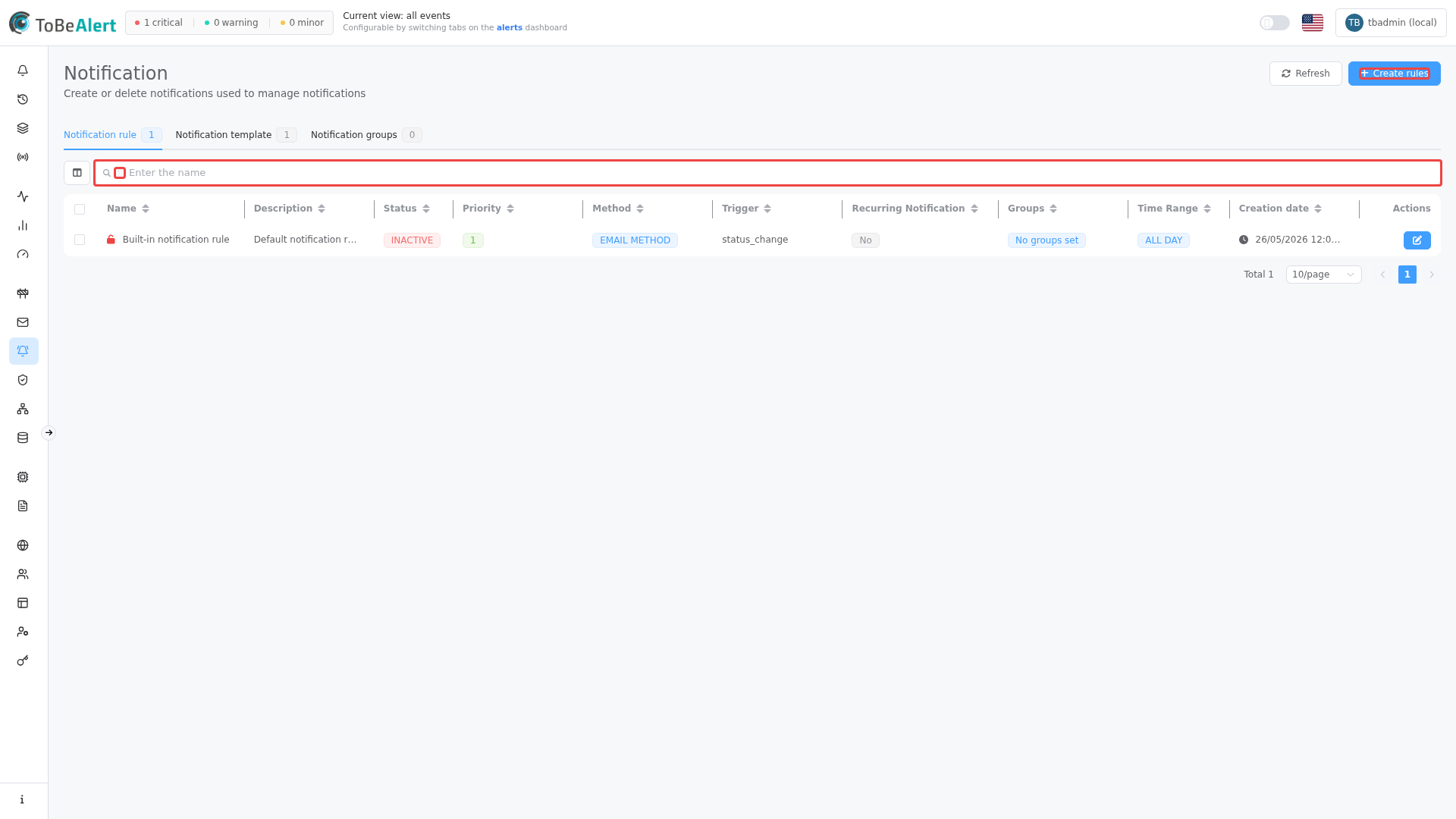
- Open Notifications → Rules.
- Click Create rules.
- Complete the three side-panel tabs: General, Conditions, Actions.
- Save.
How a rule is evaluated
When an event occurs (or a recurring schedule runs), ToBeAlert checks rules in priority order — lower numbers are evaluated first. For each rule, all of the following must pass before a notification is sent:
- Status — the rule is active and its linked method is enabled.
- Time window — the current time falls inside All Day or the configured Time Range.
- Trigger — the event matches the selected trigger (new alert, status change, user action, or scheduled run).
- Alert filters — if you configured conditions, the alert must match them.
If any step fails, that rule is skipped and the next rule in priority order is checked. An active rule outside its time window appears as Pending in the table.
If you leave the condition builder empty, no attribute filtering applies — the rule only depends on the trigger and time window (plus any implicit constraints of the trigger itself).
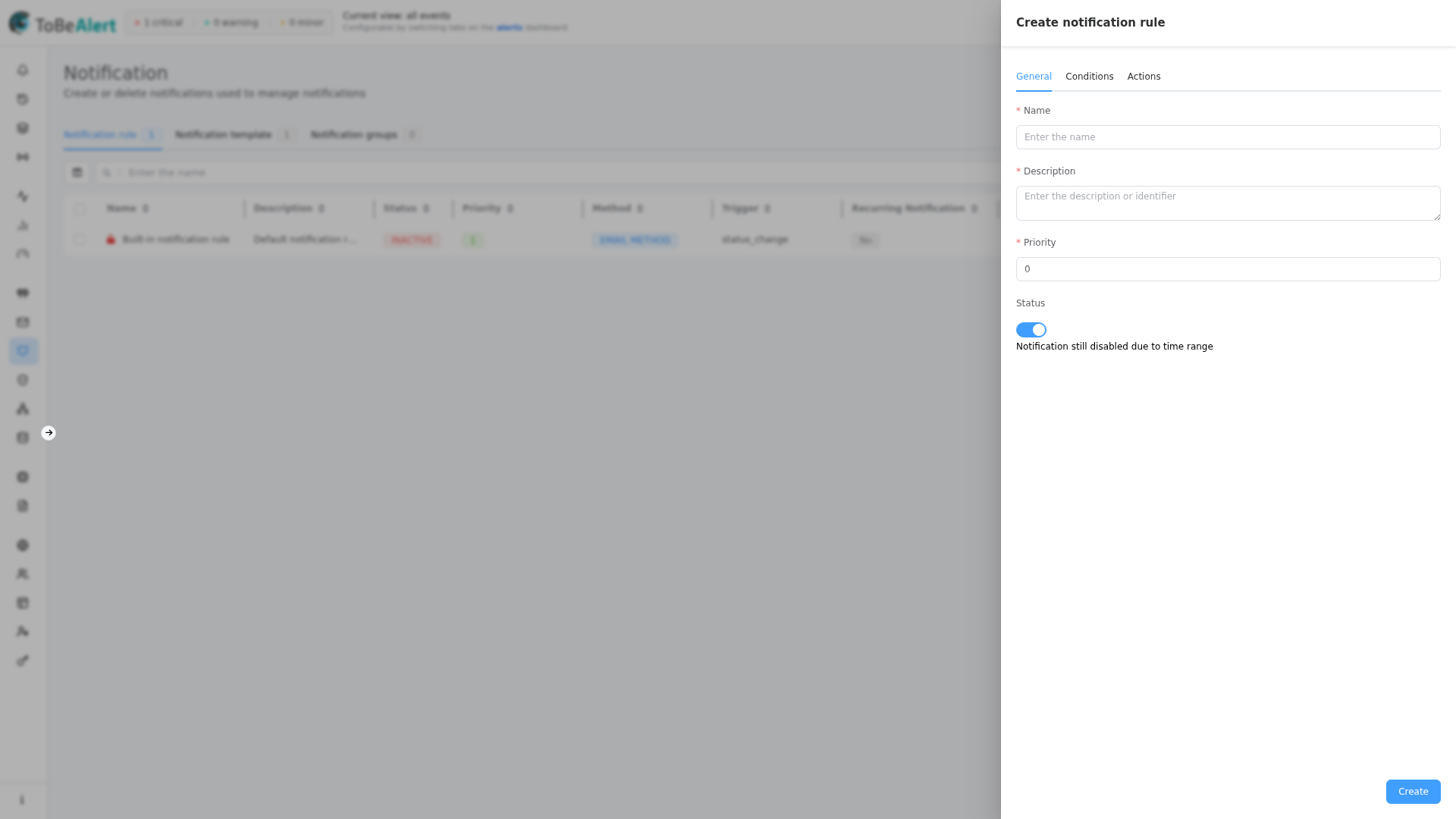
General tab
| Field | Description |
|---|---|
| Name | Rule name |
| Description | Description |
| Priority | Evaluation order (lower number = higher priority; starts at 0) |
| Status | active / inactive. An active rule may still show as pending outside its time window |
When Status is active but the rule is outside its configured time range, the form shows Notification still disabled due to time range.
Computed status in the table
| UI status | Meaning |
|---|---|
| Active | Rule active, method enabled, within time window |
| Pending | Active but outside time range (when not “All Day”) |
| Inactive | Rule disabled |
| Inactive (Method disabled) | Rule active but the linked method is disabled |
Conditions tab
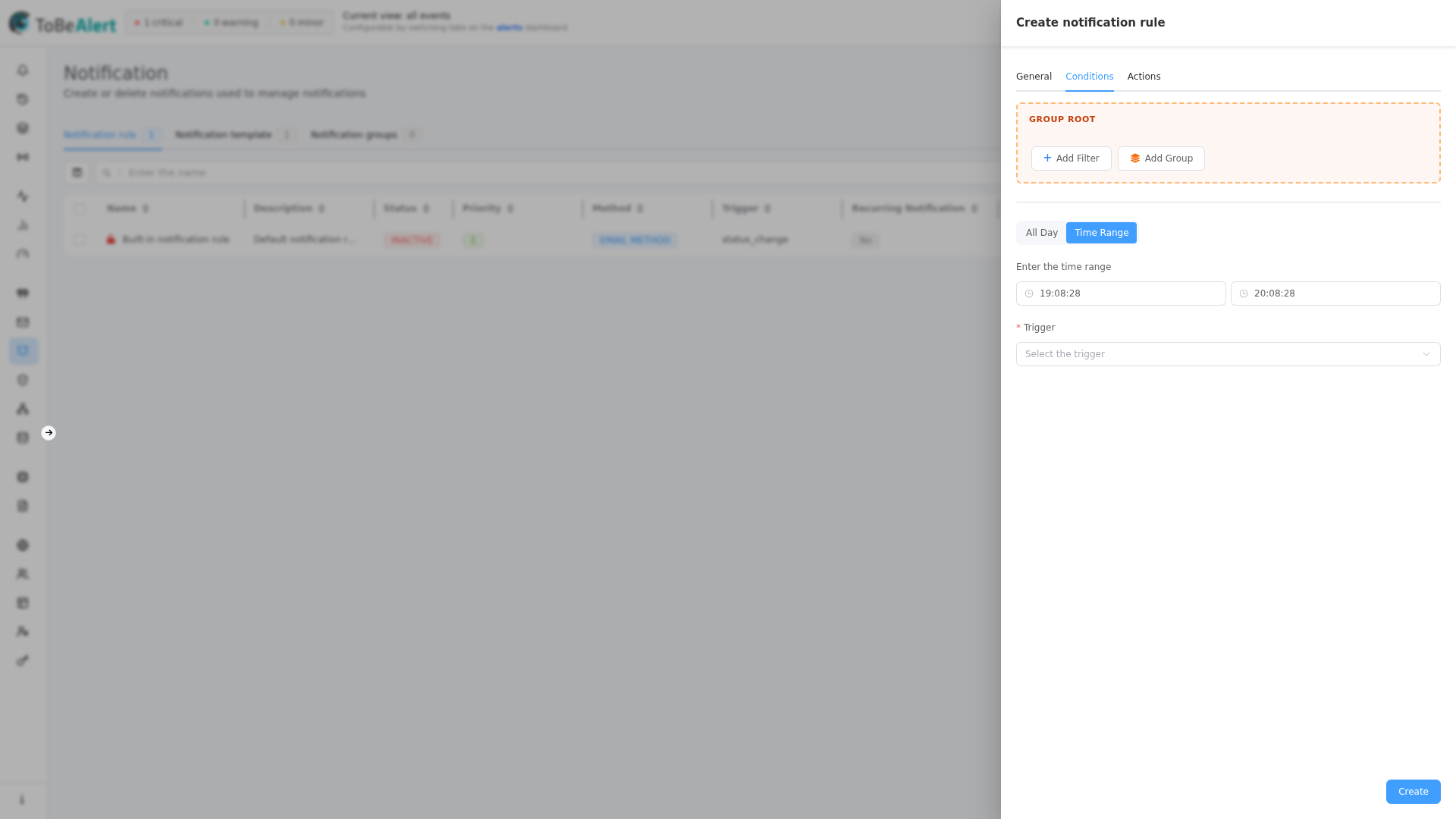
The Conditions tab has three layers: alert filters, time window, and trigger. Together they define which alerts qualify and when the rule may fire.
Alert filters
The visual condition builder works the same way as in policies and workflows. You combine alert fields with operators and group them with AND / OR logic.
Builder controls
| Control | Description |
|---|---|
| Group Root | Top-level group that holds all conditions |
| Add Filter | Add a condition on an alert field |
| Add Group | Add a nested sub-group for complex logic |
| AND / OR | Logical operator between conditions in the same group (shown when the group has two or more items) |
| Delete Group | Remove a nested group |
| Maximum depth reached | Shown when nesting reaches five levels — add breadth, not more depth |
You can drag conditions by the grip handle to reorder them within a group.
AND / OR and nested groups
Each group (root or nested) uses a single operator — AND or OR — to combine its direct children. For mixed logic, nest groups instead of mixing operators at the same level.
Example: notify when severity is critical or major and environment is Production:
Group Root [AND]
  ├─ Group [OR]
  │    ├─ severity Is in critical, major
  │    └─ (other OR branches…)
  └─ environment Equals production
If you mix AND and OR at the same level without nesting, save fails with: "Ambiguous condition: mixing AND/OR in the same group. Please add groups to disambiguate." Wrap one branch in Add Group to make the logic explicit.
Filterable alert fields
The field dropdown uses camelCase names (the same names used in templates as %fieldName%). Common fields:
| Field | What it matches |
|---|---|
severity | Current severity (critical, major, minor, warning, …) |
status | Alert status (open, ack, closed, shelved, …) |
environment | Deployment environment (Production, Staging, …) |
resource | Affected system or component |
event | Event type that triggered the alert |
service | Service or application (list field) |
group | Logical grouping or category on the alert |
tags | Labels attached to the alert |
attributes | Custom metadata — see below |
origin | Source system that generated the alert |
type | Alert classification type |
text | Alert description text |
createTime / updateTime / lastReceiveTime | Timestamps |
previousSeverity | Severity before the last change |
user | User who last modified the alert |
Additional fields are available for less common cases (correlate, duplicateCount, repeat, rawData, sourceId, value, timeout, and others).
Custom attributes
Choose attributes, then enter the attribute key (for example datacenter or owner). Pick an operator and value as for any other field. This is the usual way to route notifications based on metadata your integrations send with the alert.
Operators
Available operators depend on the field type:
| Operator | Typical use |
|---|---|
| Equals / Not equals | Exact match on text, numbers, enums, booleans |
| Is in / Is not in | Match any of several values (severity, status, environment, …) |
| Contains / Does not contain | Substring match on text, or membership in list fields like service and tags |
| Greater than / Less than (and or equal) | Numeric and date comparisons |
| Regular expression / Not regular expression | Pattern match (case-sensitive or insensitive variants) |
For Is in / Is not in, fields such as severity, status, environment, service, and tags offer suggestions from known values; you can also type new ones.
Extra fields by trigger
Some fields only appear when a specific trigger is selected:
| Trigger | Extra filter fields |
|---|---|
| Status change | prev_status — previous alert status before the change |
| Take action | action — type of action performed on the alert |
Use prev_status together with status to target specific transitions (for example, from open to ack).
Time window
| Option | Description |
|---|---|
| All Day | Rule applies at any time of day |
| Time Range | Only between start and end time on the same calendar day |
The time window applies to every trigger, including Recurring notification. Outside the range, an otherwise active rule shows Pending and does not send.
Trigger
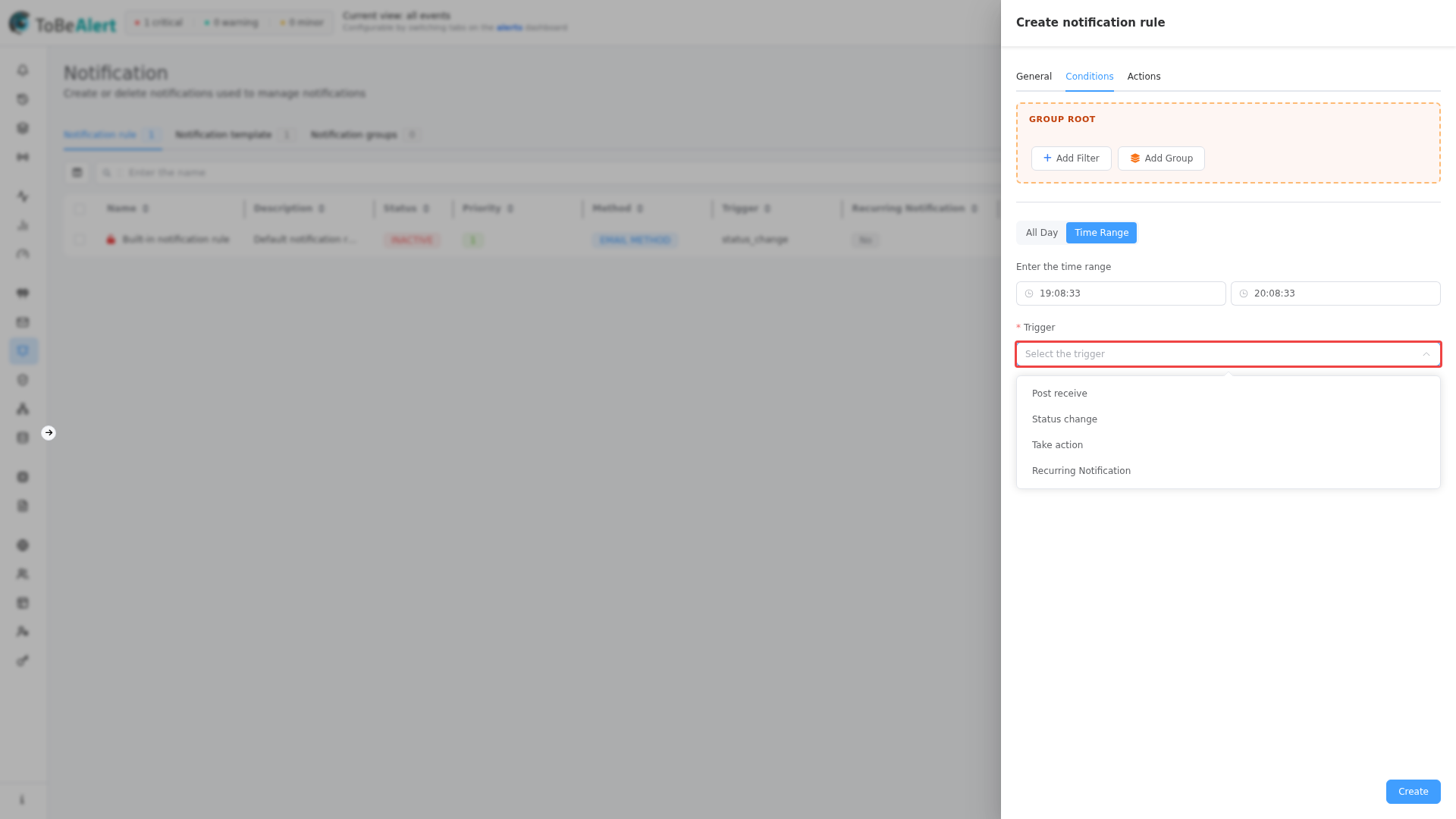
| Trigger | When it fires |
|---|---|
| Post receive | A new alert is received or processed |
| Status change | An alert’s status changes |
| Take action | A user performs an action on an alert |
| Recurring notification | On a fixed schedule while matching alerts exist |
Pick the trigger that matches the event you care about, not only the alert shape. For example, use Status change for ack/close notifications even if you also filter on severity and environment.
The rules table Trigger column shows internal values (post_receive, status_change, …), not the friendly labels from the dropdown.
Recurring schedule
When trigger is Recurring notification, choose Schedule type:
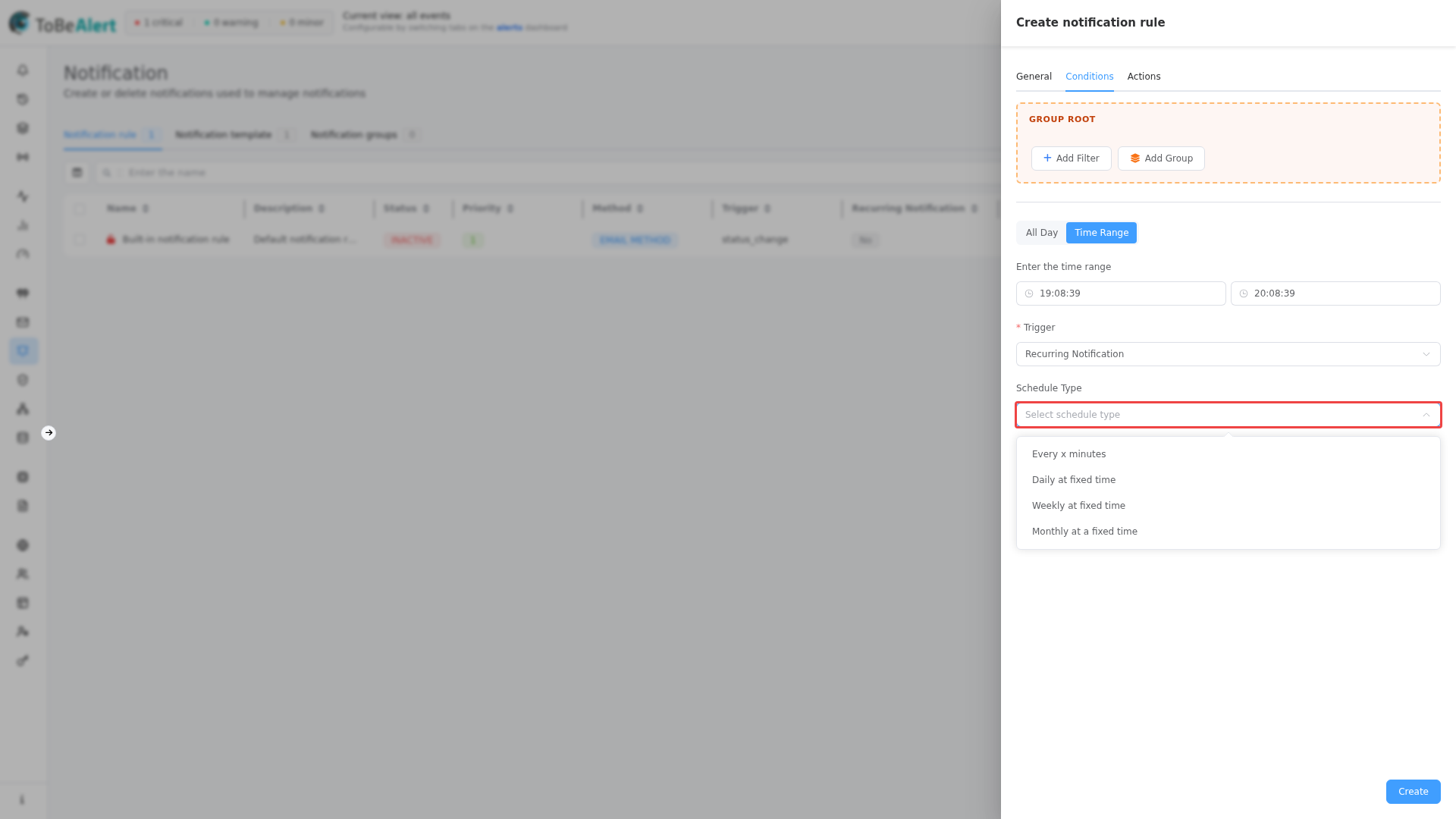
| Type | Parameters |
|---|---|
| Every x minutes | Every (minutes) — minimum 1 |
| Daily at fixed time | Time (24-hour HH:mm) |
| Weekly at fixed time | Day of week (Monday … Sunday) and Time |
| Monthly at a fixed time | Day of the month (1–31 or Last Day of Month) and Time |
On each run, ToBeAlert evaluates the same alert filters against current alerts. Matching alerts are included in that scheduled notification. With no filters, every alert qualifies (still subject to the time window and schedule).
Typical use: a daily digest of open alerts, or a periodic reminder while critical alerts remain unacknowledged.
Actions tab
Select a notification method to reveal channel-specific options (email recipients, Telegram message settings, etc.).
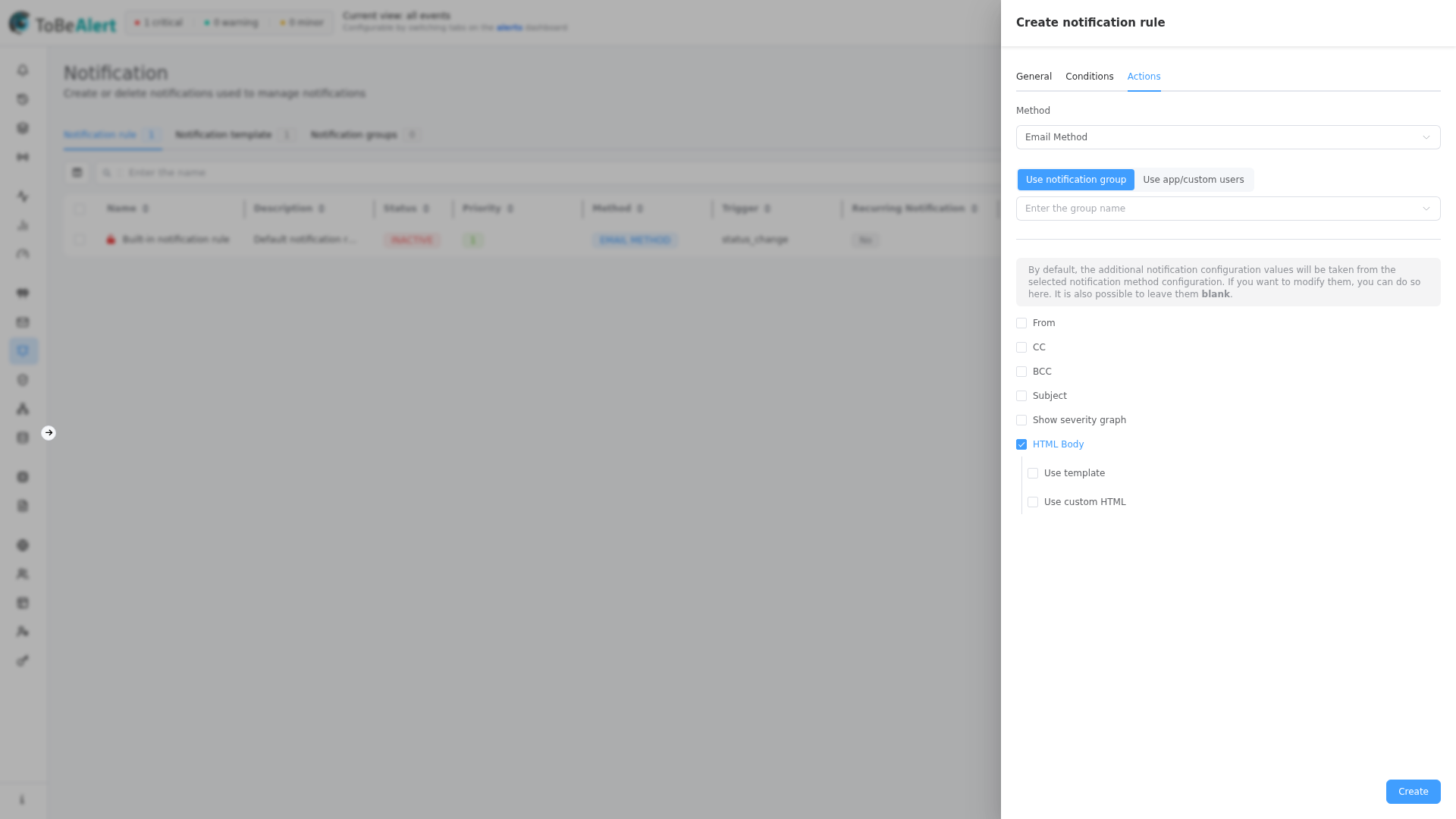
Email method
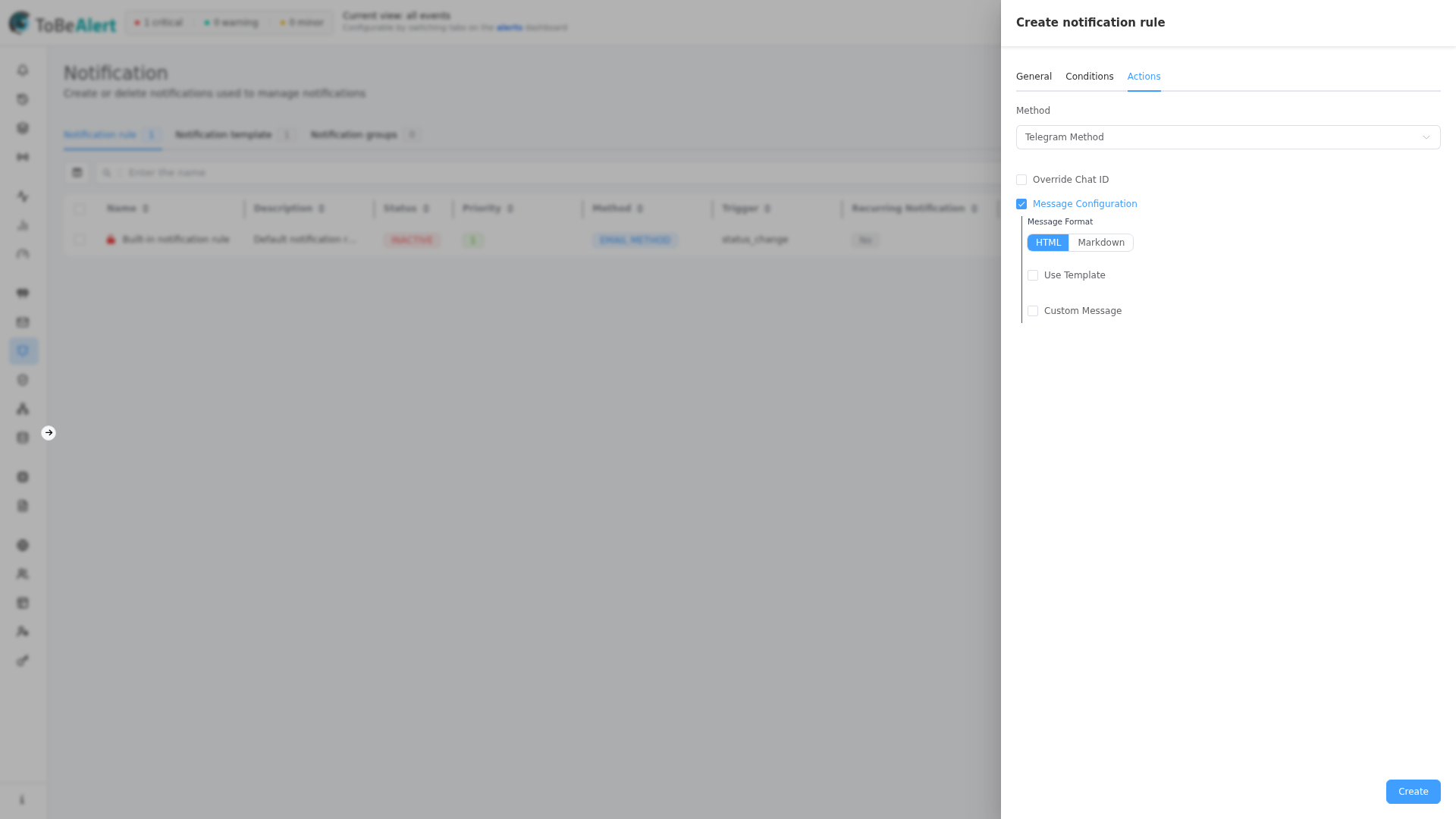
Telegram method
| Field | Description |
|---|---|
| Method | Notification method to use (must exist and be enabled) |
Recipients and notification groups
For email methods, choose how to address the message:
| Mode | Description |
|---|---|
| Use notification group | Send to one or more notification groups. Each group expands to its member users. |
| Use app/custom users | Pick individual ToBeAlert users (with email configured) or type custom email addresses (shown as Custom). |
Use notification group is the recommended default: define teams once under Notifications → Groups, then reference them from many rules. The rules table Groups column lists the groups attached to each rule; if none are set, it shows No groups set.
Groups are resolved to user email addresses at send time. Users without an email on their profile cannot receive email notifications — keep group membership aligned with Access Control and verify emails before enabling critical rules.
CC and BCC with groups
In the advanced email section you can enable CC and/or BCC:
- Use notification group — pick a group; the Email field is disabled while a group is selected.
- Or enter a fixed Email address directly.
The same group can be used for primary recipients on one rule and CC/BCC on another (for example, on-call in To and managers in CC).
Telegram rules do not offer a group/user picker. Recipients come from the method’s default Chat ID; you can Override Chat ID and configure the message on the rule.
Email options
By default, sender details and templates come from the selected method. Override them on the rule only when needed; blank fields fall back to method defaults.
| Option | Description |
|---|---|
| From / Display name | Custom sender |
| CC / BCC | Fixed email or notification group |
| Subject | e.g. Alert: %resource% - %event% (same %field% syntax as templates) |
| Show severity graph | Include severity graph in message |
| HTML Body → Use template | Template from the list |
| HTML Body → Use custom HTML | Inline HTML on this rule |
Telegram options
| Option | Description |
|---|---|
| Override Chat ID | Override method default |
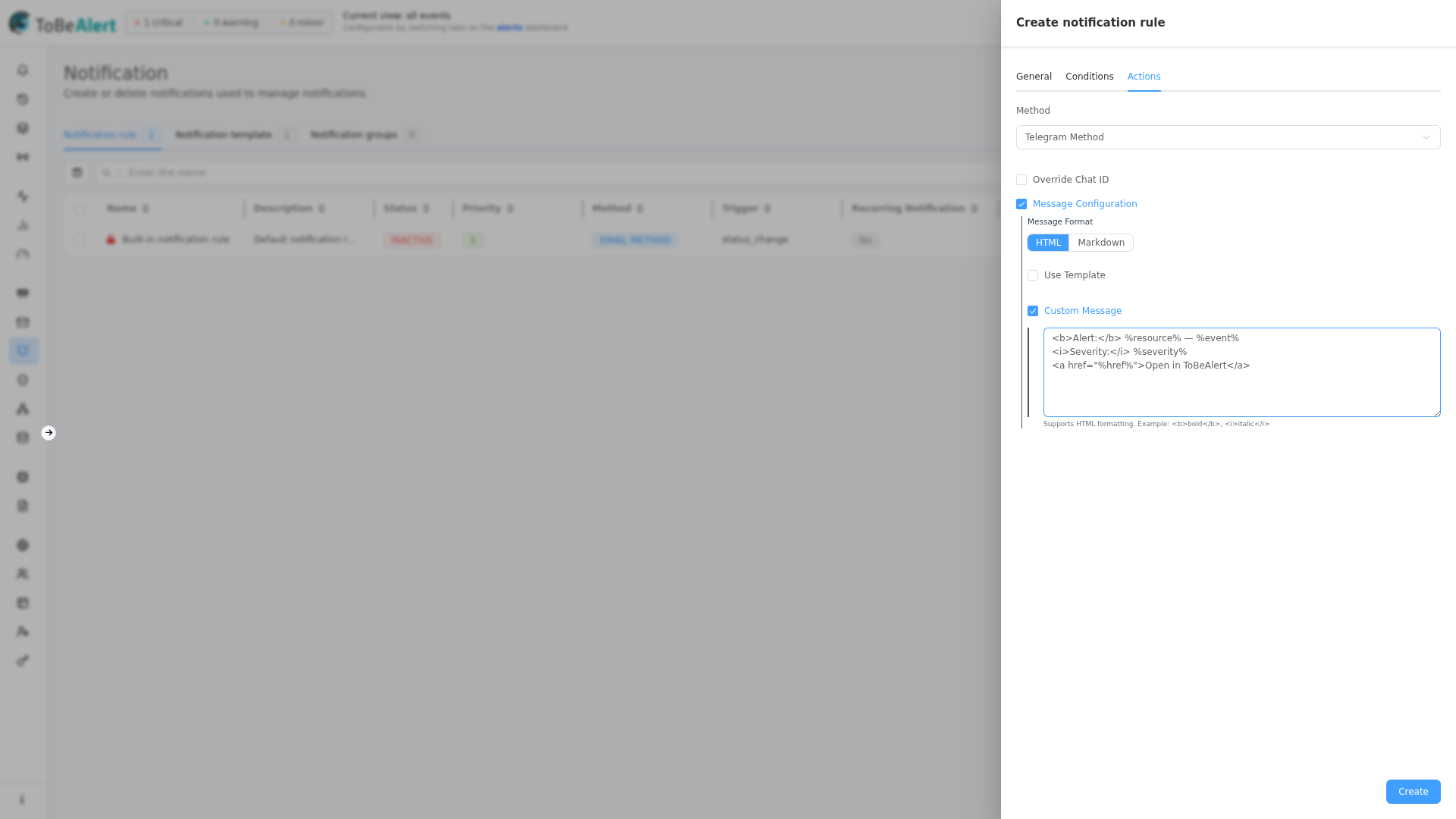
| Message configuration | Message Format: HTML or Markdown |
| Use template / Custom Message | Same pattern as email |
When Message Format is HTML, the body must use Telegram HTML markup (bold, italic, links, and so on) — not full HTML tables or <div> layout. See also Notification methods — Telegram.
Also notify when alert is closed
Only for trigger Post receive:
- Also notify when alert is closed
- Separate notification settings for the close event (same email/Telegram options as above)
Help text: "Configure the notification to send when the alert is closed or resolved." Use this when the initial alert and its resolution should go to different groups or use different templates.
Example scenarios
Critical production alerts to on-call
| Tab | Setting |
|---|---|
| General | Priority 0, active |
| Conditions | severity Is in → critical, major · AND environment Equals → Production · All Day · Post receive |
| Actions | Email method · Use notification group → on-call-production · template critical-alert |
Notify when an alert is acknowledged
| Tab | Setting |
|---|---|
| Conditions | Status change · prev_status Equals → open · AND status Equals → ack |
| Actions | Use notification group → noc-team |
Billing service — open and close to different audiences
| Tab | Setting |
|---|---|
| Conditions | service Contains → billing · Post receive |
| Actions | Initial email → group billing-ops · Also notify when alert is closed → group billing-managers |
Daily digest of open alerts
| Tab | Setting |
|---|---|
| Conditions | Recurring notification · Daily at fixed time → 09:00 · status Is in → open, ack · Time Range 08:00–18:00 |
| Actions | Use notification group → daily-digest |
Route by custom attribute
| Tab | Setting |
|---|---|
| Conditions | attributes key datacenter Equals → eu-west-1 · AND severity Is in → critical |
| Actions | Use notification group → eu-on-call |
Table and bulk actions
Columns: Name, Description, Status, Priority, Method, Trigger, Recurrent, Notification groups, Active time range, Create time.
Bulk actions: edit, duplicate, enable/disable, delete. Built-in rules cannot be deleted. Force is disabled in the current UI. For row selection, the bulk bar, and context menu behavior, see List tables and bulk actions.
Best practices
- Lower priority number for more specific rules; higher numbers for catch-all rules.
- Match trigger to the event you care about (e.g. Status change for ack/close, Post receive for new alerts).
- Use nested groups for OR-then-AND logic; avoid mixing operators at the same level.
- Start with a few high-value filters (
severity,environment,service,tags,attributes) before adding narrow rules per field. - Tie recipients to groups instead of hard-coding users on every rule; use CC/BCC groups for escalation tiers.
- For recurring digests, combine status filters with a Time Range so overnight alerts do not notify outside business hours.
- Use templates for HTML; use rule-level overrides only when needed.
- Watch for Pending status — often a misconfigured Time Range or an inactive method.