Notification templates
Route: /notifications/templates (tab under Management → Notifications)
Templates are reusable HTML for the message body. They are used mainly for email, and can be selected in Telegram rules when Use template is enabled.
See also: Overview · Notification rules
Create a template
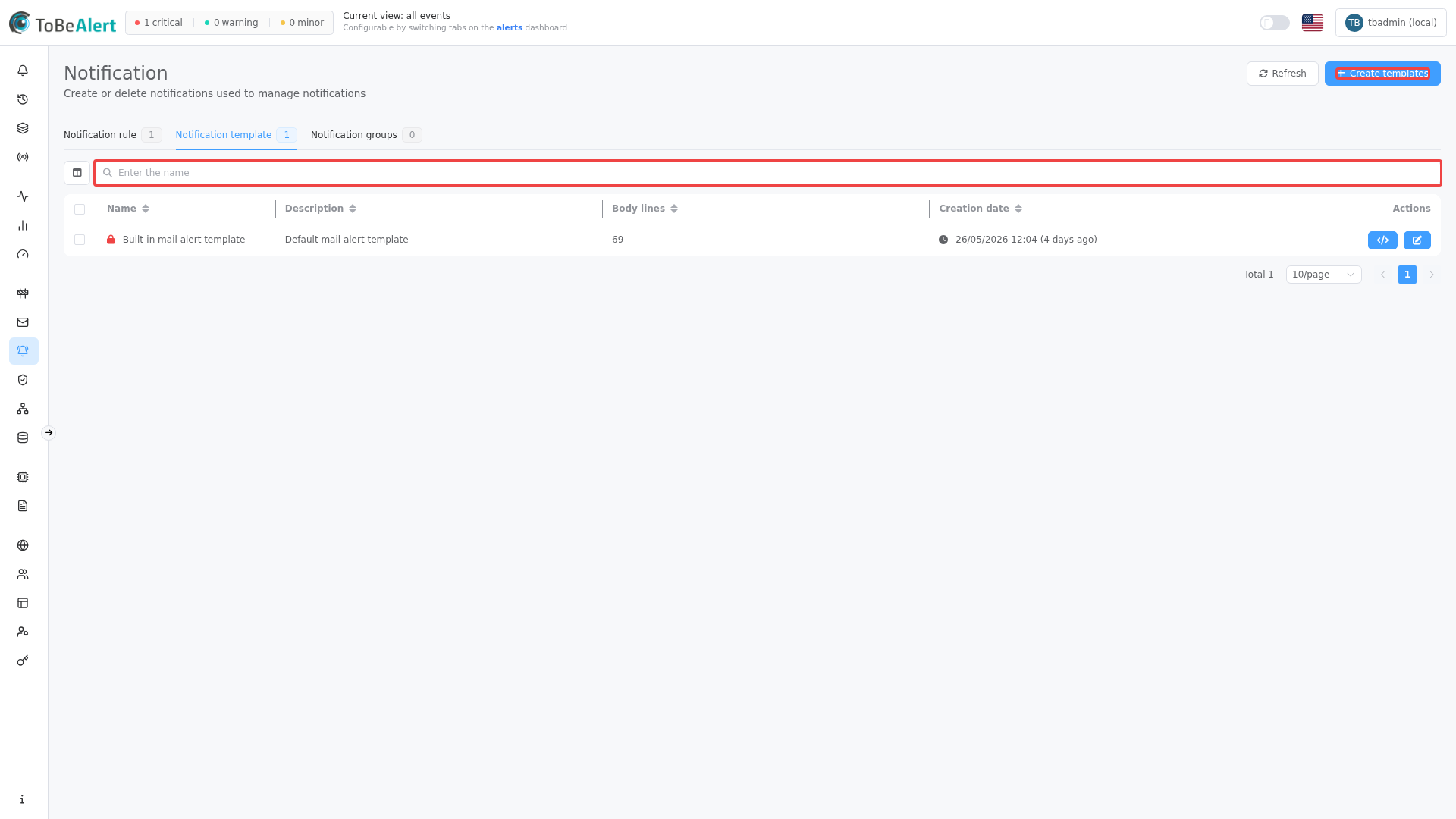
- Open Notifications → Templates.
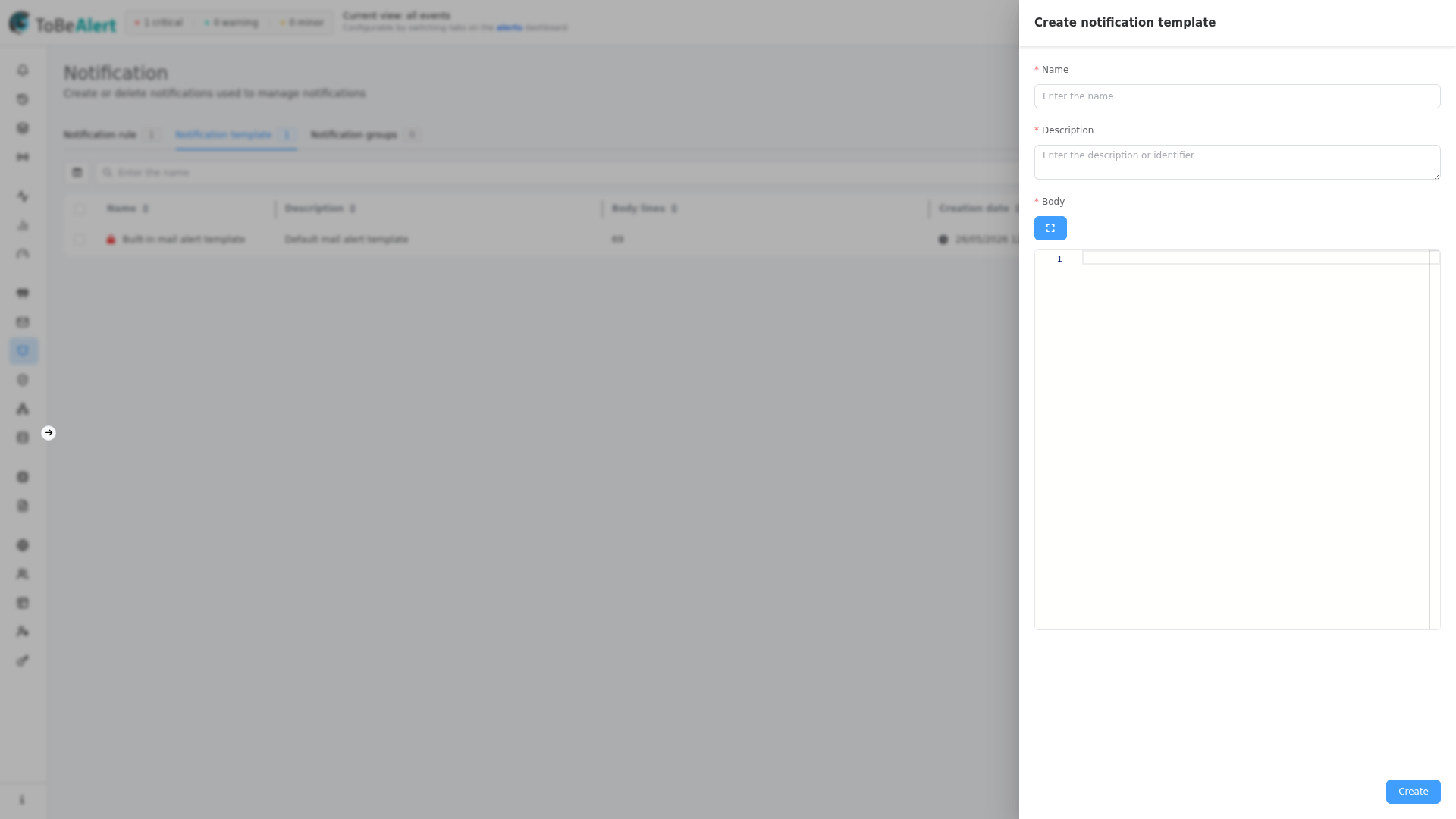
- Click Create templates.
- Fill in:
- Name
- Description
- Body — HTML in the inline editor; click Expand code for a larger editor with Code and Preview views
- Save.
Preview HTML layout
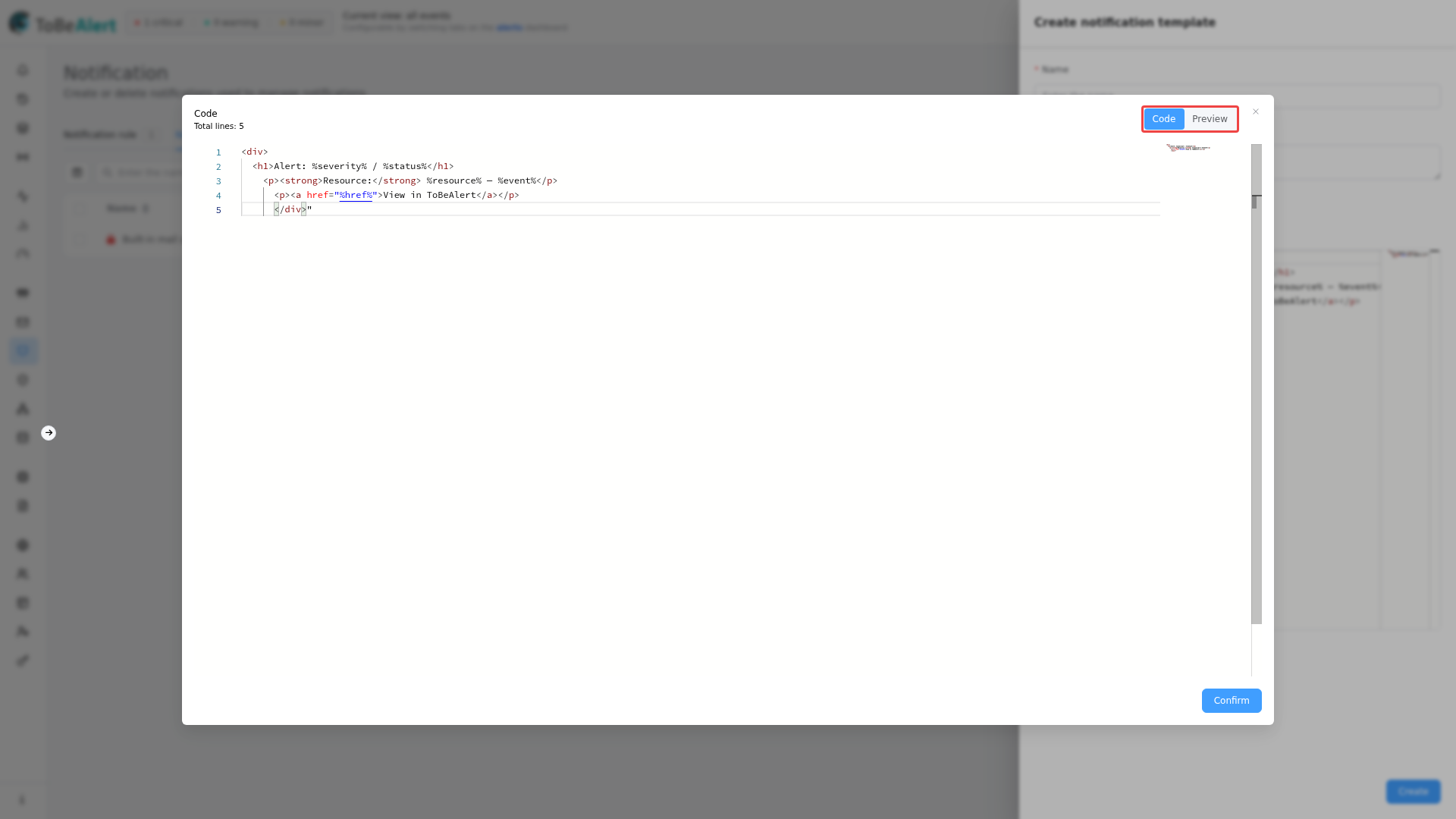
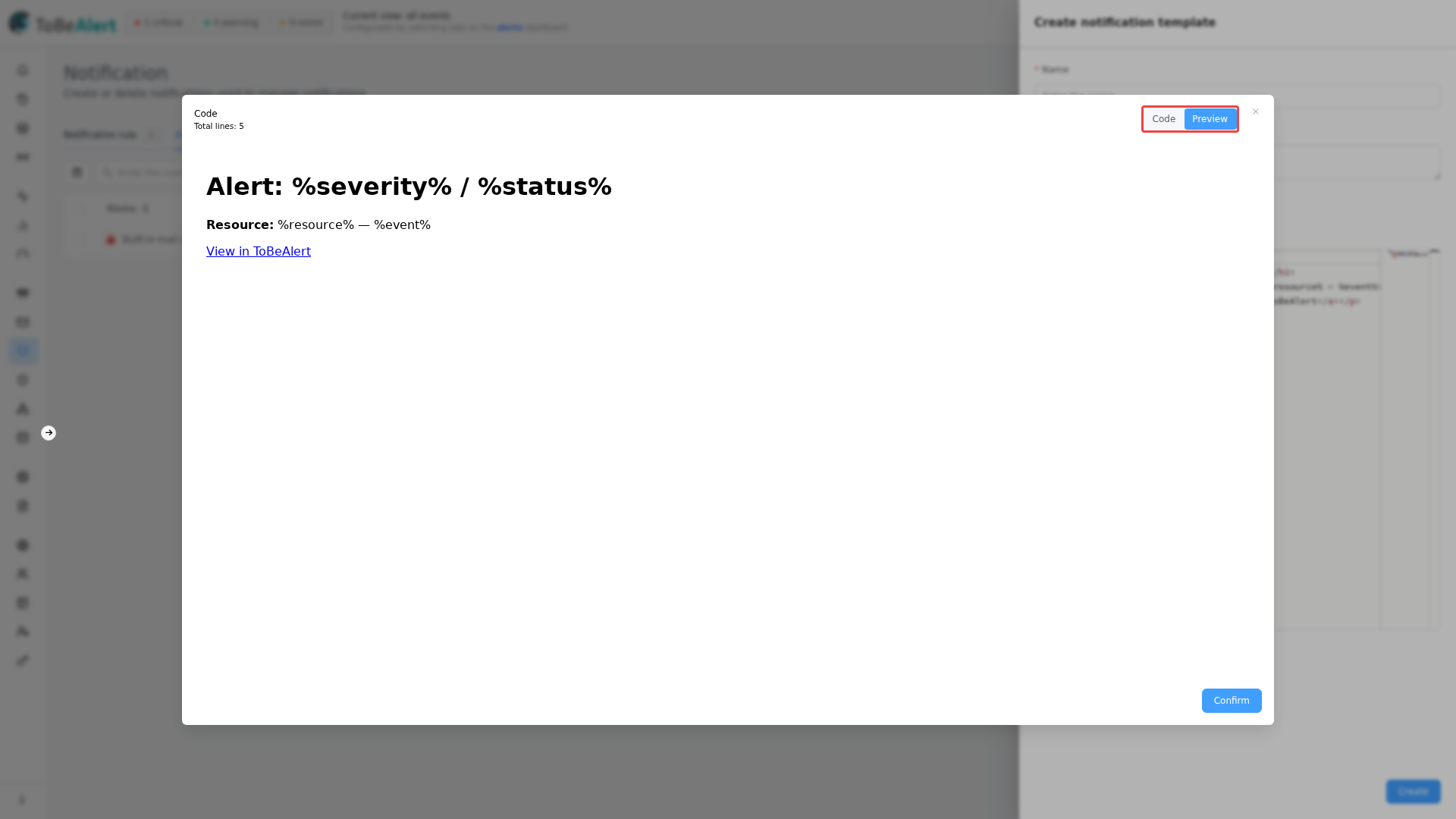
Use Preview to check how the body renders before you link a template to a rule.
From the create or edit drawer
- In the Body field, enter HTML (include
%fieldName%placeholders as needed). - Click Expand code to open the full-screen editor.
- Switch the segmented control from Code to Preview.
- The preview pane renders the HTML in an iframe (variables are shown as-is until an alert is sent).
- Click Confirm to close the dialog, then save the template.
From the templates list
For any saved template, click the Preview button (code icon) in the row actions. The same Code / Preview dialog opens read-only.
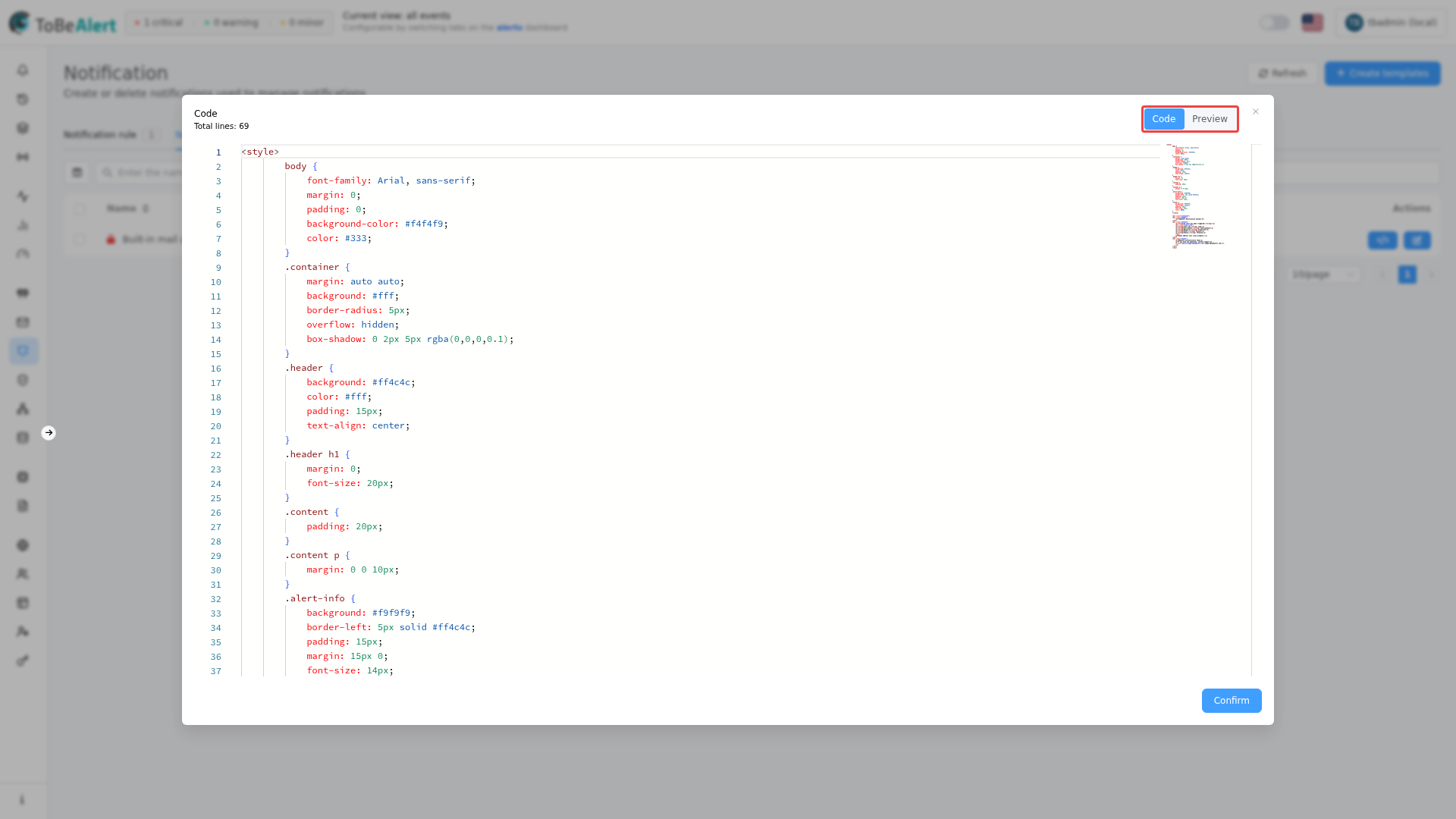
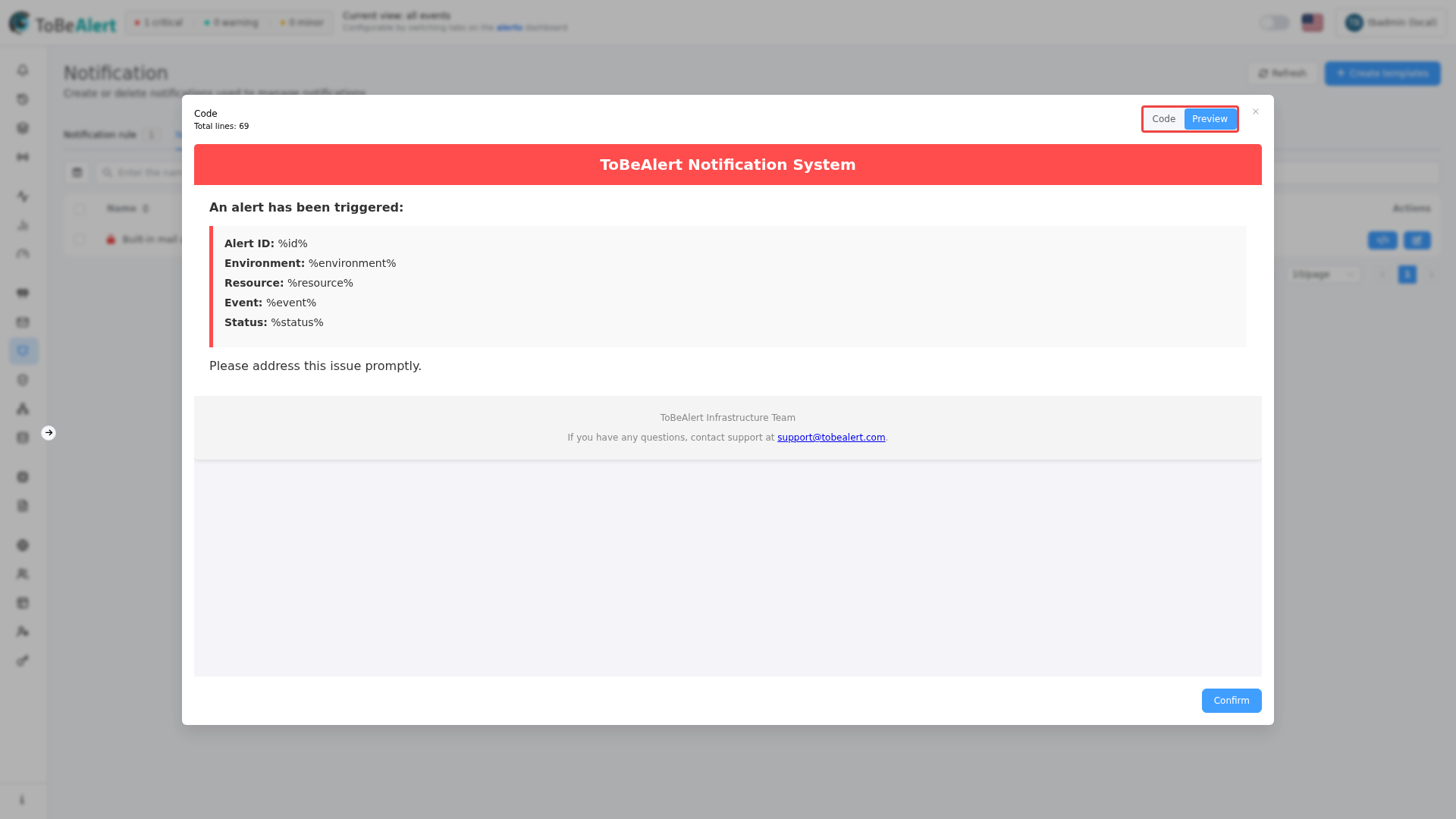
The preview shows standard HTML as it would appear in an email client. When the same template is sent through Telegram with Message Format → HTML, only Telegram HTML markup is supported — not full HTML. See Notification methods — Telegram and Notification rules — Telegram options.
Properties
| Field | Description |
|---|---|
| Name | Template name |
| Description | Description |
| Body | Message HTML (email); use Telegram-compatible markup when the template is used with Telegram HTML format |
Built-in templates
Some templates are built-in (lock icon in the list). The system includes at least mail_alert, which cannot be deleted.
Use Preview (code icon) in the table to open a dialog with the editor and iframe preview.
Template variables
In templates, email subjects, and Telegram messages, ToBeAlert substitutes alert data using this syntax:
%fieldName%
- Wrap each placeholder in
%on both sides. - Names match the alert object field names (camelCase), as returned by the API.
- Custom attributes:
%attributes.keyName%— use the key as stored in the alertattributesobject (e.g.%attributes.owner%,%attributes.customValue%). For nested JSON inside attributes, use dot paths:%attributes.parent.child%. - Empty or missing values are replaced with an empty string.
- Lists (e.g.
service,tags) are joined with,. - Dates are formatted as ISO strings when substituted.
The email subject field in rules uses the same %...% syntax (for example Alert: %resource% - %event%). Do not use ${HOSTNAME} unless your monitoring integration maps those names into alert fields.
Special placeholder
| Placeholder | Description |
|---|---|
%json% | Full alert payload as text (used in default fallback bodies; you can include it explicitly for debugging) |
Standard alert fields
| Variable | Description |
|---|---|
%id% | Alert UUID |
%href% | Link to the alert in ToBeAlert (absolute URL) |
%environment% | Environment (e.g. Production) |
%origin% | Monitoring source / origin |
%type% | Alert type (e.g. Event) |
%resource% | Resource name |
%resourceParent% | Parent resource |
%event% | Event name |
%group% | Alert group |
%value% | Alert value |
%text% | Short description text |
%status% | Status (open, ack, closed, …) |
%severity% | Severity |
%previousSeverity% | Previous severity |
%trendIndication% | Trend (more severe, less severe, no change, …) |
%correlate% | Correlated events (comma-separated) |
%service% | Services (comma-separated) |
%tags% | Tags (comma-separated) |
%createTime% | Creation time |
%lastReceiveTime% | Last receive time |
%updateTime% | Last update time |
%lastReceiveId% | Last receive ID |
%duplicateCount% | Duplicate count |
%repeat% | Repeat flag |
%timeout% | Timeout (seconds) |
%rawData% | Raw payload from the source |
%user% | Last user who acted on the alert |
%minutesDelayed% | Minutes delayed |
%delayedUntil% | Delayed-until timestamp |
%notesCount% | Number of notes |
%sourceId% | Alert source ID |
%attributes% | Full attributes object (stringified) |
Example template (HTML)
The following body illustrates headers, custom attributes, identification, resource/event, status, dates, and raw attributes. Adapt styles and copy to your organization.
<div class="header">
  <h1>ToBeAlert — %severity% / %status%</h1>
  <p style="margin:8px 0 0; font-size:13px;">%resource% — %event%</p>
</div>

<div class="section">
  <h2>Custom attributes</h2>
  <p class="highlight">
    <strong>Owner:</strong> %attributes.owner%
    <strong>Custom value:</strong> %attributes.customValue%
  </p>
  <table>
    <tr><th>Owner</th><td>%attributes.owner%</td></tr>
    <tr><th>Custom value</th><td>%attributes.customValue%</td></tr>
  </table>
</div>

<div class="section">
  <h2>Identification</h2>
  <table>
    <tr><th>ID</th><td>%id%</td></tr>
    <tr><th>Link</th><td><a href="%href%">%href%</a></td></tr>
    <tr><th>Environment</th><td>%environment%</td></tr>
    <tr><th>Origin</th><td>%origin%</td></tr>
    <tr><th>Type</th><td>%type%</td></tr>
  </table>
</div>

<div class="section">
  <h2>Resource and event</h2>
  <table>
    <tr><th>Resource</th><td>%resource%</td></tr>
    <tr><th>Resource parent</th><td>%resourceParent%</td></tr>
    <tr><th>Event</th><td>%event%</td></tr>
    <tr><th>Group</th><td>%group%</td></tr>
    <tr><th>Value</th><td>%value%</td></tr>
    <tr><th>Text</th><td>%text%</td></tr>
  </table>
</div>

<div class="section">
  <h2>Status</h2>
  <table>
    <tr><th>Status</th><td>%status%</td></tr>
    <tr><th>Severity</th><td>%severity%</td></tr>
    <tr><th>Previous severity</th><td>%previousSeverity%</td></tr>
    <tr><th>Trend</th><td>%trendIndication%</td></tr>
  </table>
</div>

<div class="section">
  <h2>Timestamps</h2>
  <table>
    <tr><th>Create time</th><td>%createTime%</td></tr>
    <tr><th>Last receive</th><td>%lastReceiveTime%</td></tr>
    <tr><th>Update time</th><td>%updateTime%</td></tr>
  </table>
</div>

<div class="section">
  <h2>All attributes (JSON)</h2>
  <table>
    <tr><th>Attributes</th><td><pre style="margin:0; white-space:pre-wrap;">%attributes%</pre></td></tr>
  </table>
</div>
Send a test alert or trigger a rule in a non-production environment to verify real %variable% substitution.
Telegram HTML markup
When a template is used in a Telegram rule or method with Message Format → HTML, the body is sent using Telegram’s HTML parse mode. This is not standard HTML — it is a limited markup subset defined by Telegram.
| Tag | Effect |
|---|---|
<b>, <strong> | Bold |
<i>, <em> | Italic |
<u>, <ins> | Underline |
<s>, <strike>, <del> | Strikethrough |
<tg-spoiler>, <span class="tg-spoiler"> | Spoiler |
<a href="URL">text</a> | Link |
<code> | Inline code |
<pre> | Code block |
<pre><code class="language-python"> | Syntax-highlighted block |
Tags such as <div>, <table>, <h1>, or inline style attributes work in email templates and in the Preview pane, but Telegram ignores or rejects them when HTML format is selected. Design Telegram-oriented templates with the tags above only, or use Markdown format instead.
Using templates in rules
On a rule’s Actions tab (email):
- Enable HTML Body.
- Check Use template.
- Select a template from the dropdown.
Alternatively, use Use custom HTML for one-off markup on that rule only.
Best practices
- Keep branding and layout in templates; keep rules focused on conditions and recipients.
- Use Expand code → Preview before linking templates to production rules.
- For Telegram, restrict markup to Telegram HTML or switch the rule/method to Markdown.
- Do not delete or rename built-in templates relied on by default flows.