Overview
ToBeAlert records a history entry each time an alert changes — status, severity, tags, notes, tool runs, notifications, and more. Use History (Alerts → History) for troubleshooting, accountability, and compliance audits.
| Step | What you do | Menu / route | Documentation |
|---|---|---|---|
| 1 | Browse history records and the hits chart | Alerts → History → /history | Alert history tracking · Hits chart and breakdowns |
| 2 | Narrow with TQL, Current view, time range, or the filters sidebar | Same list | Search and TQL · Filters sidebar |
| 3 | Break down hits by severity, status, resource, and more | Hits toolbar | Break down by |
| 4 | Select rows for details, timeline, export, or delete | Same list | Bulk actions |
| 5 | Open a per-alert timeline | Timeline (bulk or context menu) → /history/<alertId> | Per-alert timeline |
| 6 | Review the Summary tab or export one alert | Timeline view | Summary · Export |
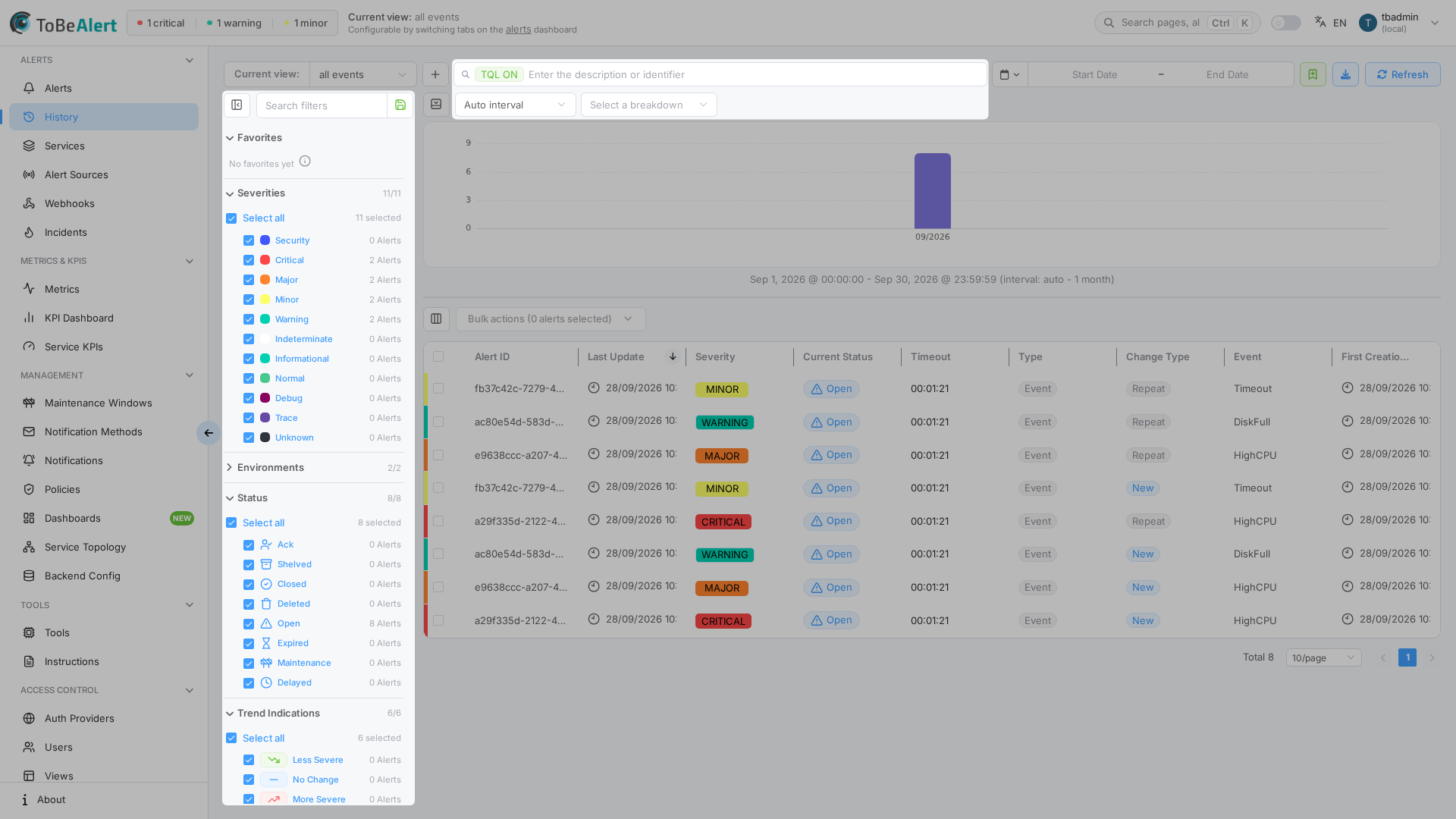
Where to find it in the UI
| Entry point | How |
|---|---|
| Sidebar | Alerts → History |
| From an alert | Right-click on the dashboard for history-related actions, or use History in the details drawer |
| From History list | Right-click a row (or use Bulk actions) and choose Timeline |
Clicking Alert ID or double-clicking a row opens the point-in-time Details of the alert drawer (state at that history entry). To open the full per-alert timeline, use Timeline from the context menu or bulk actions.
Toolbar highlights on the list:
- Current view — same views as the dashboard (for example
All events) - Add filter, TQL search, and time range picker
- Export filtered view (download icon) and Refresh
- Hits toolbar: Auto interval / interval presets and Break down by
History requires the history feature in your license. If the menu item is disabled, contact your administrator.
What is tracked
Each history record captures a snapshot of the alert at a point in time, including:
| Change type (examples) | What you see |
|---|---|
| New | Alert first received |
| Status / severity changes | Previous and new values in the timeline |
| note_added / note_edited / note_deleted | Note text. Note edited (note_edited) is recorded only when the note text changes, and the entry shows the new text the same way Note added does. Saving a note without changing the text does not add a row. |
| Tag, service, attribute updates | Added, removed, or modified values |
| Notification sent | Notification delivery in the timeline |
| Tool / plugin executions | Reflected as change entries and field updates |
| Policy execution (cause/effect) | A policy marked the alert as an effect: the policy is the actor, the reason names the cause, and the diff shows suppressed and causeId. When a cause is closed, expired, cleared, or deleted, each effect gets a system entry saying it is no longer suppressed — see Cause and effect alerts |
History records include the user (or system / plugin / scheduled task) who performed an action when applicable — see Users and permissions.
Related modules
| Module | Relationship |
|---|---|
| Hits chart and breakdowns | Volume over time and stacked breakdowns |
| Per-alert timeline | Changes + Summary for one alert |
| TQL search and filters | Shared TQL syntax; History list is TQL-only |
| List tables and bulk actions | Shared table chrome |
| Alerts dashboard | Context menu and drawer history |
| Running tools on alerts | Tool runs appear in alert history |
| Notification rules | Notification sent entries in the timeline; rule-run history is under Notifications → Rules → All executions |
| Policies | Cross-check when alert fields change unexpectedly |
Tools → All executions (/tools/history), Policies → All executions (/policies/history), and Notifications → Rules → All executions (/notifications/rules/history) are entity run histories, not alert change audit. Metrics History on /metrics is aggregated metrics history — also separate from Alerts → History.
Best practices
See Alert history tracking — Best practices and Hits chart tips.