Configuration settings
Route: /backend-config (tab Configuration)
The Configuration tab lists global settings grouped by category. Each field shows a label, a short description under the label, and a control: toggle for yes/no values, number input for durations and counts (with unit hint), or text input for strings.
See also: Overview · Configuration file
Categories on the page
Settings appear in this order:
| Section header | Purpose | Editable in UI |
|---|---|---|
| Housekeeping / alert retention | Cleanup task and retention deletes | Yes |
| Timeouts | Auto-unack, auto-unshelve, heartbeats | Yes |
| Alerts | Default alert timeout and list sizes | Yes |
| Notifications | Delay plugin timing | Yes |
| Authentication | Login and tokens | Yes |
| App internal email | Signup verification, forgot password, etc. (not alerts) | Yes |
| Instructions | Runbook link template | Yes |
| Database | Database metadata | No (fields disabled) |
Change settings
- Open Management → Backend Config.
- Stay on the Configuration tab (default).
- Locate the category and field; read the description under the label.
- Adjust toggles, numbers, or text. Duration fields show a human-readable hint (for example 2 hours, Never when set to
0). Heartbeat max latency is in milliseconds. - Click Save when the button is enabled.
- Wait for Configuration updated successfully. If save fails, revert with Discard if needed.
Incorrect housekeeping intervals can delete alert history sooner than expected. Wrong authentication settings can lock out users. Invalid SMTP values break verification email, not necessarily notification methods which use their own SMTP configuration.
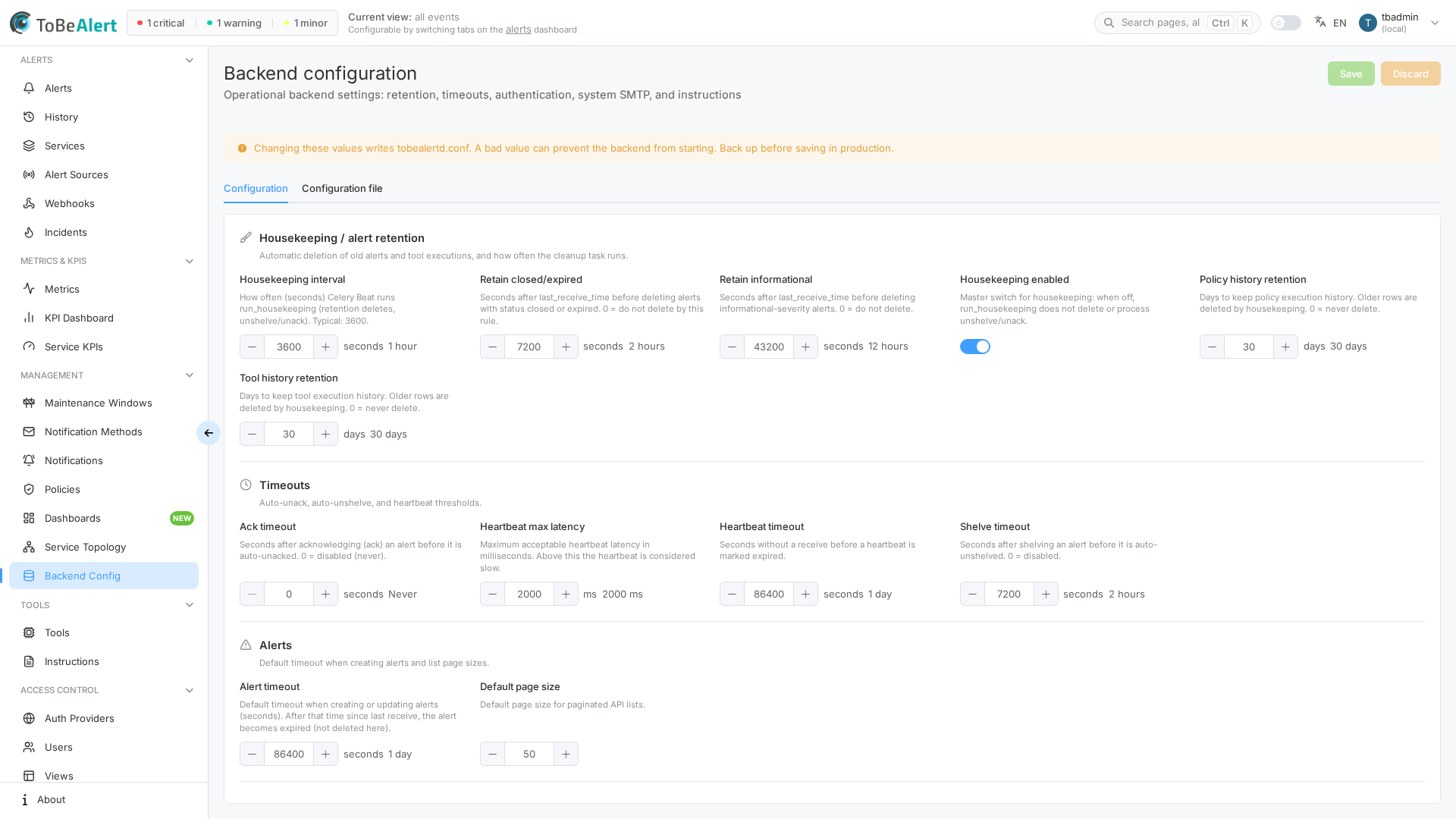
Housekeeping / alert retention
Controls the Celery run_housekeeping task: whether it runs, how often it wakes up, and which alerts it deletes.
| Field | Control | Description |
|---|---|---|
| Housekeeping enabled | Toggle | Master switch for run_housekeeping. When off: no deletes, no auto-unack, no auto-unshelve. Open alerts can still become expired via the separate expire_alerts job (~every 5 s). |
| Housekeeping interval | Number (seconds) | How often Celery Beat runs housekeeping (typical 3600). This is not the retention age — it is how often the cleaner looks. |
| Retain closed/expired | Number (seconds) | After last_receive_time, delete alerts with status closed or expired. 0 = never delete by this rule. |
| Retain informational | Number (seconds) | After last_receive_time, delete informational-severity alerts. 0 = never. |
| Tool history retention | Number (days) | Delete tool executions older than this many days. 0 = never. Also settable as env TOOL_HISTORY_RETENTION_DAYS. |
| Policy history retention | Number (days) | Delete policy executions older than this many days. 0 = never. Also settable as env POLICY_HISTORY_RETENTION_DAYS. |
| Notification history retention | Number (days) | Delete notification rule executions older than this many days. 0 = never. Also settable as env NOTIFICATION_HISTORY_RETENTION_DAYS. Default 30. |
Retention vs interval
time until delete ≈ retain seconds + (0 … housekeeping interval)
Example: retain = 60, interval = 3600 → an alert eligible after 1 minute may stay until the next hourly run (worst case ~1 hour later). For near-real-time cleanup, lower both values and restart Celery Beat after changing the interval.
Status expiry (open → expired) is controlled by Alert timeout in the Alerts category (ALERT_TIMEOUT), not by these retain fields. Full walkthrough: Settings — Alert lifecycle.
DELETE_CLOSED_AFTER, DELETE_RESOLVED_AFTER, and DELETE_CLEARED_AFTER may still appear in older tobealertd.conf files. They are not applied by the cleanup task and are not shown in this UI. Closed alerts are deleted by the same rule as expired (DELETE_EXPIRED_AFTER / Retain closed/expired).
Changing the interval or retention affects how long historical alerts remain. Plan retention to match compliance needs before lowering values. After changing the interval from the UI, restart Celery Beat if the new schedule does not take effect.
Alerts
| Field | Control | Description |
|---|---|---|
| Alert timeout | Number (seconds) | Default timeout when creating/updating alerts. After that time since last receive, the alert becomes expired (status change). Deletion is controlled by housekeeping retention — see Alert lifecycle. |
| Query limit (legacy) | Number | Exposed in config; runtime pagination uses Default page size. |
| Default page size | Number | Default number of items per page in paginated API lists |
Authentication
| Field | Control | Description |
|---|---|---|
| Auth required | Toggle | Require authentication to access the API and WebUI |
| Local login enabled | Toggle | Allow username/password login (when disabled, use LDAP/SAML or other configured providers) |
| Signup enabled | Toggle | Allow new users to register with local BasicAuth |
| Token expiry (days) | Number | Days before a session JWT expires |
| API key expiry (days) | Number | Days before an API key expires |
Disabling Auth required or Local login enabled without alternate login methods can block access. Coordinate with External auth providers configuration.
Email
App-internal mail only (signup verification, forgot password, and similar account emails). This SMTP is not used for alert notifications, notification rules, or notification methods — configure those separately. A backend restart may be needed for SMTP changes to take effect in the mailer.
| Field | Control | Description |
|---|---|---|
| Require signup verification | Toggle | Local users must confirm email before sign-in |
| Internal From address | Text | From address for verification / password-reset emails |
| SMTP host (internal mail) | Text | SMTP for app-internal mail only |
| SMTP port (internal mail) | Number | Port (for example 587) |
| STARTTLS (internal mail) | Toggle | STARTTLS on the internal SMTP |
| SSL (internal mail) | Toggle | Implicit SSL/TLS on the internal SMTP |
Database
Read-only display of database connection metadata. Fields are disabled — you cannot change them from this page.
| Field | Description |
|---|---|
| Database name | Name of the database |
| Database schema | Schema name |
| Raise on database error | Whether database errors raise exceptions |
Use Settings & environment variables for DATABASE_URL and related deployment settings.
Timeouts
| Field | Control | Description |
|---|---|---|
| Ack timeout | Number (seconds) | After ack, auto-unack after this period (0 = Never) |
| Shelve timeout | Number (seconds) | After shelve, auto-unshelve after this period (0 = disabled) |
| Heartbeat timeout | Number (seconds) | Seconds without receive before a heartbeat is marked expired |
| Heartbeat max latency | Number (milliseconds) | Maximum acceptable heartbeat latency before it is considered slow |
Shelve and acknowledge behavior is also visible on the alerts dashboard.
Notifications
| Field | Control | Description |
|---|---|---|
| Delay plugin delay | Number (minutes) | Fallback minutes before a new Open alert is stored as delayed (then open). Does not delay notification sending. |
Conf / env key: NOTIFICATION_DELAY (minutes).
Delay plugin delay is the fallback for the ingest delay plugin. It does not pause notification rules or methods. Rules still decide when to send; a delayed alert can notify on create and again when status becomes open.
The value applies only to new Open alerts that are not duplicates or correlations. If the payload includes minutesDelayed as an integer (including 0), that integer wins and this setting is ignored. Omit the field (or send null) to use the configured minutes. 0 means “do not delay”.
minutesDelayed is not stored. After ingest, check status (delayed) and delayedUntil. The UI may show minutes delayed as 0 even when the alert was delayed.
Simulate always injects a random minutesDelayed (0–60), so raising this setting will not delay those test alerts. For API payloads see Sending alerts.
Instructions
| Field | Control | Description |
|---|---|---|
| Instruction link template | Text | Template for resolving which instruction file opens when an operator clicks Instructions on an alert |
Supports `${field}` and `${attributes.key}` placeholders, for example `${resource}_${attributes.namespace}_${event}`. See Instructions from alerts for runbook paths and wiki authoring.
Save and discard
| Action | When available | Result |
|---|---|---|
| Save | After any edit | Writes changed keys to the configuration file; success toast Configuration updated successfully |
| Discard | After any edit | Restores values from the last load/save; toast Changes discarded (restored last loaded state) |
If you navigate away with unsaved edits, the product warns you before leaving.
Best practices
- Document baseline values before changing retention or timeouts in production.
- Test login and API keys after changing Authentication fields.
- Do not rely on this page for secrets — SMTP passwords and database URLs belong in env vars or the config file via installation procedures.
- Align housekeeping with audit and alert history requirements.
- Use notification methods for alert email. Tune Delay plugin delay only as a global fallback for alerts that omit
minutesDelayed— it does not hold outbound notifications.