Simulate alerts
Route: /dash — Simulate button (admin only)
Simulate sends test alerts into the system using predefined templates or custom JSON. Use it for demos, filter validation, and workflow testing without waiting for real integrations.
See also: Overview · Alert sources
| Task | Section |
|---|---|
| Open the drawer | Simulate an alert |
| Use templates | Templates |
| Send custom JSON | Custom JSON |
| Reuse saved payloads | Favorites |
The Simulate button appears only for admin users. If you do not see it, contact your administrator.
Simulate an alert
- On the dashboard (
/dash), click Simulate in the top toolbar (next to Refresh). - In the Simulate Alert drawer, choose a template from Select a template. The drawer opens on Custom JSON.
- Review the generated JSON (or edit custom JSON).
- Click Send Alert.
- Click Refresh if the new alert does not appear immediately in the active view tab.
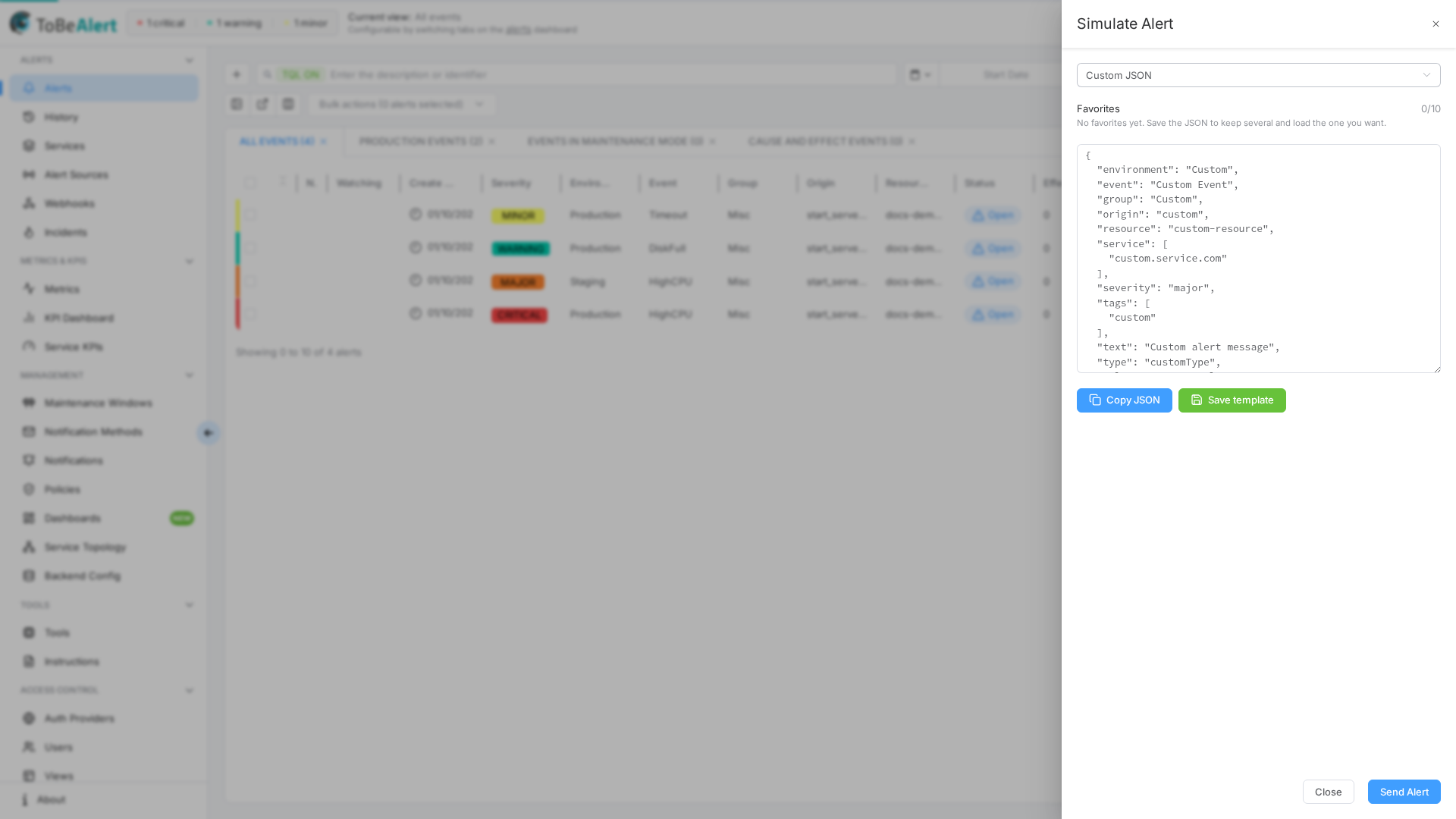
Successful submission shows a confirmation message. The alert is ingested like a normal alert (subject to views and filters).
minutesDelayedBuilt-in templates include a random integer minutesDelayed (0–60). An integer — including 0 — overrides Delay plugin delay in Backend Config. To test that setting, use Custom JSON and omit minutesDelayed (or set it to null). See Sending alerts.
Templates
Built-in templates generate realistic sample payloads:
| Template | Scenario |
|---|---|
| HTTP Error | Web server HTTP status errors |
| High CPU Usage | Infrastructure CPU threshold |
| High Memory Usage | Memory pressure |
| Disk Space Low | Low disk on a mount point |
| Failed Login | Authentication failures |
| Network Latency Alert | High latency |
| Database Connection Failure | DB connectivity |
| Unauthorized Access Attempt | Security access attempt |
| Application Error | Application exception |
| Custom JSON | Your own payload |
Template previews show randomized values (severity, resource, attributes) each time you select a template.
Copy JSON
Click Copy JSON to copy the current payload to the clipboard — useful for documentation or API testing outside the UI.
Custom JSON
- Select Custom JSON in Select a template (this is also the template selected when the drawer opens).
- Edit the textarea — must be valid JSON for a single alert object or an array of alerts.
- Optional: click Save template to keep the current JSON as a favorite on your user (see Favorites).
- Click Send Alert.
Invalid JSON shows an inline error and blocks submission.
Save template appears only for Custom JSON. The tooltip reads Save the current JSON on your user. Maximum 10. At 10 favorites the button is disabled and the tooltip reads You can save up to 10 favorite templates. A successful save shows Template saved. The default name is the payload event (trimmed to 80 characters), or Template n when there is no event.
Simulated alerts use sourceId alert-simulator by default in templates.
Favorites
Favorites sits under the template dropdown, with a counter n/10. While the list is empty, No favorites yet. Save the JSON to keep several and load the one you want.
| Action | What happens |
|---|---|
| Click a name | Loads that JSON into Custom JSON and highlights the row |
| Pencil | Rename. Placeholder Template name. An empty name is rejected (The name cannot be empty) and the previous name stays |
| Trash | Removes that favorite |
Favorites are stored on your user, so they follow you on the next sign-in. If this browser still has a custom JSON saved from an older Simulate session, opening the drawer copies it onto your user and then clears the browser copy.
Best practices
- Simulate in a non-production view when possible — avoid noise in operator dashboards.
- Match severity and environment in custom JSON to test sidebar filters and TQL.
- Save template for repeatable test cases you run often. You can keep up to 10 named favorites.
- Delete test alerts after validation using bulk Delete if policy allows.