Overview
Route: /integrations (sidebar: Management → Integrations)
An integration connects ToBeAlert to an external monitoring system with a stored credential. The integration is linked to one alert source: when you open an alert that arrived with that source, the alert details show a new Integration section with the data the external system already has about the alert. The first integration type is Checkmk, which shows the graphs of the service (or of the host) that raised the alert.
| Step | What you configure | Where | Documentation |
|---|---|---|---|
| 1 | Send alerts from the monitoring system with an alert source (for Checkmk, the notification script sets it) | The monitoring system | Checkmk notification script |
| 2 | Create the integration linked to that alert source and test the connection | Management → Integrations → /integrations | Checkmk integration |
| 3 | Open an alert of that source and read its graphs | Alerts → Dashboard → alert details, or Alerts → History → Summary tab | Alert details drawer — Integration · Per-alert timeline — Integration |
Where to find it in the UI
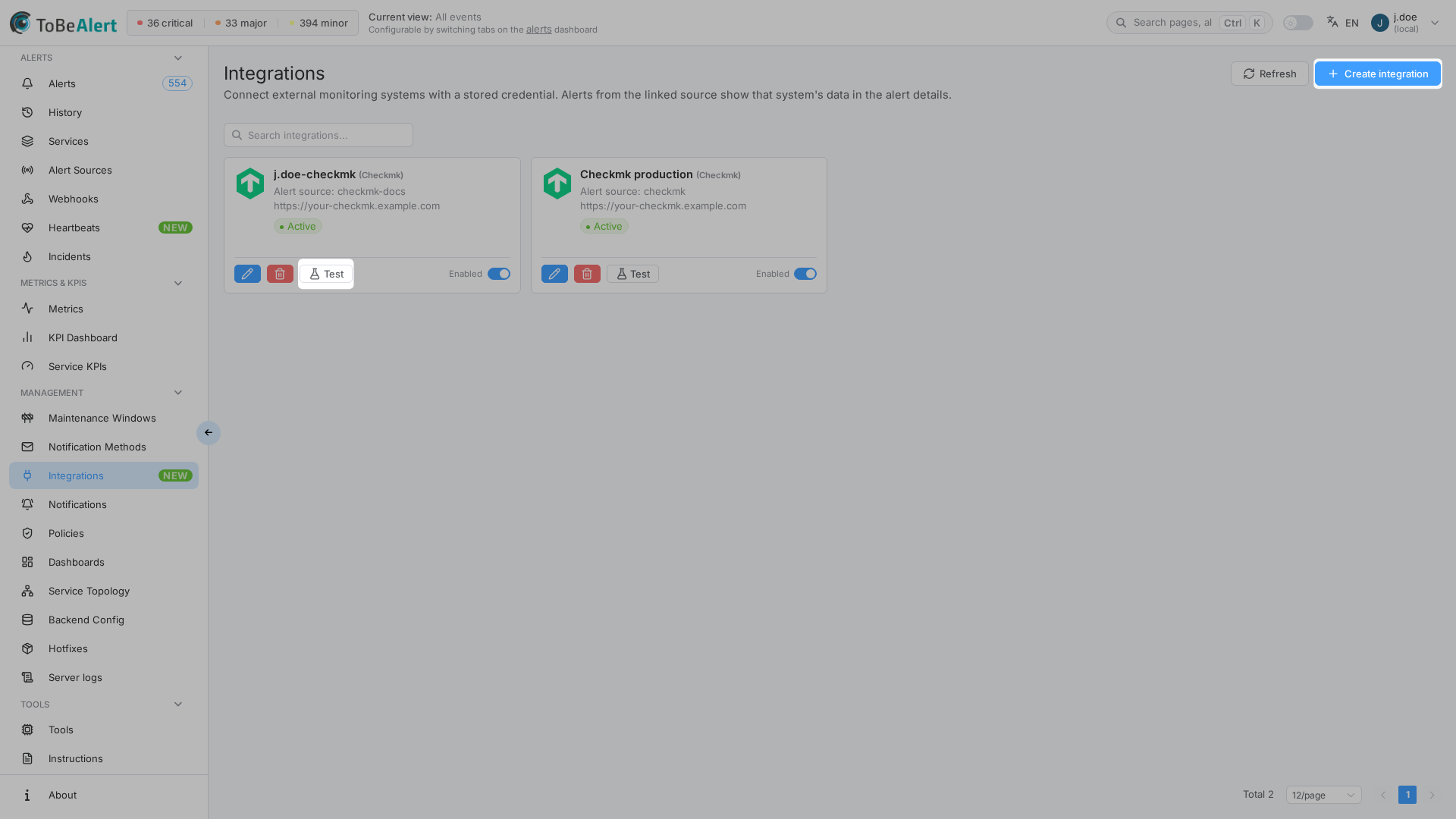
In the sidebar under Management, click Integrations (/integrations). The page lists one card per integration. Header actions:
| Button | Description |
|---|---|
| Refresh | Reload the list |
| Create integration | Open the create drawer (requires write permission) |
Use Search integrations... to filter the cards by name. Pagination (12, 24 or 48 cards per page) sits below the grid. Without any integration, a dashed card No integrations yet. Click this card to connect the first system. opens the create drawer; a read-only user sees No integrations configured. instead.
Integration cards
| Element | Description |
|---|---|
| Icon and name | Type icon, integration name and the type in parentheses, for example (Checkmk) |
| Alert source | The alert source linked to the integration. Alerts with this source use it |
| Base URL | Address of the external system |
| Active / Inactive | Whether the integration is enabled |
| No secret | No credential is stored. Edit the integration and enter the secret |
| Secret unreadable | A credential is stored but cannot be decrypted (the server secret key changed). Enter it again |
| Edit / Delete | Open the edit drawer / delete after confirmation |
| Test | Check the stored credential against the external system. The result (Connected: Checkmk 2.2.0p1.cee cee or Connection failed: …) is shown on the card |
| Enabled switch | Turn the integration on or off without deleting it. A disabled integration hides the Integration section of its alerts |
Click a card to open Edit integration.
Create an integration
- Open Management → Integrations.
- Click Create integration.
- Fill in Name, Type and Alert source, and keep Enabled on.
- Fill in the fields of the type (see Checkmk integration) and click Test connection.
- Click Create.
Common fields
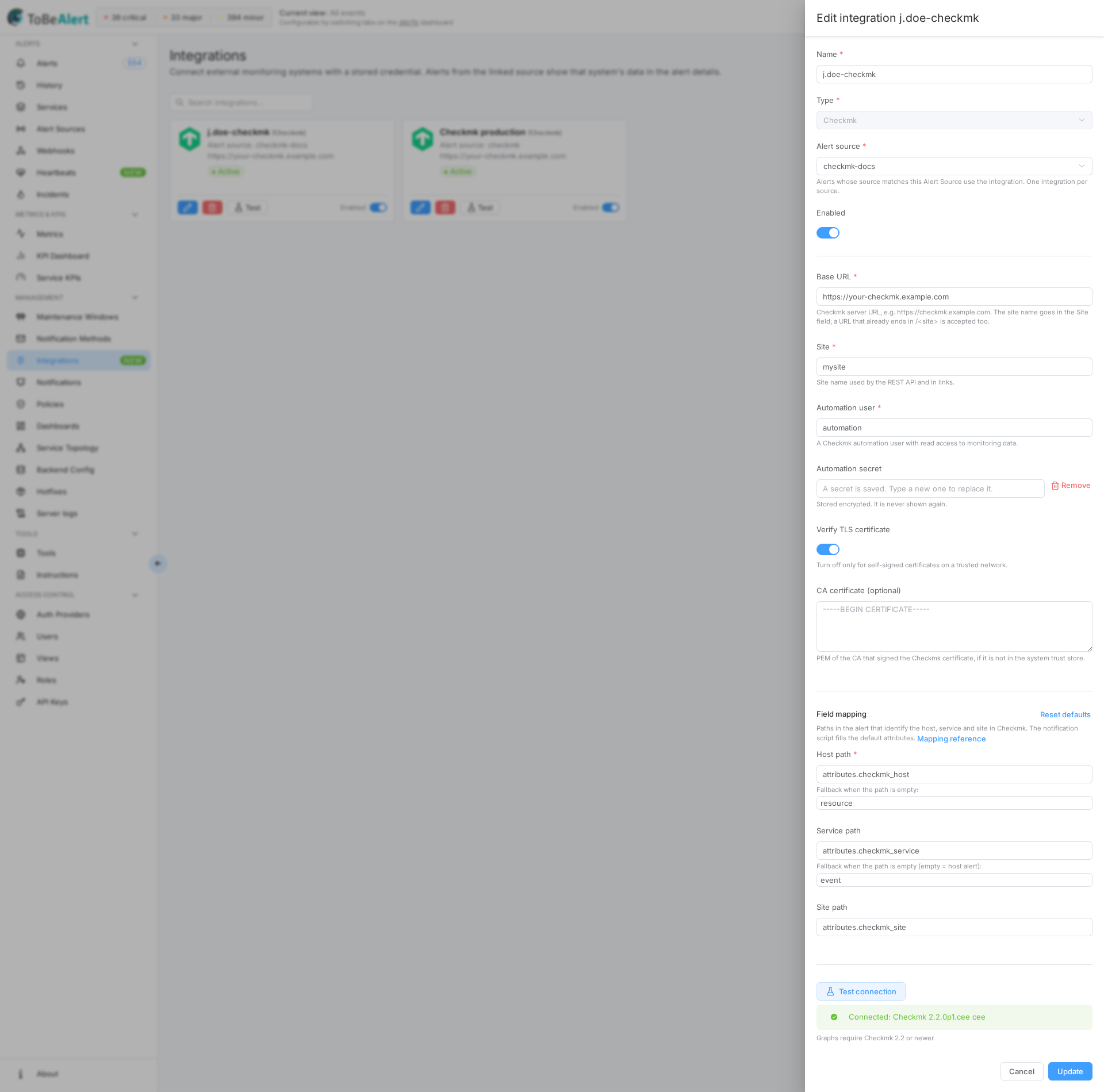
| Field | Description |
|---|---|
| Name | Required. Shown on the card and as the title of the Integration section in the alert details |
| Type | The external system. Cannot be changed once the integration is created |
| Alert source | Required. Select an existing alert source or type a new name. One integration per source: a source that is already linked to another integration is rejected (The alert source … is already linked to another integration.) |
| Enabled | Default on. Off keeps the configuration but hides the section in the alert details |
The type-specific fields (address, credential, TLS, field mapping) follow a divider. Closing the drawer with unsaved changes triggers the standard unsaved-changes prompt. Footer buttons: Cancel and Create / Update.
Alert source created on save
If you type a name that does not exist yet, the drawer shows The alert source … does not exist yet. It will be created when you save. and creates it with the icon of the type when you click Create. The name may contain only letters, numbers, - and _, and you need permission to create alert sources; otherwise create the source first in Alerts → Alert Sources.
An alert uses the integration when its source (the sourceId the sender set) equals the linked alert source. Alerts without a source, or with another source, show no Integration section. The Checkmk notification script sets the source with its Source parameter (default checkmk): that value and the alert source linked here must be the same.
Delete an integration
Click the trash control on the card and confirm. The confirmation (The integration … and its stored credential are deleted. Alerts from the source … will no longer show its data. This cannot be undone.) removes the integration and the credential; the alert source and the alerts stay.
The Integration section in the alert details and in History
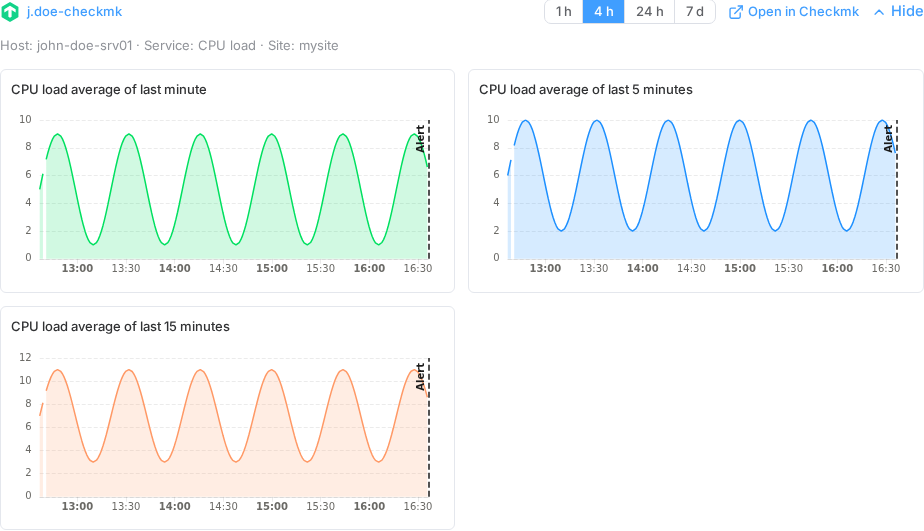
Open an alert whose source has an enabled integration: after the resource relations, the drawer shows a section titled with the integration name (icon of the type). What it contains and how the time window works is described in Alert details drawer — Integration. In short:
- 1 h / 4 h / 24 h / 7 d buttons select the window around the alert (default 4 h). The data is fetched when you open the alert and again when you change the window.
- A line Host: … · Service: … · Site: … tells which object of the external system was matched.
- Open in Checkmk opens that host or service in the external system.
- One graph per metric, with a dashed Alert mark at the time the alert was created.
- Warnings (No metrics found …, Showing the first 16 of … metrics, metrics that could not be graphed) and errors with Retry appear in the same section.
- Show / Hide collapses the section; the choice is remembered in your browser.
In History
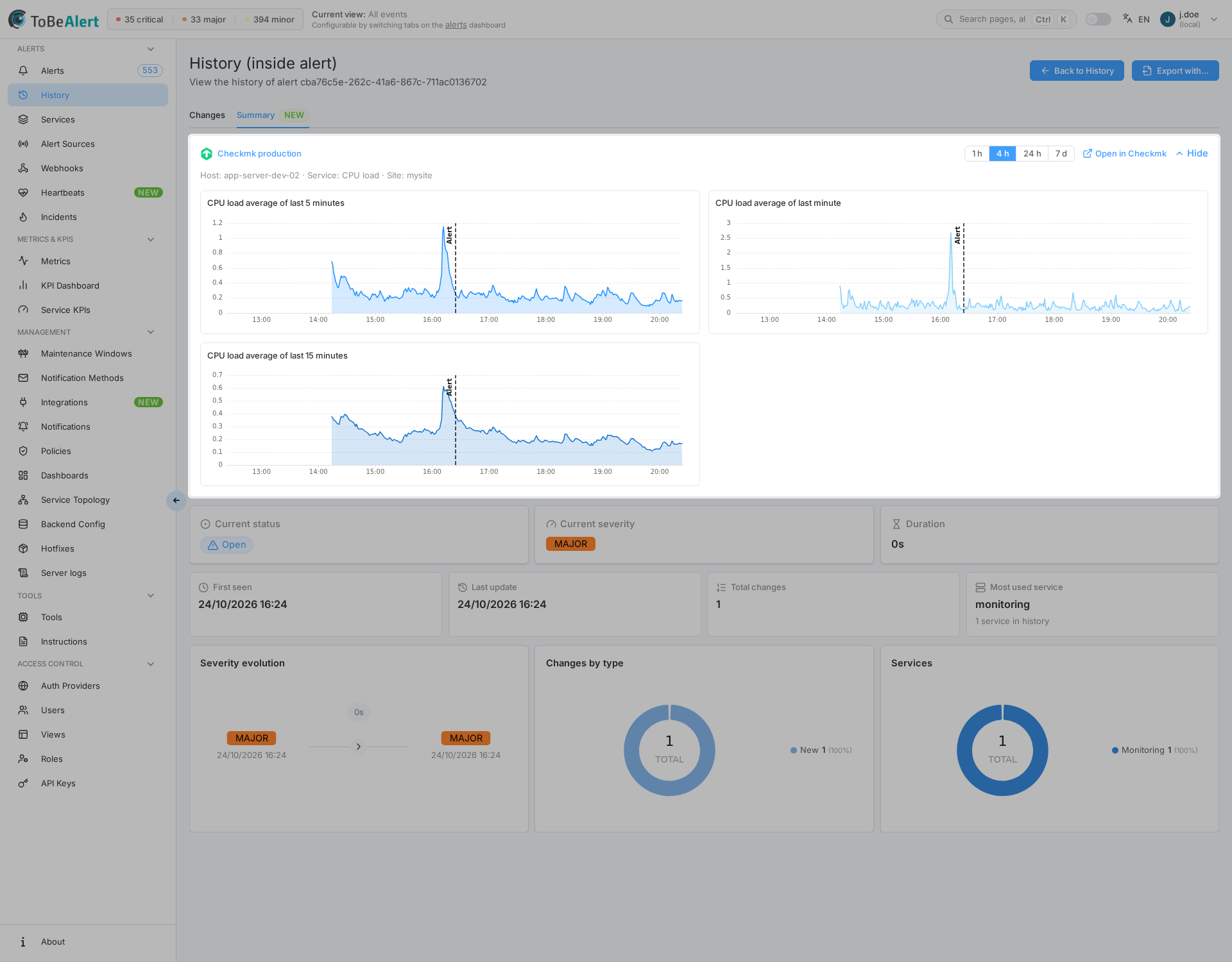
The section is also available from Alerts → History:
- The point-in-time details drawer opened from a history row shows the same section.
- The per-alert timeline (
/history/<alertId>) shows it as the first block of the Summary tab.
Both work for alerts that housekeeping has already removed from the dashboard: the graphs are taken around the alert time recorded in the history, the window is centred on the creation of the alert, and the section shows the note Graph around the alert time, from history. This lets you review what the monitoring system measured around an incident after the alert itself is gone.
Field mapping
The integration must find the host (and the service) of the alert in the external system. Each type has a Field mapping block with the paths, inside the alert, that hold those names, plus a fallback for when the path is not present:
| Mapping | Default (Checkmk) | Fallback |
|---|---|---|
| Host path | attributes.checkmk_host | resource |
| Service path | attributes.checkmk_service | event (empty = host alert) |
| Site path | attributes.checkmk_site | The Site of the integration |
Paths use dot notation over the alert as the API returns it: top-level fields (resource, event, environment) or custom attributes (attributes.name). Rules:
- If the path exists in the alert, its value is used even when it is empty: an empty service means a host alert, so host metrics are shown. This is how the Checkmk notification script marks host notifications.
- Only when the path is absent the fallback is read. The section then shows a warning such as Host taken from 'resource' because 'attributes.checkmk_host' is empty.
- If no host can be resolved, the section shows The alert does not identify a host in the external system: … and no graphs.
Reset defaults restores the defaults of the type. Alerts sent by the notification script need no change; adjust the mapping only when alerts reach ToBeAlert through another path (for example a custom webhook) with the host name in another field.
Viewing the Integrations page and the Integration section of an alert requires read:integrations; creating, editing, enabling, testing and deleting integrations require write:integrations; admin:integrations includes both. The section is shown only for alerts you can already see. If Integrations is missing from the menu, contact your administrator. See Permissions reference — Integrations.
Related modules
| Module | Relationship |
|---|---|
| Alert sources | An integration is linked to exactly one alert source |
| Checkmk notification script | Sends Checkmk notifications as alerts with the source and the attributes the mapping expects |
| Alert details drawer | Where the graphs are shown |
| Per-alert timeline | The same graphs in the Summary tab of History, also for deleted alerts |
| Integrations API | Create, test and query integrations with an API key |
Best practices
- One integration per Checkmk site. Give each site its own alert source (for example
checkmk-prod,checkmk-dc2) and set the same name in the notification rule of that site. - Test after saving. Use Test on the card after any change of address, user or secret; the stored credential is used.
- Use a dedicated automation user with read-only monitoring permissions; never an administrator account.
- Keep the default mapping when the notification script sends the alerts; change it only for alerts that arrive through another channel.
- Disable instead of delete during maintenance of the external system: the credential and the mapping are kept.