Search (TQL)
Route: /dash
The search bar above the dashboard table uses TQL (TobeQueryLanguage) exclusively — there is no plain-text toggle on this screen. Filters use column:operator:value syntax, apply as you complete each clause, and work together with sidebar filters.
Full syntax, operators, AND / OR, quoted values, and autocomplete are in TQL search and filters. This page covers dashboard-specific behavior: sharing the filtered URL, inline validation, and examples.
See also: Overview · Sidebar filters · Alert history TQL
| Task | Section |
|---|---|
| Write a filter | Example queries |
| Use autocomplete | Autocomplete |
| Read validation colors | Validation colors |
| Edit or clear filters | Edit and clear |
Example queries
Dashboard examples (see the canonical TQL reference for more):
resource:eq:test AND severity:eq:criticalresource:eq:"test"resource:eq:"test" AND (severity:eq:critical OR group:contains:test)severity:eq:criticalstatus:ne:closedenvironment:eq:Productionresource:contains:webtags:in:cpu,memoryattributes.owner:eq:team-avalue:gt:97·attributes.usage:gte:80— compare the number inside a text value; see Numeric comparisons on text valuesopenFor:gt:1d·silentFor:gte:2h·createTime:lt:now-1d— age and relative dates, evaluated when the query runs; see Relative timeisCause:eq:true·isEffect:eq:true·suppressed:eq:false·effectCount:gt:0— see Cause and effect alerts
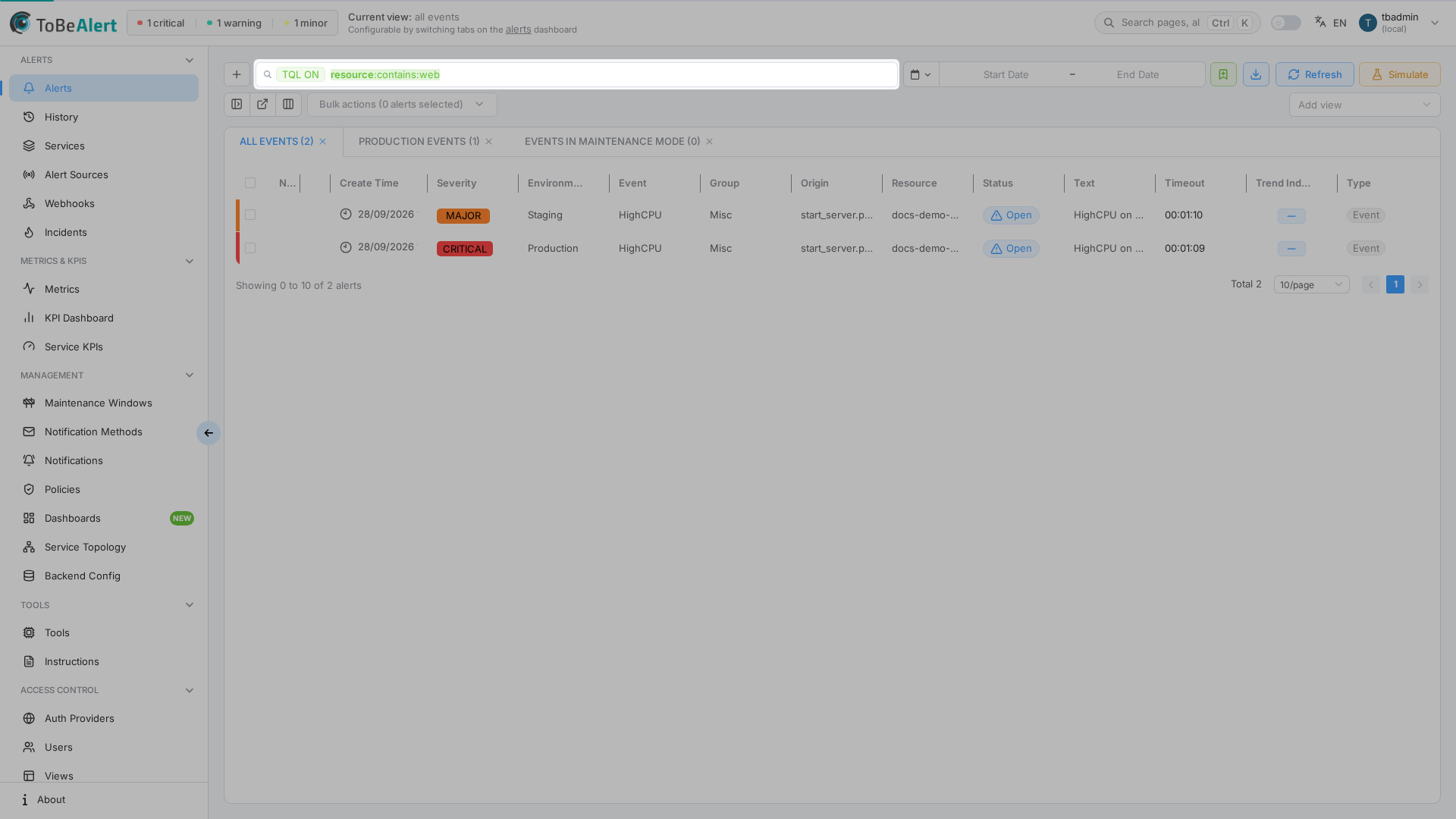
Active TQL is stored in the URL (q parameter) so you can share or browser-bookmark the address — for example /dash?q=resource%3Acontains%3Aweb. To keep several named filter sets in the product, use bookmarks.
Autocomplete
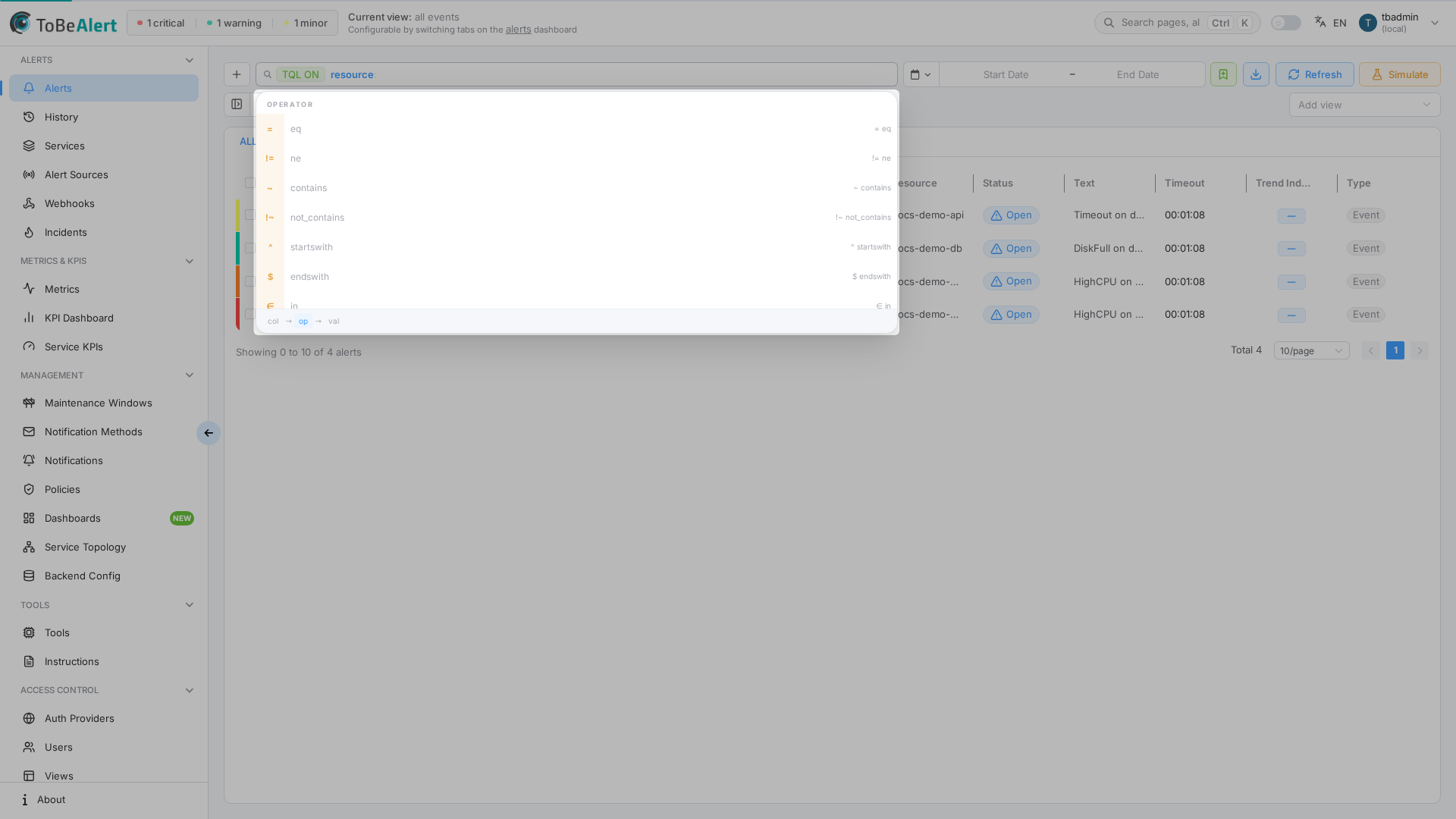
Follow the shared autocomplete steps in the search field. The dashboard suggests filterable alert columns (most fields except internal-only identifiers).
Validation colors
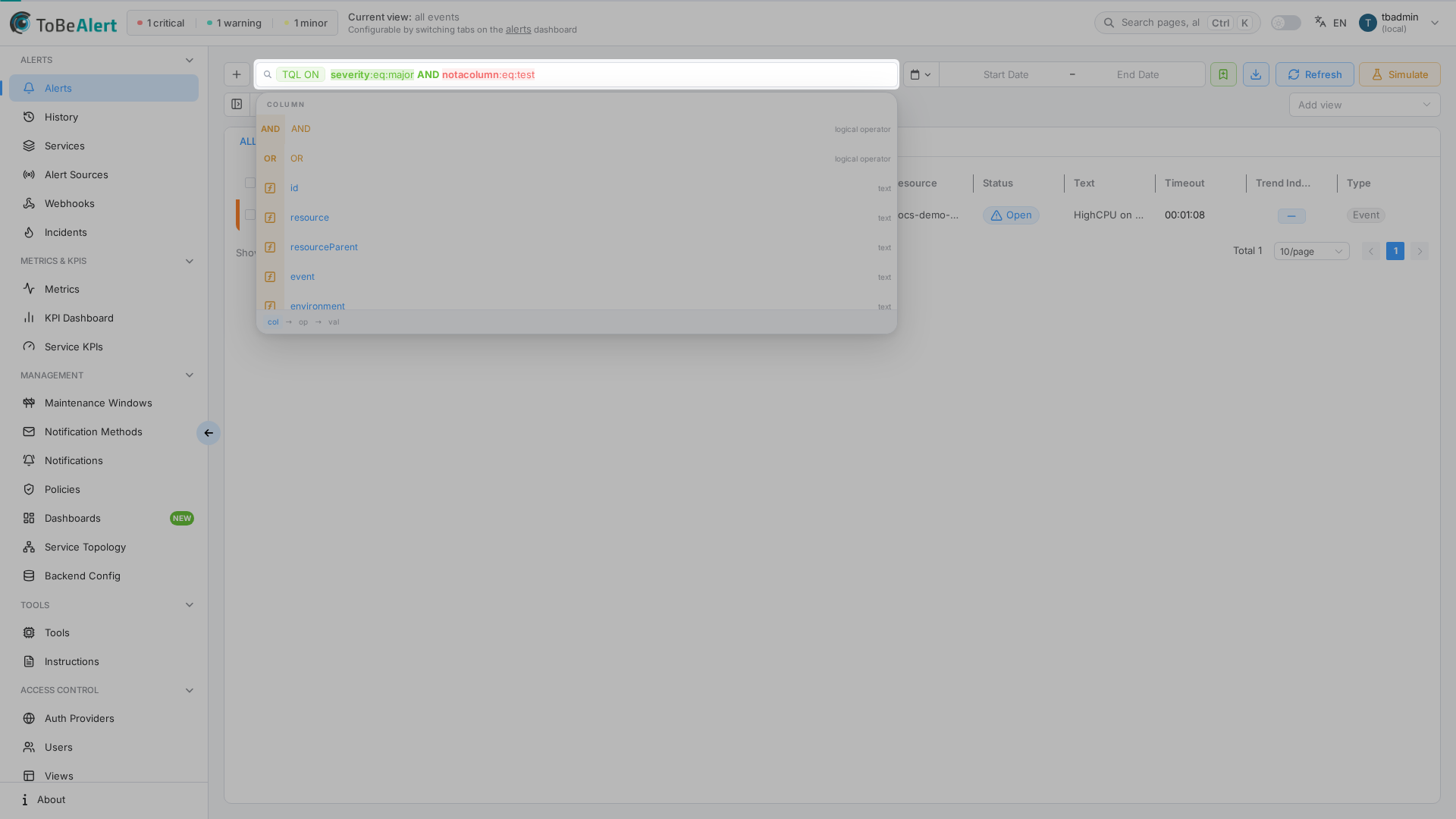
Each complete clause is highlighted inline in the search bar:
| Appearance | Meaning |
|---|---|
| Success (green background) | Valid clause — included in the query sent to the table |
| Danger (red background) | Invalid column, operator, or value — clause is not applied |
Edit and clear
- Edit — click the search field and change the text directly; validation updates as you type.
- Remove a clause — delete that part of the query (or remove the whole bar contents).
- Reset everything — when the table is empty because of filters, click Reset all filters, or clear sidebar categories in Sidebar filters.
From the details drawer, clicking a field, attribute, or tag appends the equivalent TQL filter and returns you to the dashboard.
Best practices
- Start with autocomplete — fewer syntax errors than typing full expressions.
- Bookmark filtered views — copy the URL after applying TQL for shift-specific links.
- Combine with sidebar filters for quick severity/status toggles plus precise TQL (for example
resource:regex:^prod-.*). - Use the same syntax on History — see Alert history tracking.