Sidebar filters
Route: /dash
The filter sidebar on the left of the dashboard narrows alerts within the active view tab. Use category checkboxes, a time range, and custom filters — separate from Access Control views, which define which alerts you may see at all.
See also: Overview · Search (TQL) · View tabs · Views
| Task | Section |
|---|---|
| Show or hide the sidebar | Show and hide filters |
| Filter by category | Category filters |
| Limit by time | Time range |
| Build a custom filter | Add custom filter |
| Persist your filter set | Save current filters |
| Save a named set you can switch to | Bookmarks |
Show and hide filters
- On the table toolbar, click the panel icon (Show filters / Hide filters) to expand or collapse the sidebar.
- When hidden, the table uses the full width; filter state is kept.
- Expanded/collapsed state is remembered in your browser (local storage).
Category filters
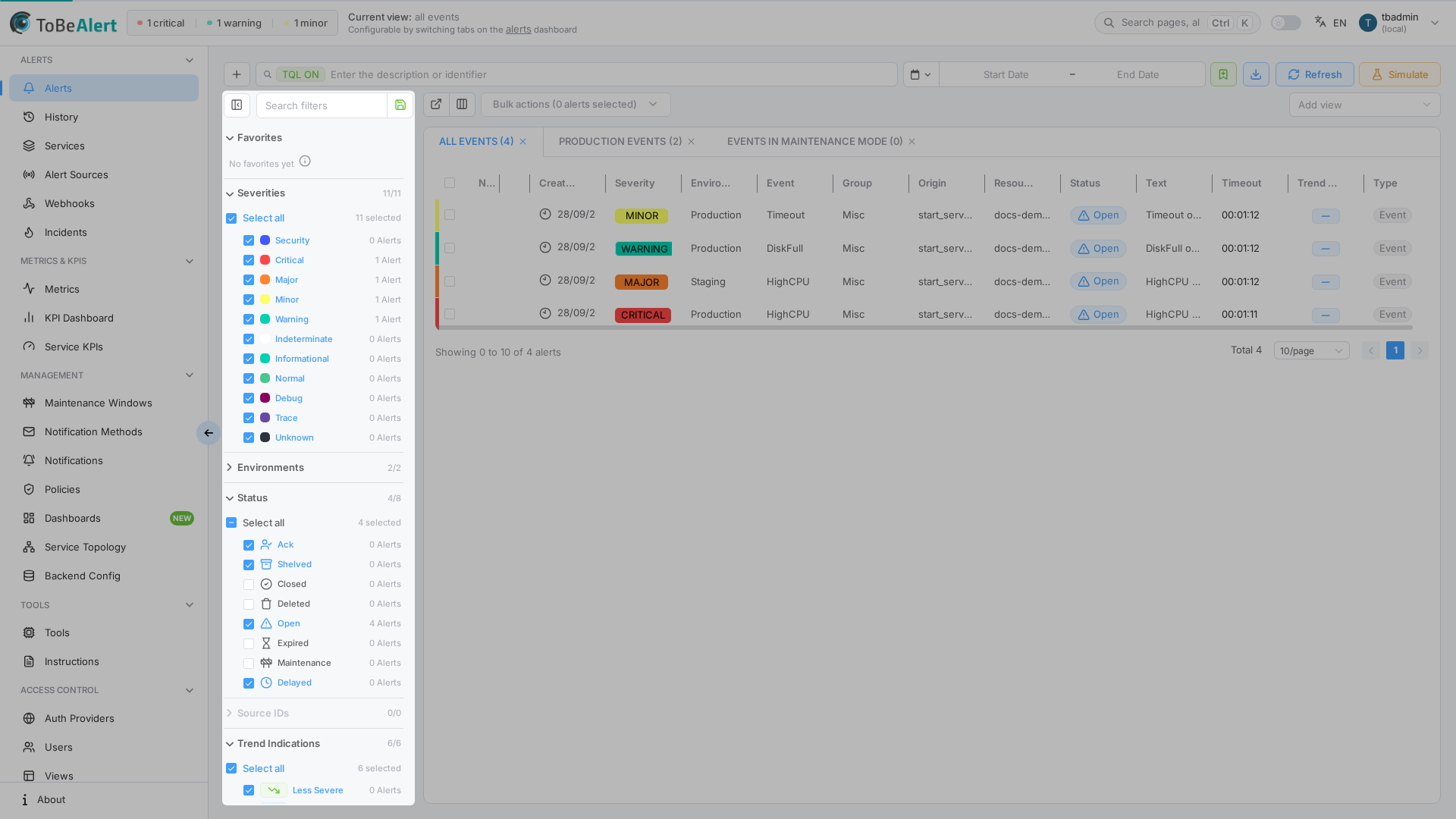
Each collapsible section lists values with checkboxes and counts (when data is available):
| Category | Purpose |
|---|---|
| Severity | Include or exclude severity levels |
| Environment | Limit to deployment environments |
| Status | Filter by alert status (Open, Acknowledged, Shelved, Closed, Maintenance, …) |
| Source | Filter by alert source |
| Trend indication | More severe, less severe, flapping, stabilized, unknown, … |
Use Select all at the top of each section to include or exclude every value in that group. The selection count shows how many values remain included.
By default, some status filters exclude Closed (and related). To review alerts affected by maintenance windows, include Maintenance in the Status category.
Time range
- In the top toolbar, click the calendar icon (shows a dash – when unset).
- In the popover, choose either:
- Quick select — a Last / number / unit combo (Minutes, Hours, Days, Weeks, Months, Years) plus common presets (Today, Last 5 minutes, Last hour, Last 7 days, …), then click Apply, or
- A custom date range using the Start Date / End Date fields.
- Use Copy / Paste on the date range to move ranges between sessions.
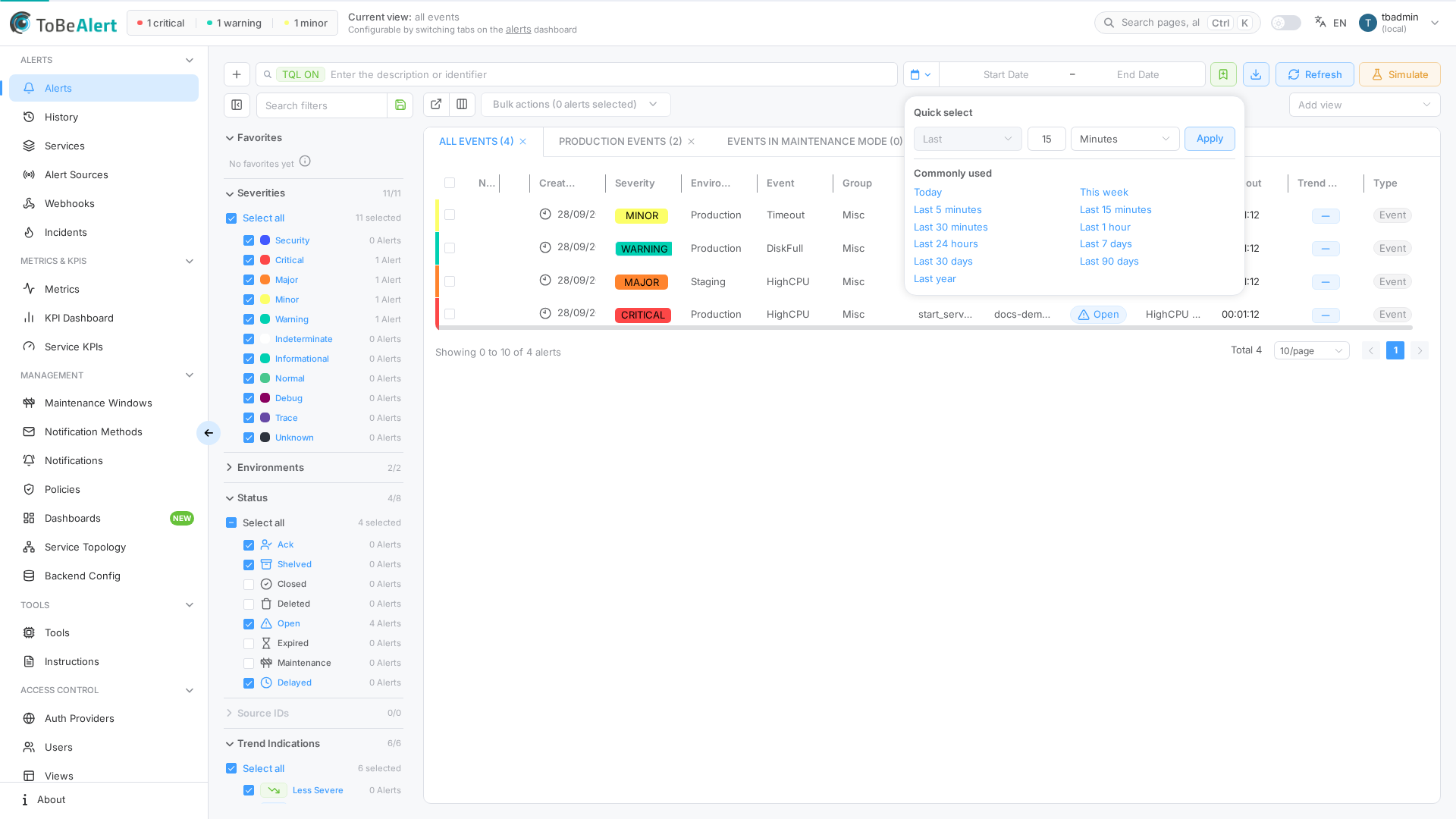
Time filtering applies to alert update time and uses UTC.
Add custom filter
Build a filter without typing TQL:
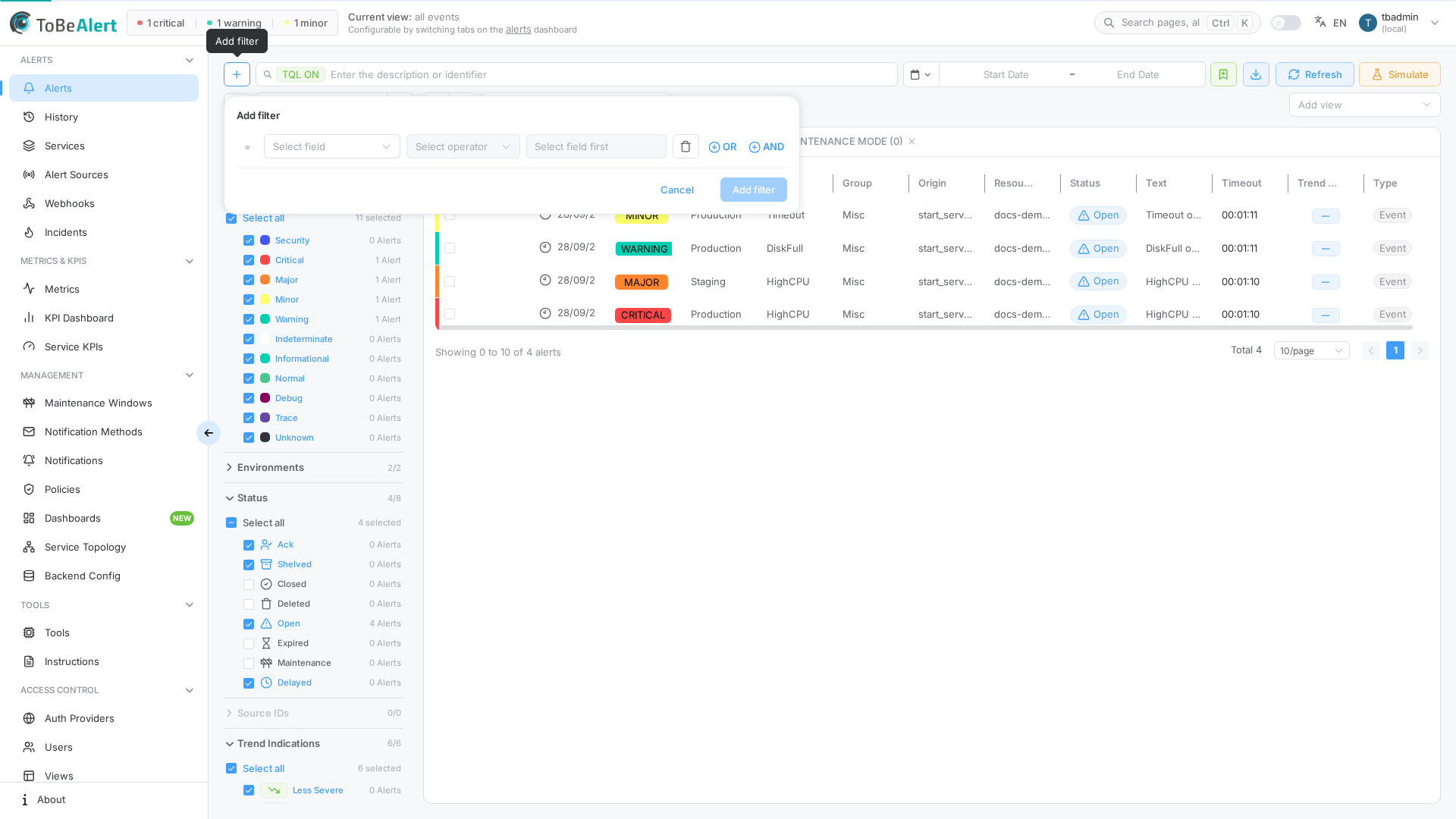
- In the top toolbar, click Add filter (plus icon).
- In the popover, choose Field, Operator, and Value for each clause (combine with AND / OR when needed).
- For attributes, enter the attribute key and value separately.
- Click Add filter — the clause is added as a TQL tag in the search bar.
Common operators
| Operator | Meaning | Example |
|---|---|---|
eq | Equals | severity:eq:critical |
ne | Not equals | status:ne:closed |
contains | Contains text | resource:contains:web |
not_contains | Does not contain | resource:not_contains:test |
in | In list | type:in:A,B,C |
gt / lte | Greater / less or equal | duplicateCount:gt:5 |
Available operators depend on the column type.
Save current filters
- Configure category checkboxes, time range, and any custom filters.
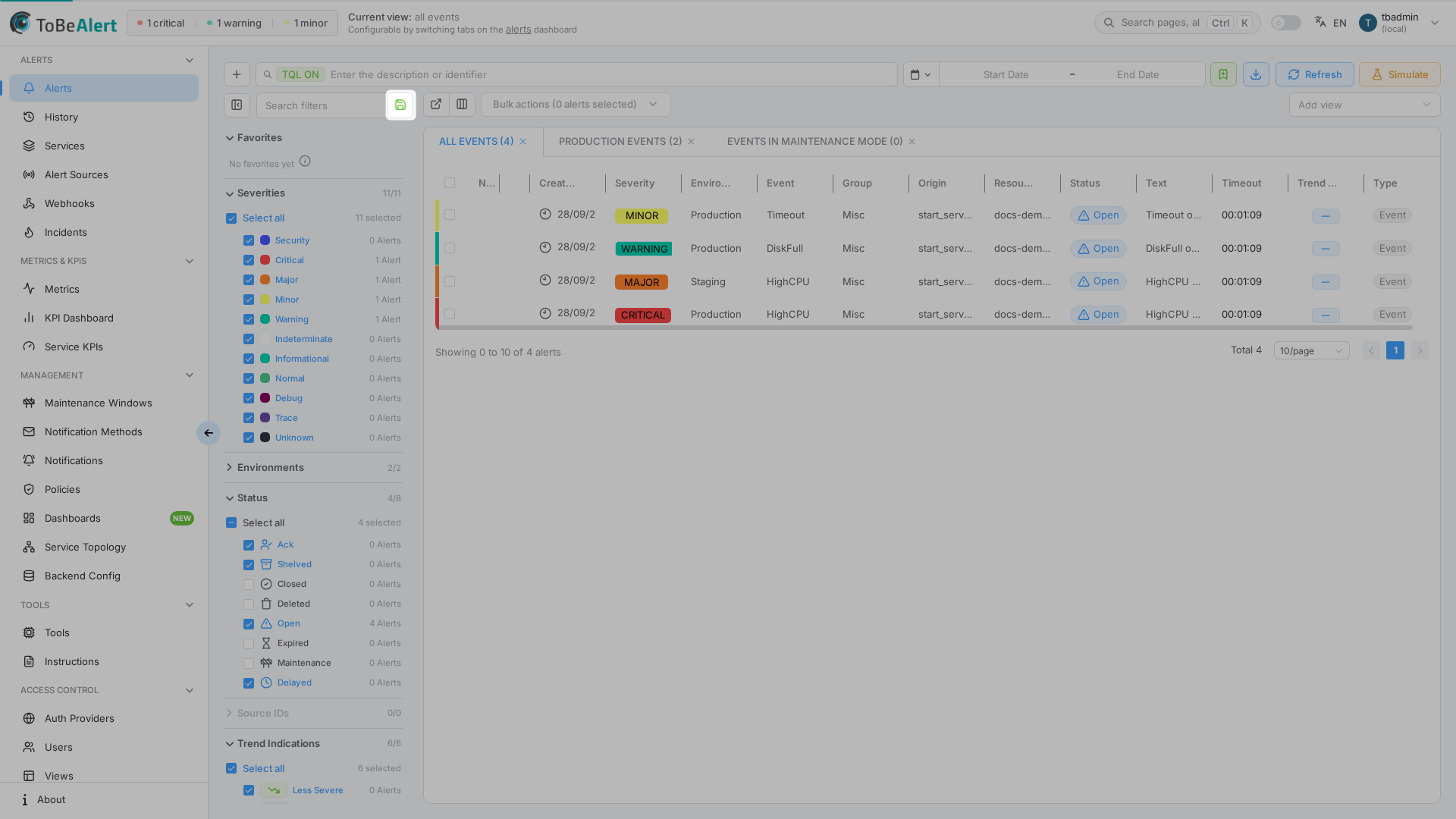
- Click Save as default filters (disk icon) in the sidebar.
- Your filter set is stored as the default for future dashboard visits.
Load precedence
On page load, filters are applied in this order:
- URL — if the address contains a
filtersquery parameter, it wins. - Saved defaults — filters you saved with Save current filters.
- Built-in defaults — for example excluding certain statuses until you change them.
Sidebar filters combine with TQL tags in the search bar — both apply together.
Bookmarks
A bookmark stores a named copy of the filters you are using now: sidebar categories, time range, and the TQL query. You can keep several and switch between them. This is separate from Save as default filters, which stores one set that loads on later visits.
Bookmarks are saved for your user. The dashboard and alert history keep separate lists.
Save a bookmark
- Set the filters you want (sidebar, time range, and TQL).
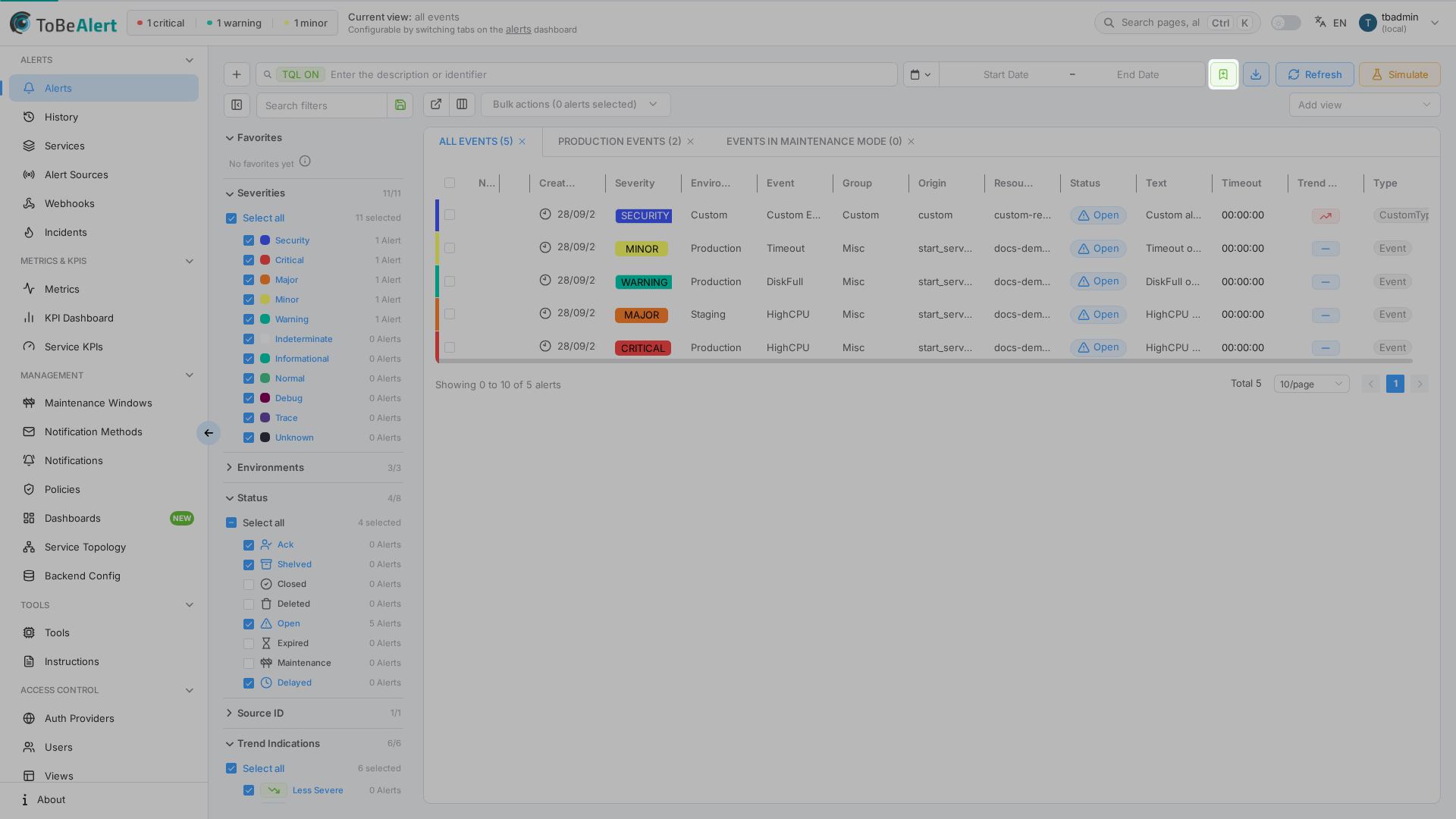
- In the top toolbar, click the bookmark icon (Save current filters). It sits between the time range and Export.
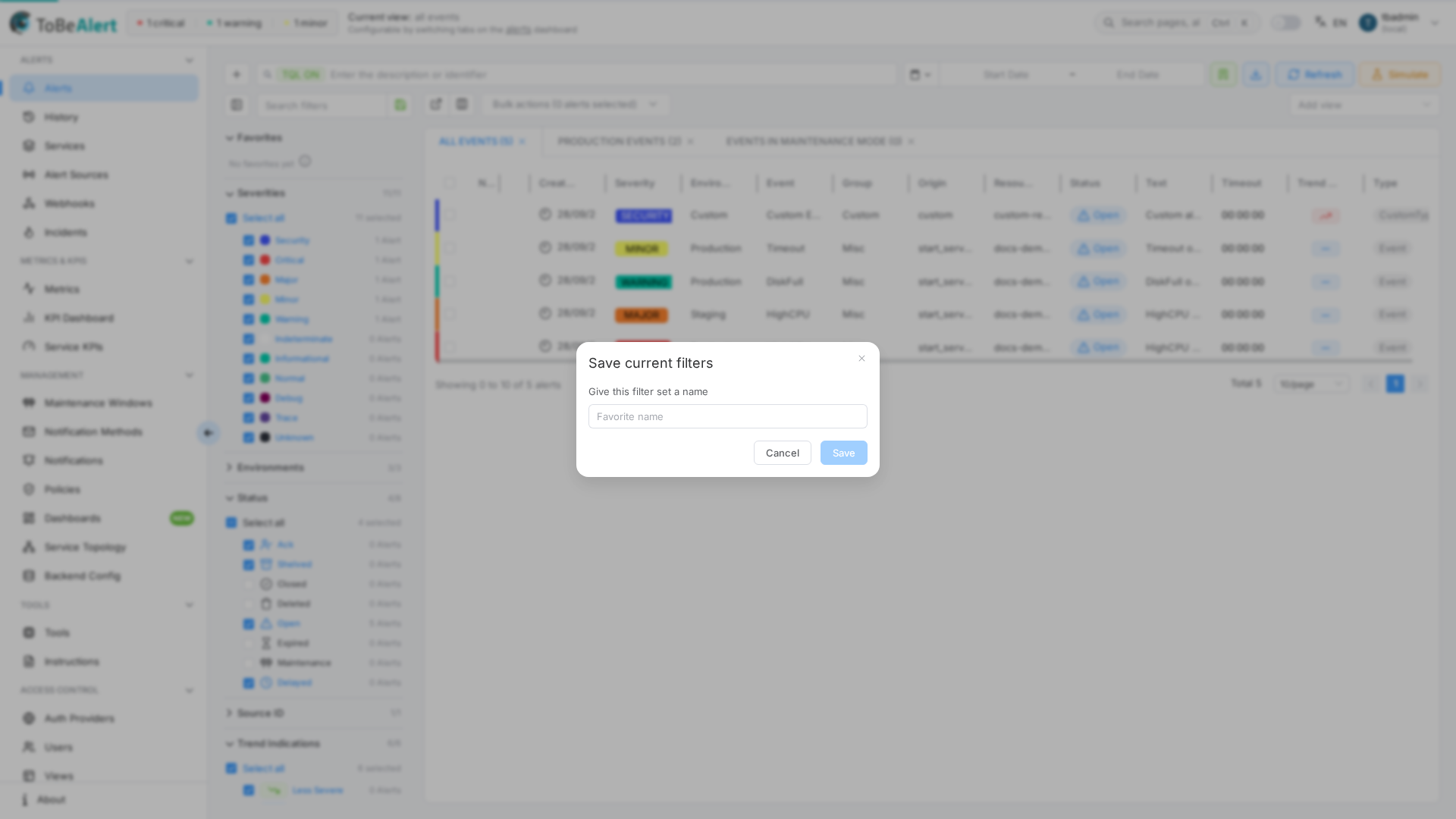
- In the Save current filters dialog, enter a Favorite name.
- Click Save.
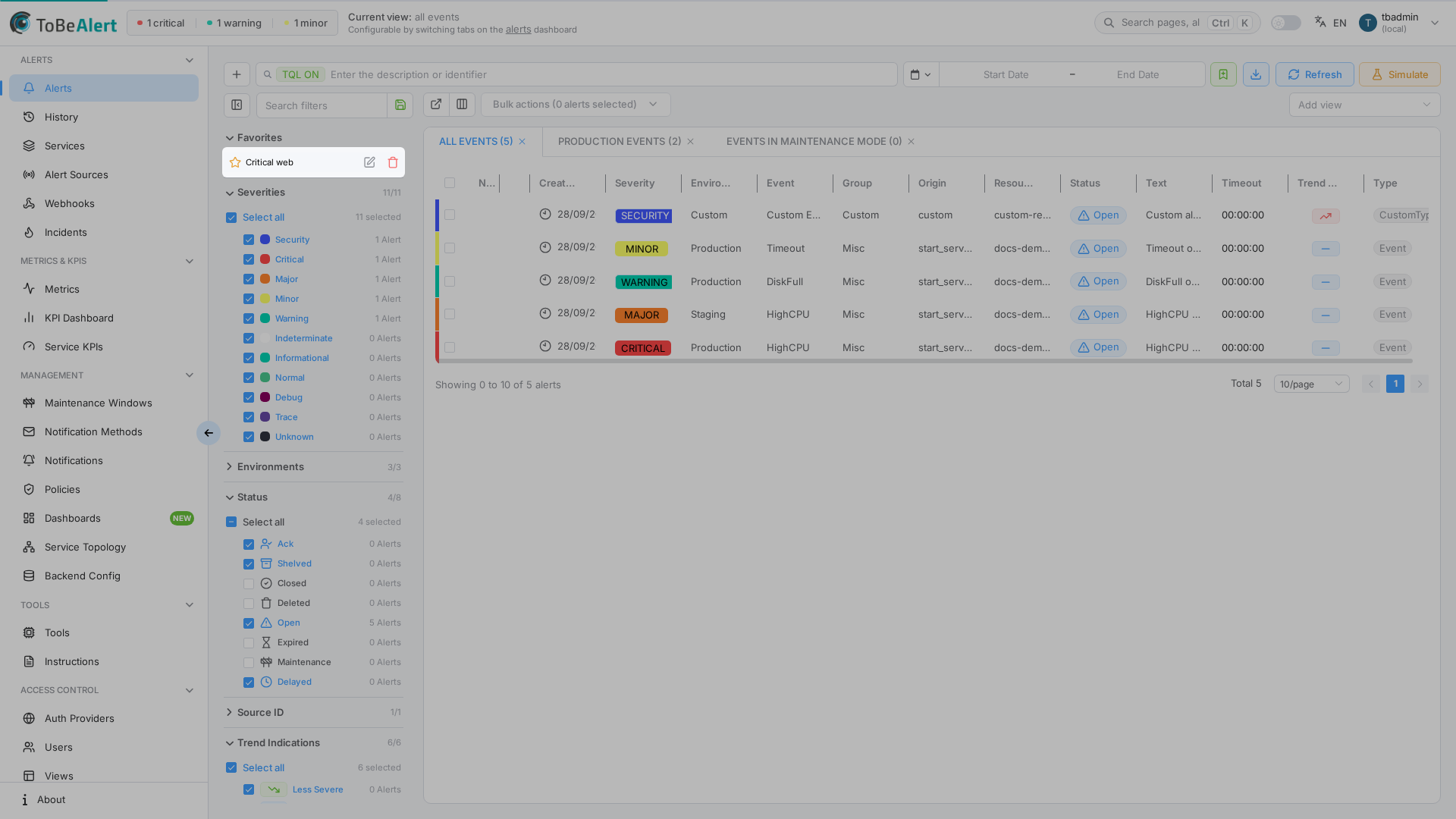
The bookmark appears under Favorites at the top of the filter sidebar. While the list is empty, No favorites yet points you to that toolbar button.
Apply, rename, or delete
- Apply — click the bookmark name. The star highlights when the current filters match that bookmark.
- Rename — Edit opens Edit bookmark. Saved filters stay the same; only the name changes. Enter New name and click Save.
- Delete — the trash icon opens Confirm bookmark delete. Delete removes that bookmark. This cannot be undone.
Bookmarks are not applied when you open the dashboard. On load, filter precedence still uses the URL, then saved defaults, then built-in defaults. Click a bookmark when you want that set.
Best practices
- Save defaults once you know which statuses and severities you always want hidden.
- Use time range for shift handoffs — last 8 hours or a custom range for incident review.
- Add custom filters from the top toolbar when operators prefer forms over TQL syntax.
- Bookmark sets you reuse (for example a shift view). Keep Save as default filters for the set that should load on every visit.
- Share a one-off view with the page URL. Query parameters such as
qcan be stored in a browser bookmark. That is not the same as a Favorites bookmark.