Alerts table
Route: /dash · /dash/external
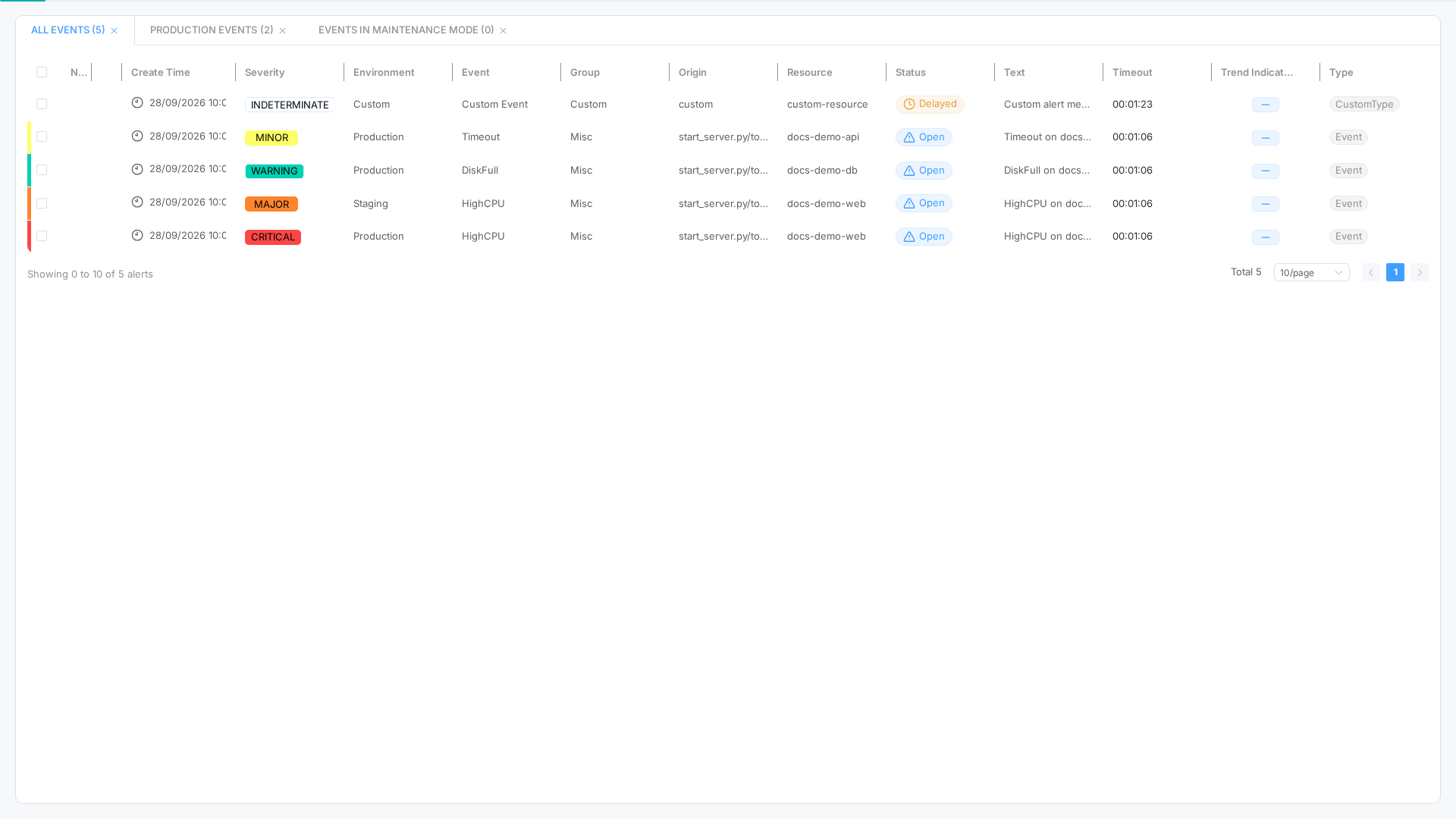
The alert table is the core of the dashboard: sortable columns, row selection, a notes indicator, a watch eye beside it, cause/effect grouping, pagination, and toolbar controls for filters, columns, and external view.
See also: Overview · List tables and bulk actions · Bulk actions and context menu · Alert details drawer · Cause and effect alerts
| Task | Section |
|---|---|
| Interact with rows | Row interactions |
| See who is watching | Watch eye |
| Read grouped effects | Cause and effect grouping |
| Understand columns | Table columns |
| Manage visible columns | Column manager |
| Paginate results | Pagination |
| Use toolbar buttons | Table toolbar |
| Open external view | External and compressed view |
Row interactions
| Action | Result |
|---|---|
| Single click | Selects the row (for bulk actions) |
| Ctrl+click | Toggles row selection (multi-select) |
| Shift+click | Selects a range of rows |
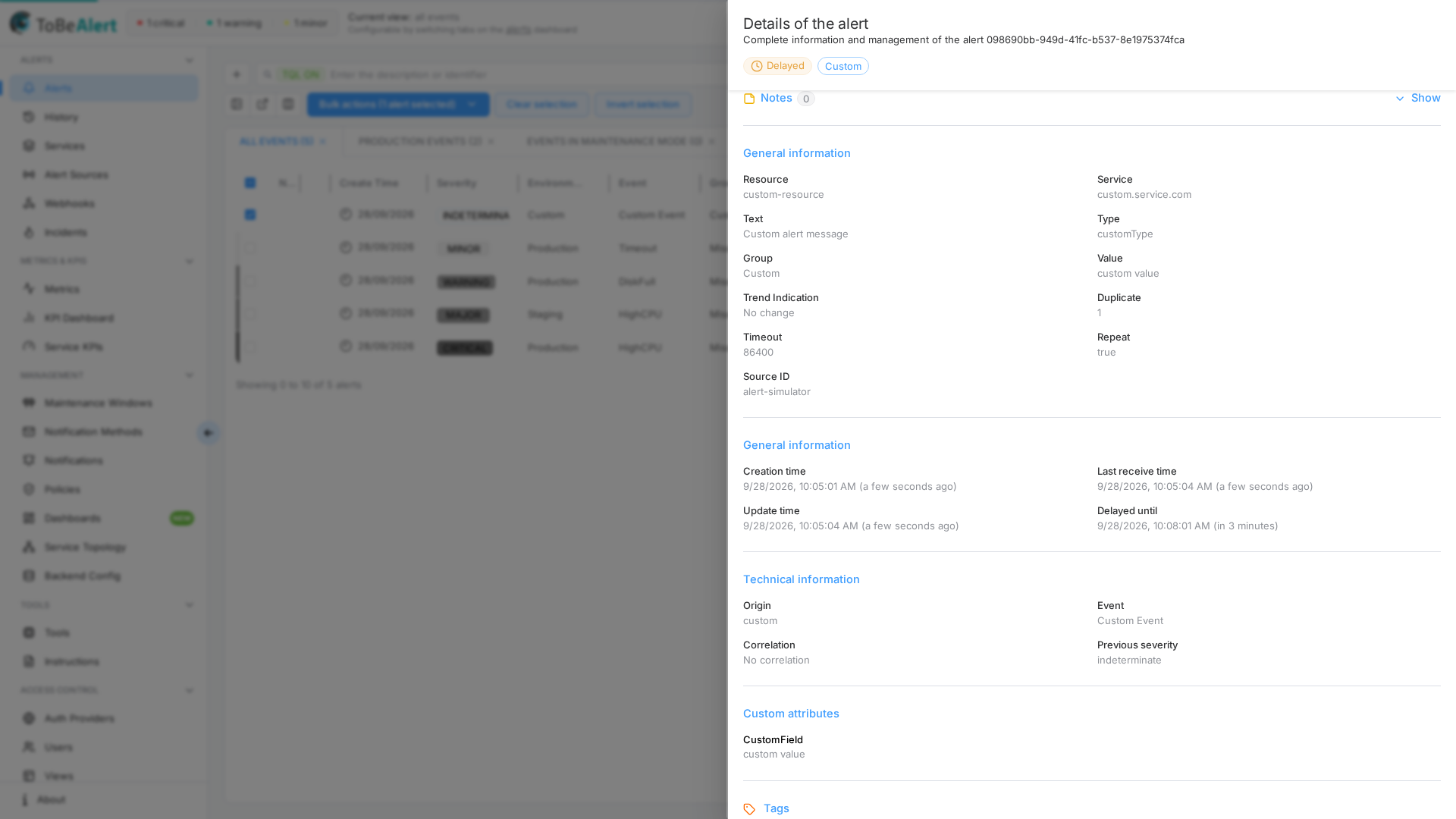
| Double-click | Opens the alert details drawer |
| Right-click | Opens the context menu |
Row background color follows severity. Newly arrived alerts may blink briefly after refresh. When an alert is on watch, an eye icon appears beside the notes indicator — see Watch eye.
Table columns
Default columns include (among others):
| Column | Description |
|---|---|
| Severity | Current severity (required column) |
| Status | Open, Acknowledged, Shelved, Closed, … |
| Environment | Deployment environment |
| Resource | Affected component — click to open details |
| Event | Event type |
| Service | Related services (array) |
| Tags | Alert tags |
| Last Update | Last modification time (default sort, descending) |
| Timeout | Countdown until auto-resolve (when set) |
| Trend indication | Icon for more/less severe, flapping, stabilized |
| Source | Alert source icon |
| Effects | Number of alerts linked to this one as effects — see Cause and effect alerts |
Optional columns for cause/effect work, available from Column manager: Cause (ID of the cause alert), Suppressed, Is effect, and Is cause. Their TQL names are in Cause and effect alerts — Columns and TQL.
Date columns respect your date/time format and optional relative dates from Settings. Severity and Status render as tags; Tags and Service as tag lists.
Notes column
A sticky-note icon appears in the Note column when an alert has notes. If there are no notes, the cell stays empty — no icon and no empty gesture.
- Hover the icon or its cell: the tooltip invites you to click to see N notes (N is the real count). It does not show note content yet.
- Click: the same tooltip or popover shows short excerpts of the notes and the date of each note. A note shows (edited) when its update time is more than one second after its create time — the same mark as in the details drawer.
Add and manage full notes in the alert details drawer.
Watch eye
An eye icon sits in the Watching column (beside Note by default) when an alert is on watch. Everyone who can see the alert sees it. You can drag Watching and Note to another position like any other column; the eye is not a TQL field.
Hover the eye to see that the alert is on watch and the login of the person watching it. Only one person watches an alert at a time (their login, for example j.fraile).
Put on watch and Remove from watch are on the context menu and in Bulk actions. Putting an alert on watch saves that login on the alert. Removing watch asks you to confirm, then clears it. If severity changes, browser notifications go only to that person.
Cause and effect grouping
When alerts are linked as cause and effects (see Cause and effect alerts), the table groups them:
- A fixed, untitled expand/collapse column sits right after the checkbox. Its header control expands or collapses every group on the page (Expand all effects / Collapse all effects); a cause row shows a chevron with the number of hidden or shown effects; an effect row shows a ↳ arrow whose tooltip reads Effect of <id> — click the ID to open the cause.
- Suppressed effects are listed directly under their cause whatever column you sort by, and are dimmed until you hover or select them. Groups are collapsed by default and the state is remembered.
- An effect that is no longer suppressed is sorted like any other row. A group can continue on the next page when the page size cuts it.
Empty states
- No alerts in view — message when the view has zero alerts.
- All filtered out — message with Reset all filters when filters exclude every row.
Column manager
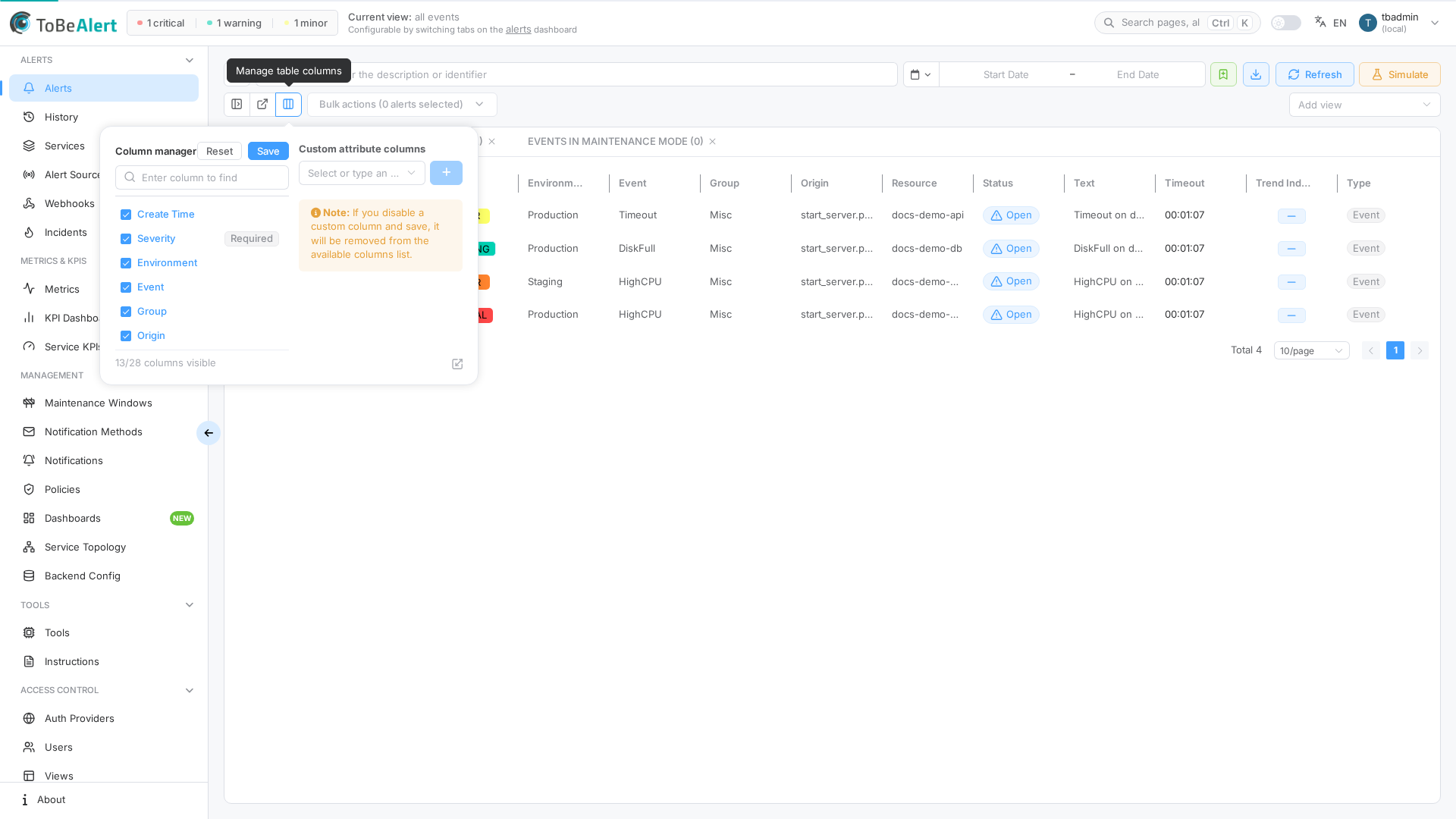
Open Column manager (columns icon) on the table toolbar to show, hide, or reorder columns. For shared table behavior (sorting, pagination, row selection), see List tables and bulk actions.
On the dashboard, click Save in the column manager drawer to persist visible columns.
On the alerts dashboard you can also reorder visible columns from the table header: hover a column header and drag the grip handle (to the left of the sort control). The checkbox, the expand/collapse column, and the actions column stay put. Note and Watching move like any other column. Custom attributes.* columns move with the rest. The order is the same list as Column manager and is saved as soon as you drop the column, so it is still there if you leave the dashboard and come back without a full reload. Clicking the sort caret still sorts the table; dragging the handle does not.
Custom attribute columns
In Column manager, scroll to Custom attribute columns:
- Select or type an attribute name from existing alerts.
- Click + to add a column — shown with a star icon and the attribute key.
- Save the column layout.
Disabling and saving removes a custom attribute column from the available list.
Column widths
Drag a column header border to resize. Double-click the same border to autofit the column to the visible content (header text and rendered cells, including chips and badges); this also works on the last column and on tables with many columns. Hover a header to read its full name in a tooltip when the column is too narrow to show it. Unsaved width changes from either gesture trigger the Changes detected banner on the view tabs — click Save changes to persist widths.
Severity and Last Update cannot be hidden.
Pagination
Below the table, use Rows per page and page controls — see List tables and bulk actions — Table layout. Click the page-size chip to open Settings (Alerts section). The current page is stored in the URL (page query parameter).
Table toolbar
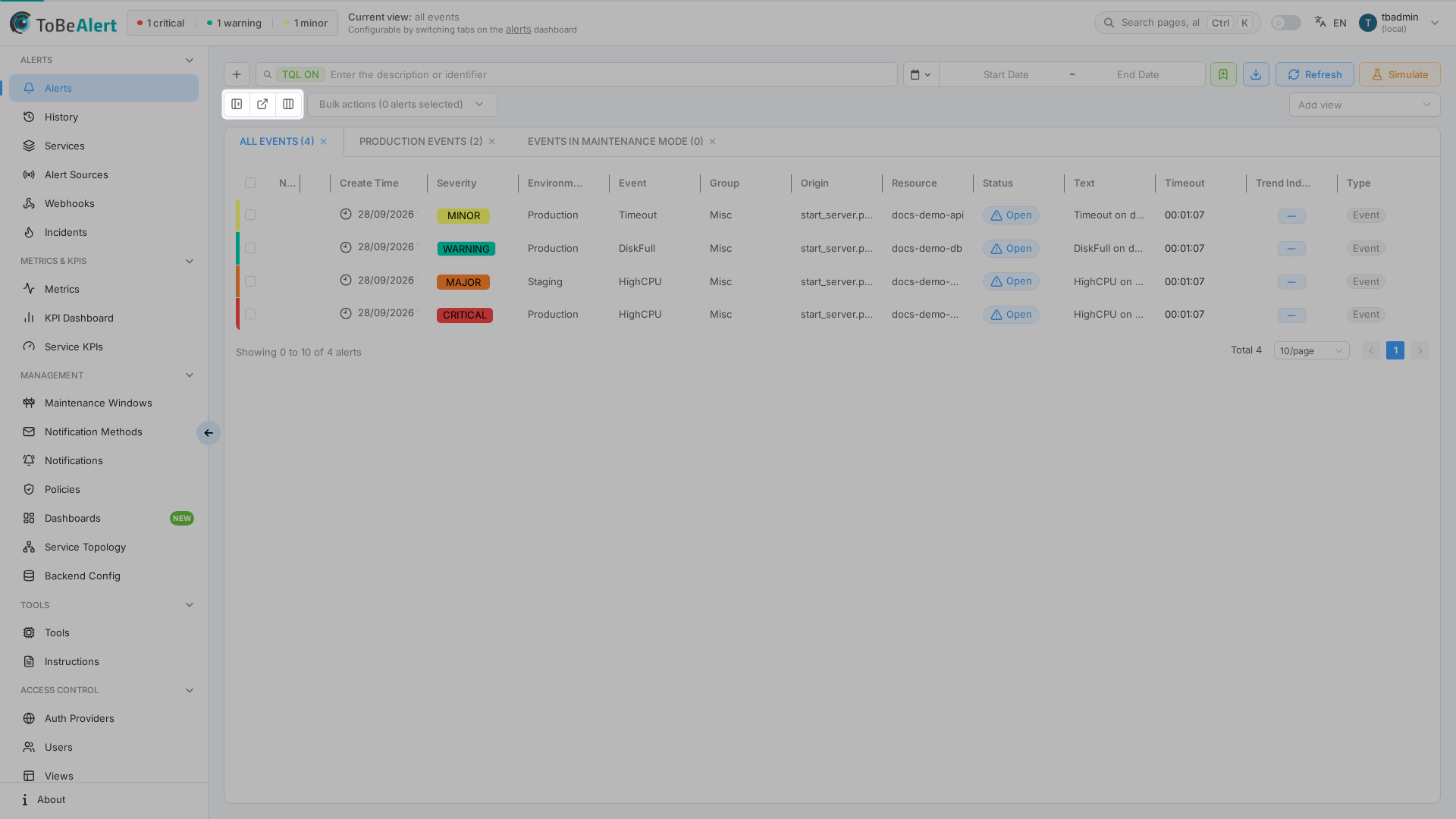
| Button | Description |
|---|---|
| Show filters / Hide filters | Toggles the sidebar filter panel |
| Open in external view | Opens /dash/external in a new window (full screen, no app chrome) |
| Column manager | Configure visible columns and custom attributes |
When rows are selected, Bulk actions, Clear selection, and Invert selection appear — see Bulk actions and context menu.
External and compressed view
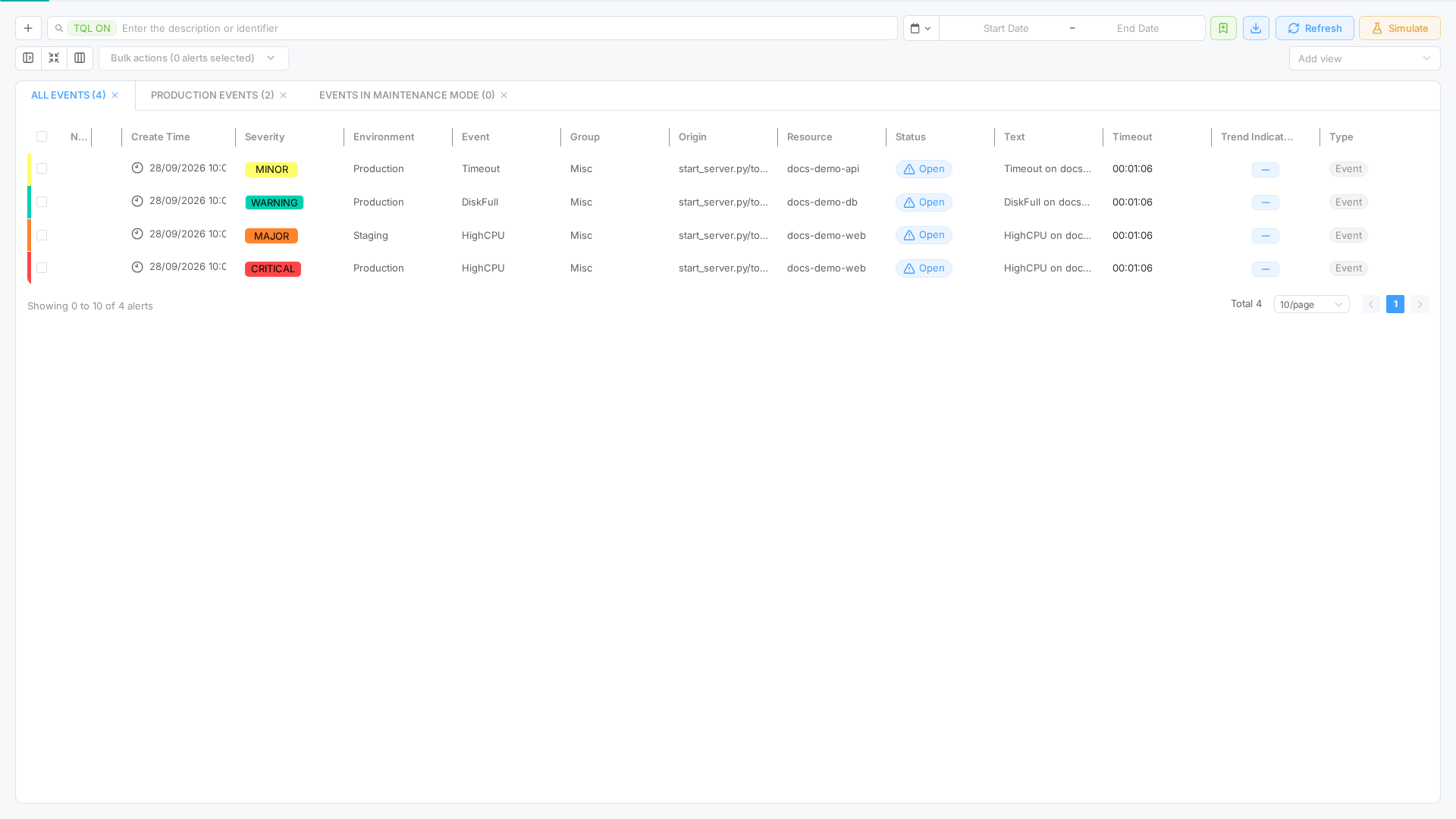
External view (/dash/external) is optimized for videowalls and second monitors:
- Hides the main app sidebar and top navigation
- Keeps the same view tab, filters, columns, and data as when you launched it
Compress view
On external view only, click Compress view to hide the TQL search bar and table toolbar, leaving maximum space for alert rows. Click again (Expand view) to restore controls.
Top toolbar (dashboard header)
Above the tab area (hidden in compressed external view):
| Control | Description |
|---|---|
| TQL search | See Search (TQL) |
| Save current filters (bookmark icon) | Saves the current sidebar filters, time range, and TQL as a named bookmark under Favorites. See Bookmarks |
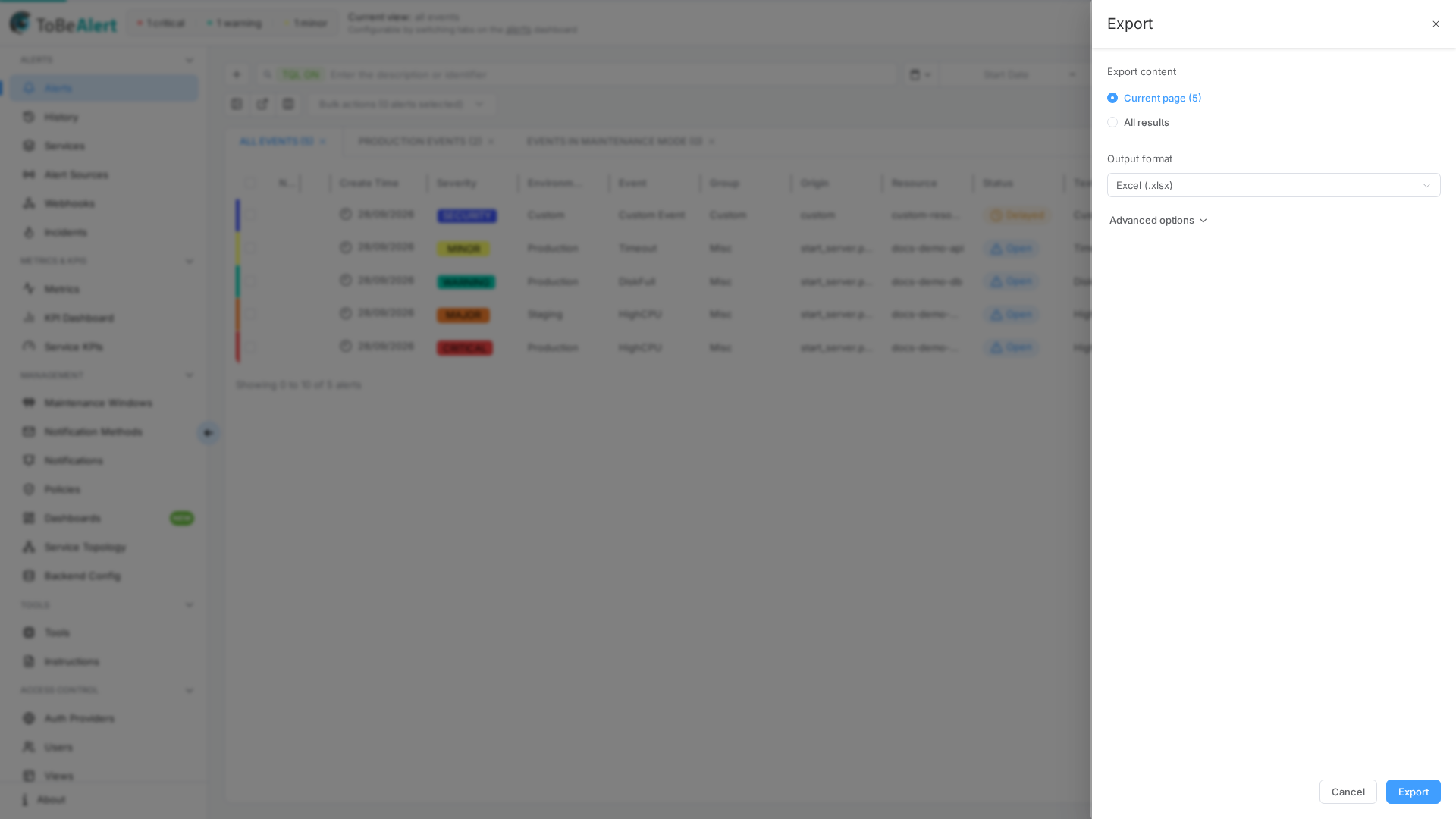
| Export (download icon) | Opens an Export drawer with Current page vs All results, an Output format choice, and Advanced options to pick which columns to include |
| Refresh | Reload alerts immediately |
| Simulate | Admin only — see Simulate alerts |
A thin progress bar at the top of the page indicates time until the next automatic refresh.
Best practices
- Resize and save columns for your role — operators often widen Resource and Text.
- Use custom attribute columns for fields your team checks on every alert (for example
attributes.team). - Open external view on a wall monitor; use Compress view when only the table should be visible.
- Double-click for details; use single-click + bulk actions when working many rows.